Analytics variables
Analytics variables store values that any flow in Analytics can read and write. Use them for values that several flows share, such as a temperature threshold, an asset name, or a lookup table of fault codes. A variable can also store a value that changes while a flow runs, such as a part count or the current batch ID.
Variables are available across all Analytics workspaces. You can create them on the Variables page or from a script processor.
View and manage variables
The Variables page lists all variables with their name, data type, and current value. Click a column header to sort by that column. To filter the list, click Table filters, then search by name, select a data type, or search by value.
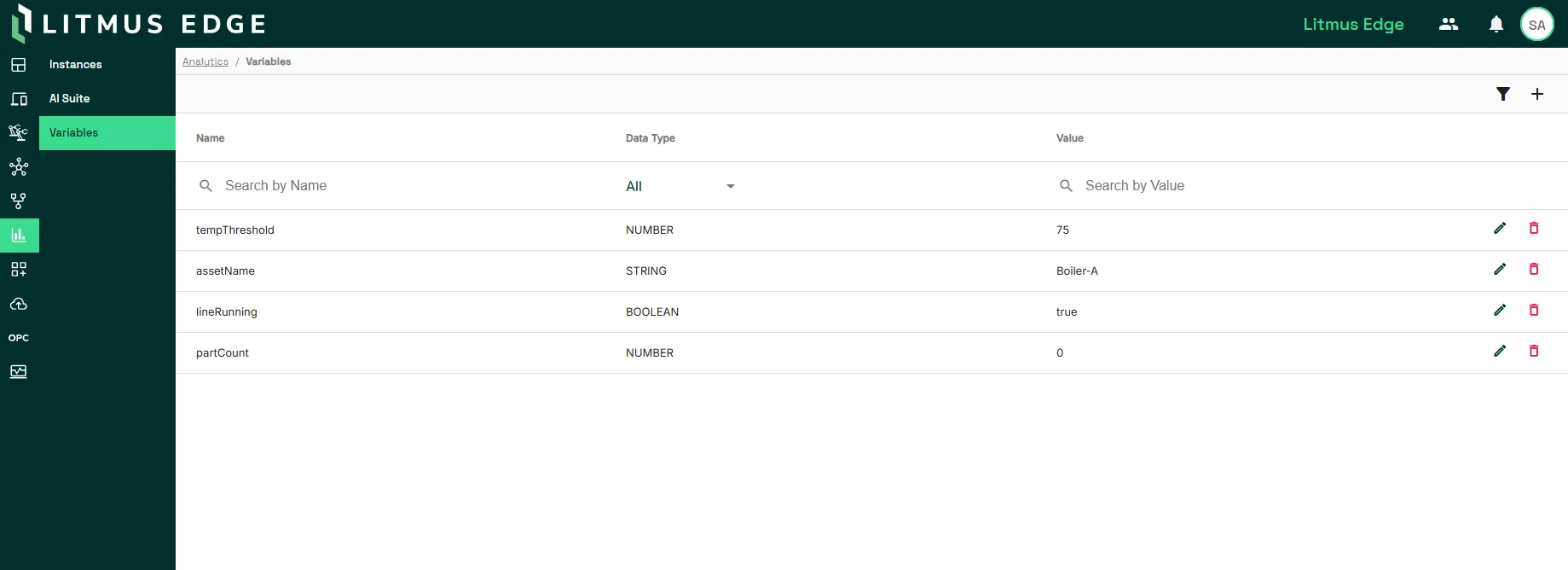
From the Variables page, you can add a variable, edit the value of an existing variable, and delete a variable. You can't change a variable's name after you create it.
To add a variable:
- Navigate to Analytics > Variables.
- Click Add Variable.
- Enter a name, select a data type, and enter a value.
- Click Save Row.
Note: The Variables pane on the Instances canvas shows the same list. The pane is read-only, so you can't add, edit, or delete variables from it.
Names and data types
Every variable has a name, a data type, and a value. The following rules define what each can contain.
- Name: Letters (a-z, A-Z), numbers (0-9), hyphens (-), and underscores (_). Names are case sensitive and can't contain spaces.
- Data type: STRING, NUMBER, JSON, ARRAY, or BOOLEAN.
- Value: Must match the data type. NUMBER accepts digits and a decimal point. BOOLEAN accepts 0, 1, true, or false. JSON accepts a valid JSON object. ARRAY accepts a valid JSON array, such as ["High temp", "Low lubricant"]. The maximum size is 1 MB.
Use variables in scripts
The JavaScript processor and the Tengo script processor each provide two functions for working with variables:
- Read a variable: Returns the value of the variable.
- Write a variable: Sets the value of the variable. If the variable doesn't exist, the function creates it. The value can be a string, number, Boolean, object, or array.
The functions work the same way in both processors, but they are called differently.
JavaScript processor:
- variableGet(name)
- variableSet(name, value)
Tengo script processor: Add the globals. prefix.
- globals.variableGet(name)
- globals.variableSet(name, value)
Variables you create with a script appear on the Variables page.
JavaScript processor example:
variableSet("tempThreshold", 75);

const limit = variableGet("tempThreshold");
result.overLimit = values[inputProcessors()[0]].value > limit;
Tengo script processor example:
globals.variableSet("lineStatus", true)

status := globals.variableGet("lineStatus")
Read and write nested JSON values
For JSON variables, use dot notation or brackets in the name to reach a nested value.
Given a variable named line1 with this value:
{
  "power": { "asset": "P1" },
  "temperature": 101,
  "alarms": ["High temp", "Low lubricant", "Material shortage"]
}- variableGet("line1.temperature") returns 101.
- variableGet("line1.power['asset']") returns "P1".
- variableGet("line1.alarms[2]") returns "Material shortage".
- variableSet("line1.temperature", 500) changes temperature to 500.
If the top-level variable doesn't exist, variableSet("data.temperature", 101) creates a JSON variable named data with the value {"temperature": 101}. If you read a key that doesn't exist in an existing JSON variable, the function returns an empty value.
If you use a nested path on a variable that isn't JSON, the processor reports JavaScript execution error: ReferenceError: variable is not an JSON object.
Persistence and templates
Variables retain their values through reboots and updates until you change or delete them. Exporting an Analytics template also exports all variables. Uploading a template that contains variables adds them to the instance.