Analytics
An analytics flow is a series of connected processors that processes and analyzes data at the edge. The Analytics module enables you to create and manage analytics flows, run machine learning models, and connect generative AI providers.
Core Components
Processors
A flow consists of a series of connected processors and requires at least one processor of each of the following types:
- Input: Retrieves data from a DataHub topic, database, or generator. Available types include Database Batch Input, DataHub Subscribe, Generator, and Inject. See Input Processors for details.
- Function: Processes input data using built-in KPIs or statistical functions. Some function processors support multiple simultaneous inputs. See Key Performance Indicators and Statistical Functions for details.
- Output: Writes function results to a DataHub topic, database, file, or console. Available types include DataHub Publish, Database Output, File Write, and StdOut. See Output Processors for details.
Connections
Processors connect using one of the following connection types:
- Events (individual data source): Used for input/function and function/output connections. The receiving processor reacts to each individual data value immediately.
- Values (combined data sources): Used only for input/function connections. The function processor waits for values from all connected input sources before reacting. For example, if a function processor compares values from input processors A and B, it waits for a value from both before performing the comparison.
You can build a flow manually by adding and connecting processors, or use Add Flow to be guided through processor selection in the Create Flow dialog, with connections added automatically. See Create an Analytics Flow and Add Processors and Processor Connections for details. Analytics flows can be imported and exported as JSON files.
Machine Learning Models
Analytics supports TensorFlow saved models for prediction, classification, and anomaly detection. Models must be in SavedModel format and compressed as a ZIP file before upload. A saved model contains a complete TensorFlow program, including weights and computation.
Two processor types work with ML models:
- TensorFlow Processor: Feeds time-series data to a saved model.
- TensorFlow Images Processor: Feeds image data to a saved model.
See Machine Learning Models for details.
AI Models
The AI Models feature lets you connect generative AI (LLM) providers to Analytics. Supported providers include OpenAI, Cloudflare AI Gateway, OpenAI Assistants, Grok, Ollama, Google Gemini, Nvidia, and Anthropic, though only specific options may be supported in a given release. Each connection requires a valid API key, endpoint URL, and model ID for the selected provider.
See AI Models for details.
Flow Groups
Flow groups are containers for organizing analytics flows on the Instances canvas. A group can contain one or more flows. Groups default to a locked state when saved, preventing other users from making changes. You can pin a group as the default view on the canvas.
Note: Empty flow groups cannot be deleted from the group list. To remove an empty group, perform a system reboot.
See Analytics Flow Groups for details.
How Analytics Flows Work
A flow moves data in one direction, from input processors to function processors to output processors.
- Input processors retrieve data and pass it to function processors via connections.
- Function processors apply KPIs or statistical calculations to the incoming data.
- Output processors write the results to a DataHub topic, database, file, or console.
The connection type determines when a function processor runs:
- An Events connection triggers the function processor each time a new value arrives from the connected input.
- A Values connection holds processing until values have arrived from all connected input sources, then triggers the function processor.
By default, a function processor passes only the function result to the output processor, dropping input fields such as device ID and timestamp. Enable Toggle passthrough on a function processor to pass the original input data through alongside the function result.
Analytics UI
The Analytics module includes three pages:
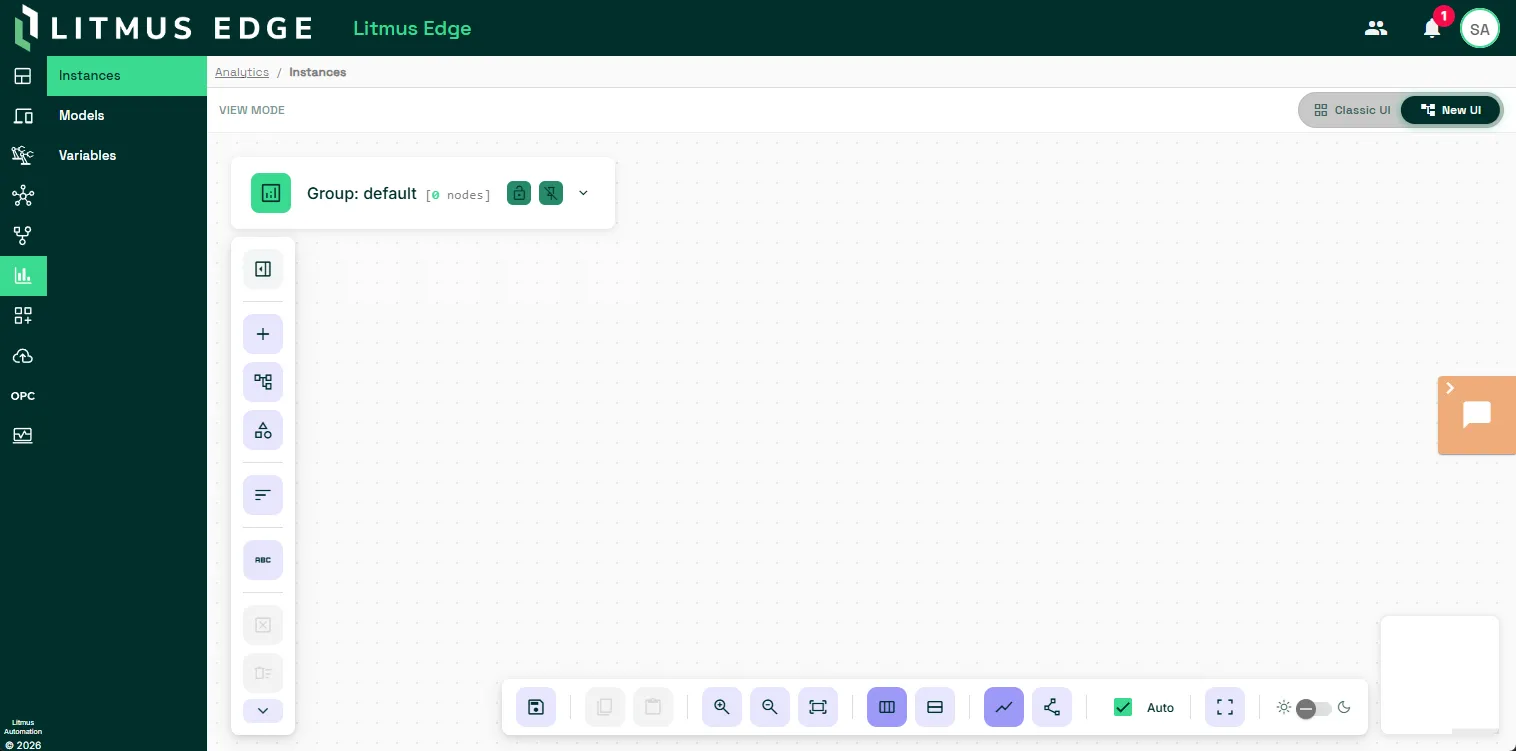
- Instances: The main canvas for building and managing flows. Includes a Debug panel for viewing the live output of input and function processors.
- Models: Contains two sections, AI Models for connecting generative AI providers and TensorFlow Models for uploading machine learning models.
- Variables: View analytics variables and their current values. Filter by name, data type, or value.
Important: You may see the following error message when working with Analytics: "Http failure response for /analytics/v2/version: 0 Unknown Error". If you see this message, disable any ad-blockers your browser may have.
Limitations and Considerations
- All three processor types required: A valid flow must include at least one input, one function, and one output processor.
- TensorFlow GPU requirements: To use ML processors, your computer must meet TensorFlow GPU requirements. If it does not meet these requirements, ML-specific processors are not available for flow building.
- ML model file size: The maximum upload size for a model file is 50 MiB (52.43 MB).
- Debug panel scope: The Debug panel cannot display output from output processors. Output processors publish data immediately upon receipt. Once published, the data is no longer available in the UI.
Analytics Guides
Review Analytics Guides to see how to leverage different analytics capabilities and functions.
Access Analytics
To access Analytics:
- Log in to Litmus Edge.
- From the Navigation panel, select Analytics.
- At the top right, choose between the classic and new UI. The following shows the new UI.
Next Steps
- Analytics GuidesAnalytics Guides
- Analytics Flows and ProcessorsAnalytics Flows and Processors
- Analytics Flow GroupsAnalytics Flow Groups
- Machine Learning ModelsMachine Learning Models
- Input ProcessorsInput Processors
- Output ProcessorsOutput Processors
- Statistical FunctionsStatistical Functions
- Key Performance IndicatorsKey Performance Indicators