Add Device(s) to DeviceHub for one Litmus Edge
To add Device(s) with Litmus Excel Add-ins, you should be familiar with how Devices work in DeviceHub on Litmus Edge.
Before You Begin
- You have installed the Litmus Excel Add-ins extension. See Install Litmus Excel Add-ins for details.
Initial Preparation
Open a new Device Management Tool File in Excel.
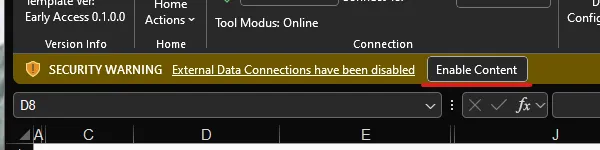
If prompted, Enable Content to allow the code to run.
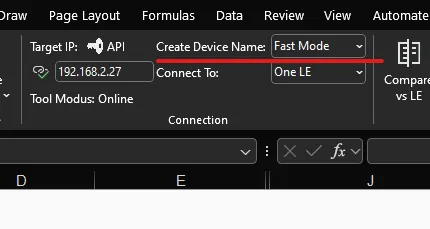
Make sure the the tool is set to Fast Mode for the Create Device Name option and Connect To is set to One LE.
Add Device(s) in Fast Mode
Notes:
Every Driver will have their own set of Device Properties depending on the respective protocols. The steps below show an example using ONE of the over 100 Drivers.
Mandatory Device Settings
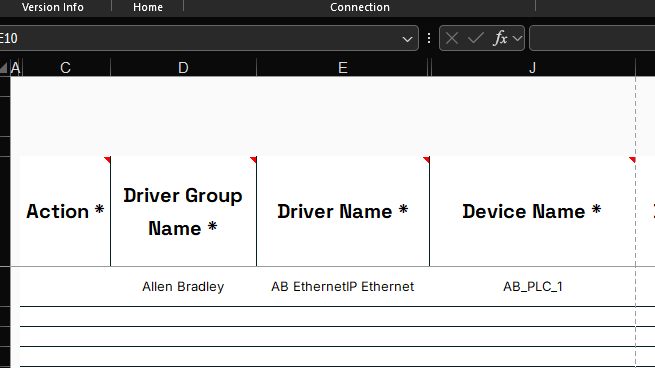
The three D's
Provide the following three Device Settings to start the definition of a device.
- Driver Group Name: Select the Driver Group of the Driver for your PLC.
- Driver Name: Select the Driver with which to connect to your PLC.
- Device Name: Provide the Name for the Device.
Notes:
The tool will verify that the entries for this column are unique and notify the user in case the same Device Name was already used.
The Tool will automatically pull the Default settings for the Driver similar to how the UI on Litmus Edge prepopulates the Device Wizard.
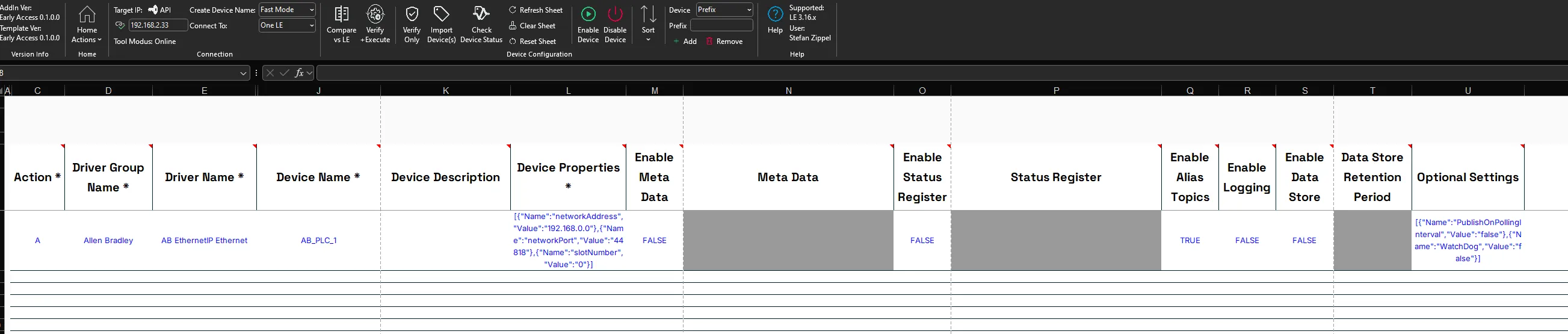
It is Recommended to click the Compare vs LE Button to check if a device with the provided Driver and Name may already be defined on Litmus Edge. If no Device with the selected driver and name combination is defined, the row will stay as A for the Action.
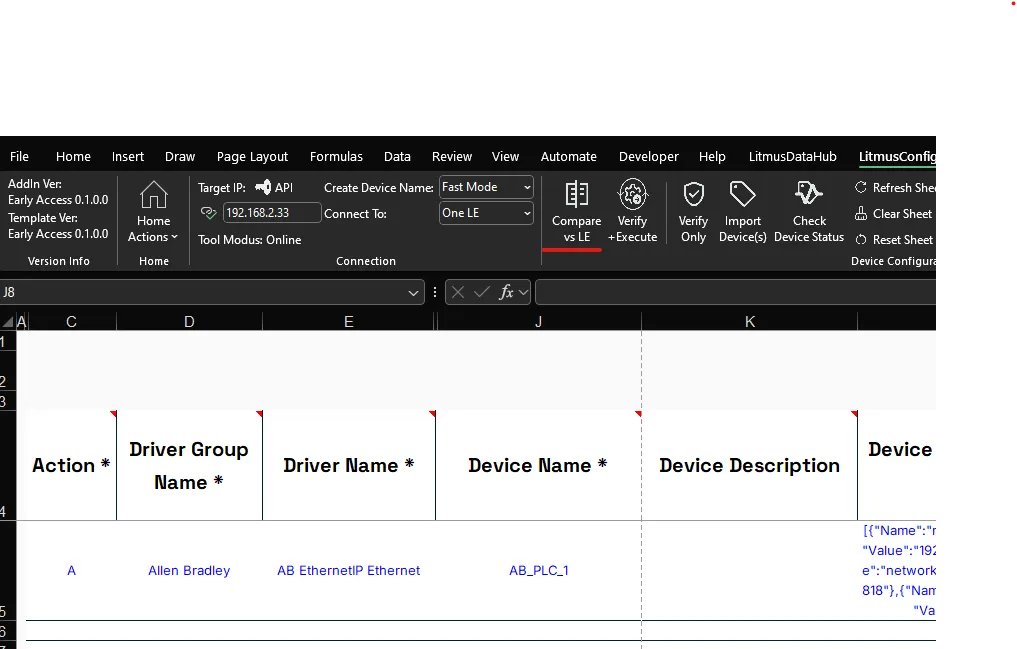
If a Device with the selected driver and name combination is already defined, the row will change to M for the Action and the settings of the device will be pulled.
Notes:
This doesn't need to be done for every device individually but can instead be done once all desired devices have been added to the sheet.
Device Properties
Device Properties are a mandatory set of Device Settings, which are populated initially with a set of default values. To connect to your PLC, you will have to provide your specific device properties settings instead. Which you can provide through one of two options.
- Option 1: You can provide your specific Device Properties directly through the Formula Bar or through the cell. You will need to be careful to not remove any of the Key-Value pairs as well as keeping the JSON formatting accurate.
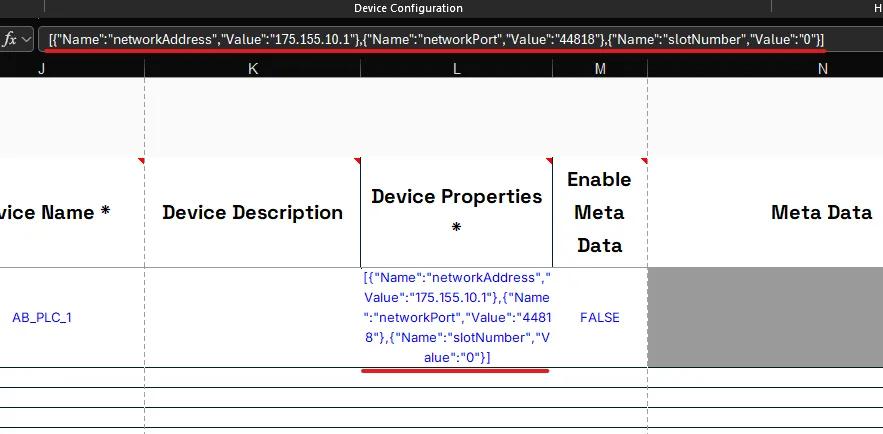
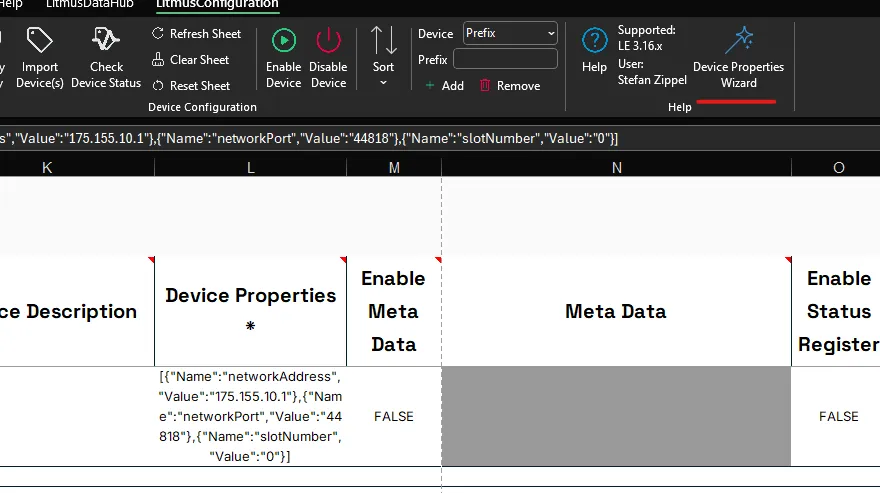
The Device Properties Wizard allows you to edit the Device Properties without the risk of potentially invalidating the JSON Object.
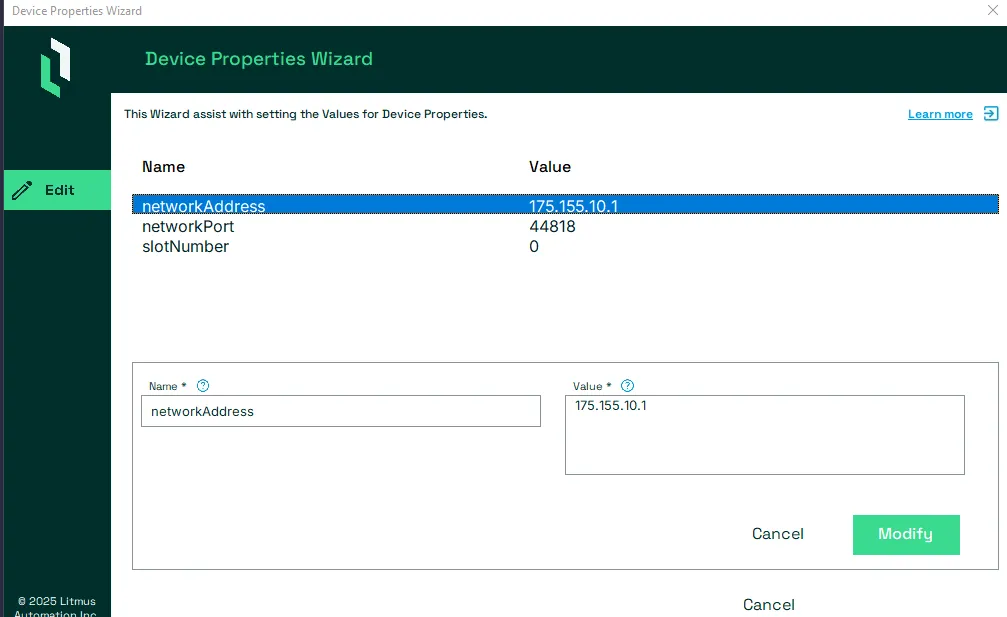
If all mandatory (*) Device Settings are provided, as well as all not mandatory settings are changed, the Device is ready to be added to Litmus Edge.
Notes:
To add more devices to the sheet, repeat the process described under Add Device(s) to DeviceHub for one Litmus Edge for every device you want to add.
Executing Actions
When all mandatory and not mandatory settings for all device(s) are set, they are ready to be added.
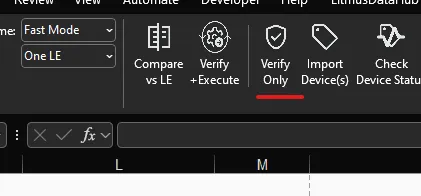
It is Recommended but not mandatory to verify the configuration first without executing the Action by pressing the Verify Only button.
This will check that all required Device Settings are provided and logically correct. And provide any finding to the user. Example: Below the user did select to have Meta Data but did not provide any.
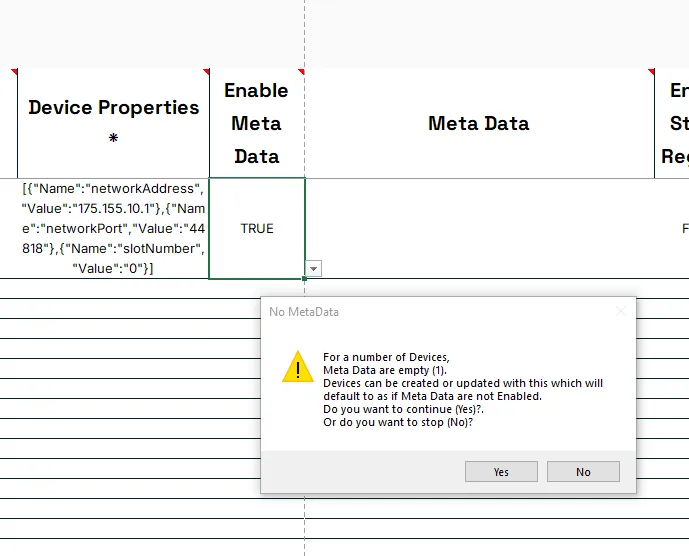
Important: The tool can not verify if all provided device settings are factually correct. For example it can not verify that the network address provided for the PLC is the correct IP address.
The Device(s) can be added to Litmus Edge by pressing the Verify + Execute button.
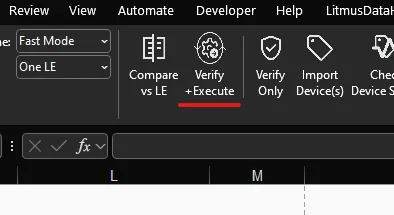
This will check that all required Device Settings are provided and logically correct. And provide any finding to the user. If no issues have been identified, the tool will verify that the user wants to execute ALL the actions from the Action Column:
- A: Add Device(s)
- M: Modify Device(s)
- D: Delete Device(s)
- I: Ignore Device(s) -> do nothing
To perform all actions, press the Yes button.
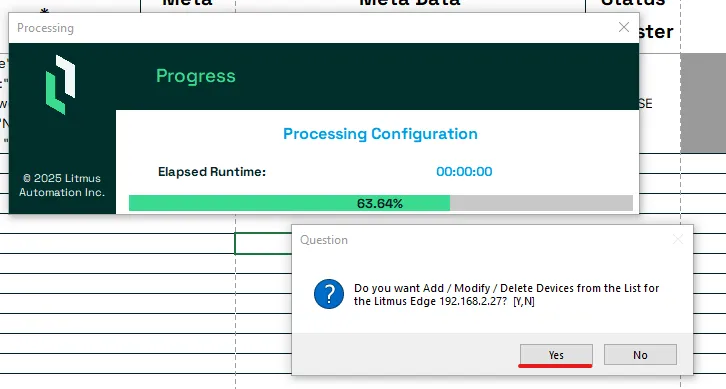
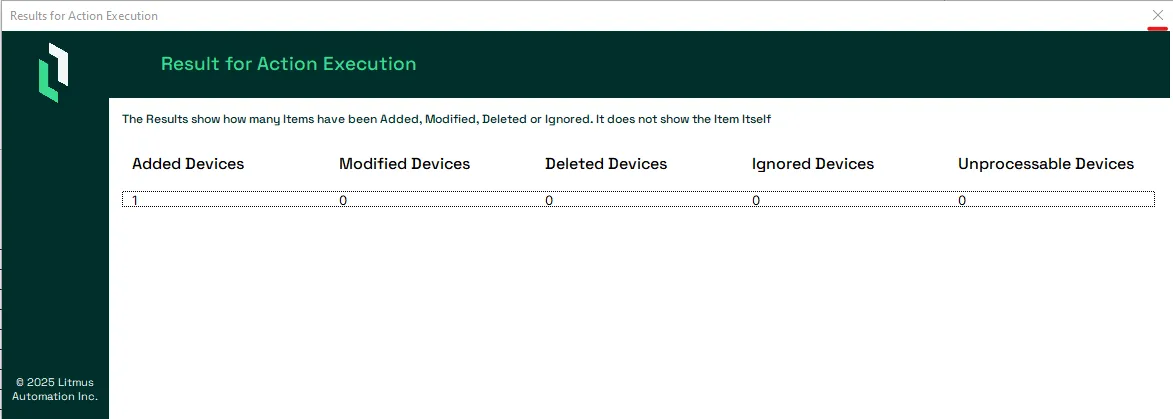
The Tool will perform ALL Actions row by row. When finished, a result Summary is shown. Close the Result Summary by pressing the X close button.
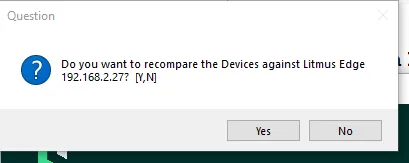
The tool will ask if the user wants to re-compare the Device(s) against Litmus Edge. To re-compare, press the Yes button. To not re-compare, press the No button.
If the User selected to press the Yes button from aboves messagebox, the tool will pull all the device settings from Litmus Edge again including the DeviceID and also change the Action to M for each Device with a DeviceID or A for devices with no DeviceID.

Not Mandatory Device Settings
Each Device has a number of not mandatory Settings which can be used to meet specific needs.
- Device Description: A short description of the device.
- Enable Meta Data: Select if you want to add Meta Data to the device.
- Meta Data: Provide a JSON Object which holds all the Meta Data you want to add to the Device. See Organize Device and Tag Data by Using Metadata to learn more. It is recommended to use the Meta Data Wizard.
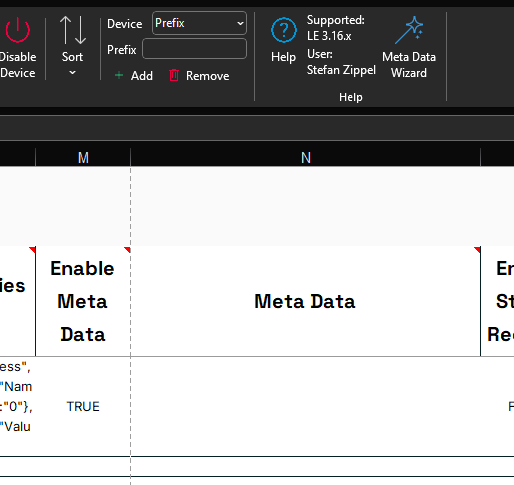
- Enable Status Register: Select if you want to add a Status Register which is used to monitor if the Device is reachable instead of the Default status check mechanism.
- Status Register: Provide the Register definition as a JSON Object. It is recommended to use the Status Register Wizard.
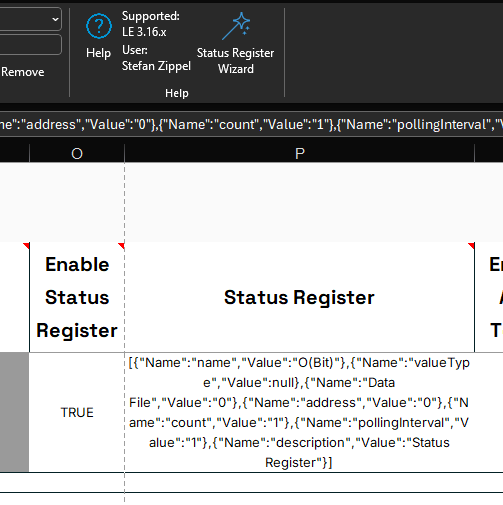
- Enable Alias Topics: Select if you want to substitute long, unreadable device and tag IDs with human-readable device and tag names in topic names
- Enable Logging: Select if you want to enable the Logging option for Gen 2 drivers. Note: For Gen 1 Drivers this option is unavailable.
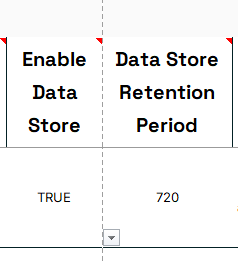
- Data Store Retention Period: Provide the number of hours the data are to be stored.
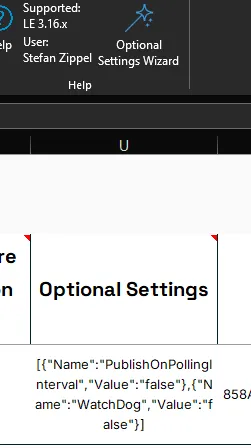
- Optional Settings: This provides a JSON Object which allows users to set settings like:
- Publish on Polling Interval: Select if for Gen 2 drivers the driver will always publish messages according to the polling interval configuration.
- Publish Additional Attributes: Select if for some Gen 2 drivers (OPC UA, BACnet, DNP3, Modbus) additional information such as Source Timestamp, Server Timestamp and Status Code It is recommended to use the Optional Settings Wizard.
Add Device(s) in Extended Mode
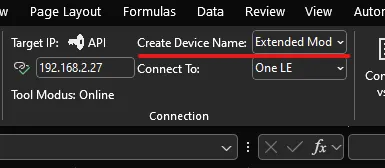
Make sure the the tool is set to Extended Mode for the Create Device Name option.
Provide the following three Device Settings to start the definition of a device.
- Driver Group Name: Select the Driver Group of the Driver for your PLC.
- Driver Name: Select the Driver with which to connect to your PLC.
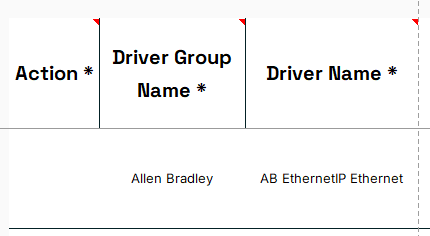
- The Device Name can now either be provided directly in the column Device Name. Or can be build using four Parameters:
- Line / Cell: The line or cell at the site at which data is being collected. If the value provided is just a number the letter "L" will be set as a prefix.
- Device / PLC: The device or PLC on the line which holds the data to be collected
- Equipment ID / Operation Number: The machine or asset attached to the PLC which is generating the data.
- Component / Version Number: A granular part of the equipment which is generating data
- The Device Name is build using each of the 4 Parameters separated by a "_"
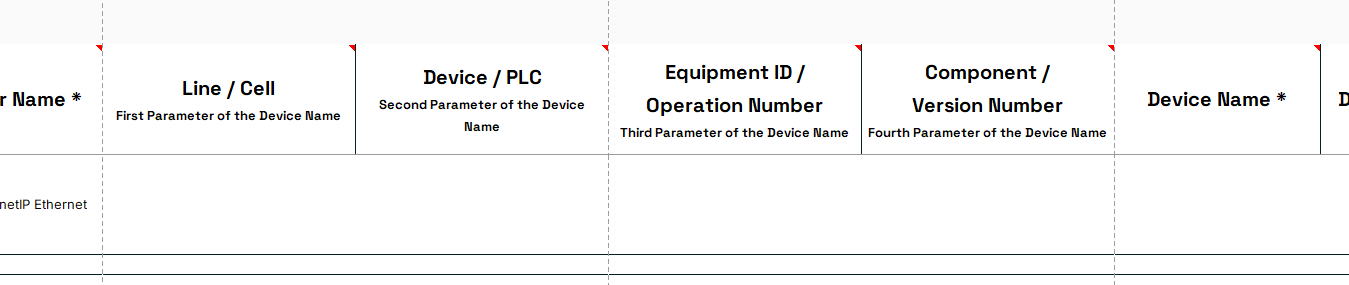
Example:

Notes:
It is still possible to add the Device Name directly same as when Adding Device(s) in Fast Mode .
Setting Device Properties, Executing Actions as well as setting not mandatory device settings the process is the same as for Adding Device(s) in Fast Mode.
Troubleshooting
The Tool will perform several checks throughout the proces of defining the device settings. If they do not pass successfully, the user will be notified. The checks include:
- Device Name uniqueness.
- The tool checks if a Device Name already exist in the Tool.
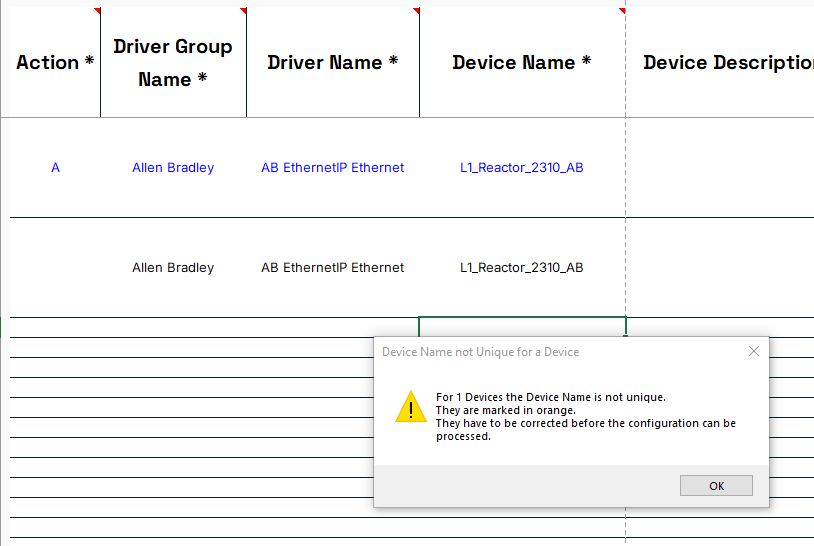
- The user is shown a message box as notification.
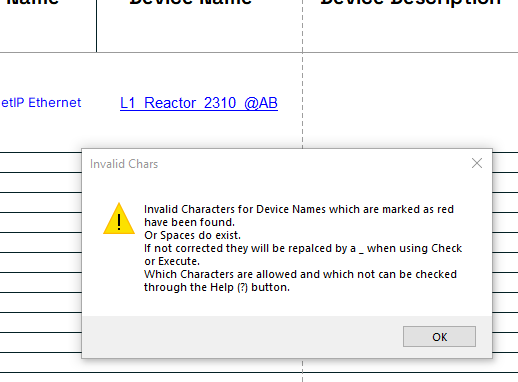
- The character(s) are highlighted in red and also shown in a note.
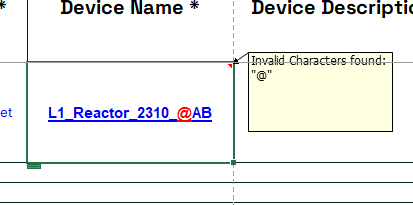
- See Allowed and not allowed Ascii Characters for Names and Descriptions for a full list for both Names and Descriptions.
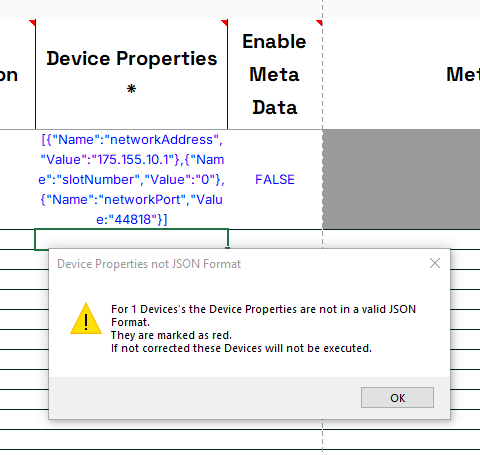
- Correct JSON formating for Device Properties, Meta Data, Status Register and Optional Settings.
- Example for an invalid JSON formatting of the Device Properties
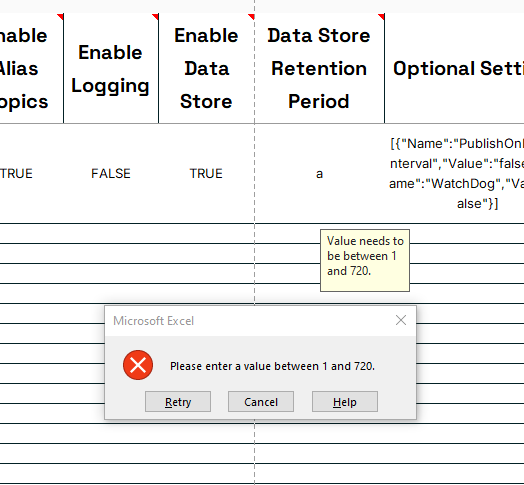
- Valid entry for Data Store Retention Period to be a number and withhin allowed range
- Example for an invalid entry for the Retention period
- Do exist JSON Key-Value pairs in columns Device Properties, Optional Settings or Status Registers with a value being:
- empty
- null
- empty array "[]"
- empty JSON Object "{}"
- Are the columns Device Properties, Optional Settings or Status Registers empty. If they are, the default JSON Object will be automaticlly added.