Define Access Control Lists (Rules and Permissions)
4 min
After Adding a user, you will need to define rules to define permissions for it. By default, the user will be able to connect to Litmus Unify through an MQTT client, but will not have any Subscribe or Publish permissions. You have two options for accessing rules and permissions.
Option 1: Define Rules in Unified Namespace Settings (UNS)
You can also define rules and permissions within the UNS settings for Litmus Unify.
To define rules in UNS Settings:
- In the navigation menu, click Unified Namespace (UNS).
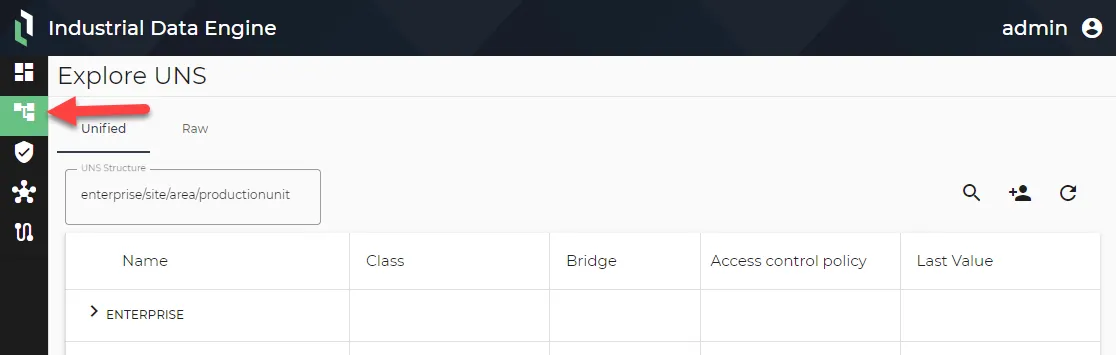
UNS menu item
- Click Add permission. The Add permission dialog displays.
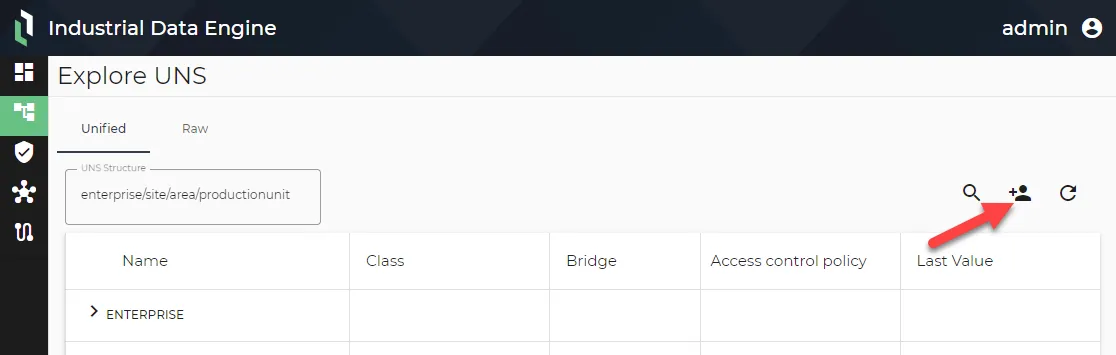
Add permission icon
- Configure the parameters for the rule.
- Topic: Enter the topic name the defined user will get access to. To define a wildcard so the user can access all topics, enter #.
- Account: Select the appropriate user for the rule.
- Permission: Select a permission: Deny, Publish, Publish & Subscribe, or Subscribe.
- When done configuring the rule, click Save.
Option 2: Define Rules in User Settings
You can access rules for individual users in the user's settings.
To define permissions for a user:
- From the navigation menu, click Security.
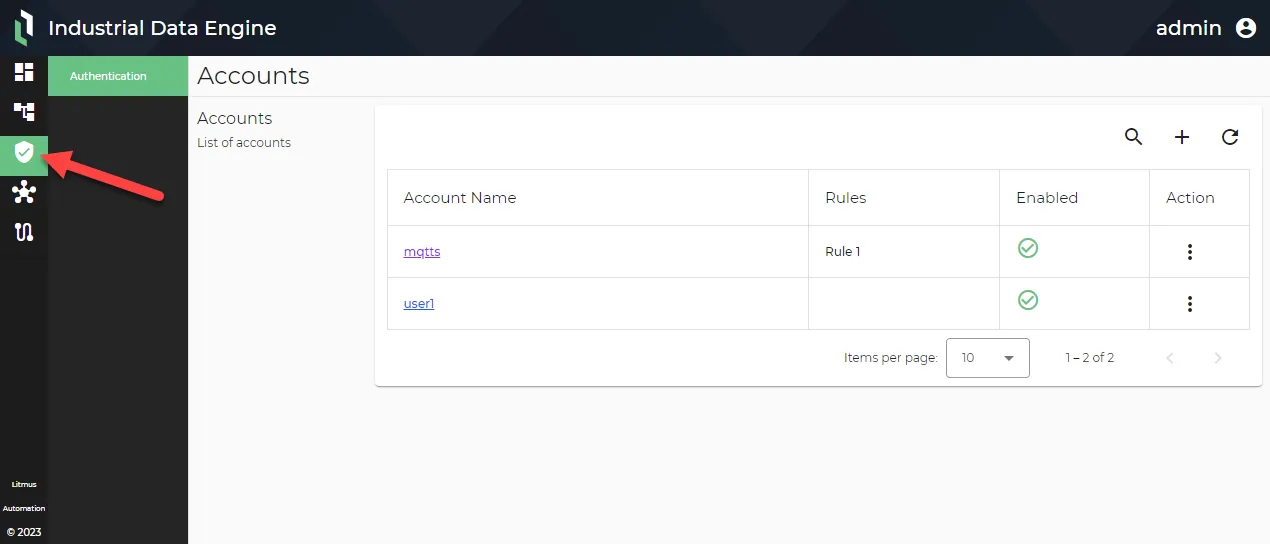
Security menu item
- Click the account name you want to add the rule to. The Account Details display.
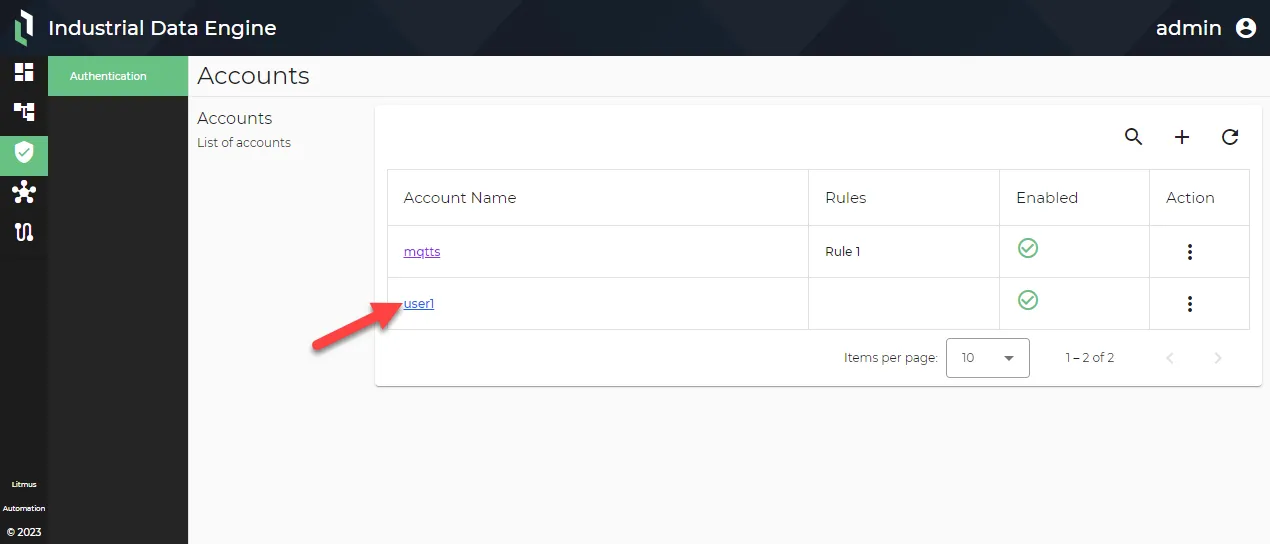
Account name
- In the Rules section, click the Add icon.
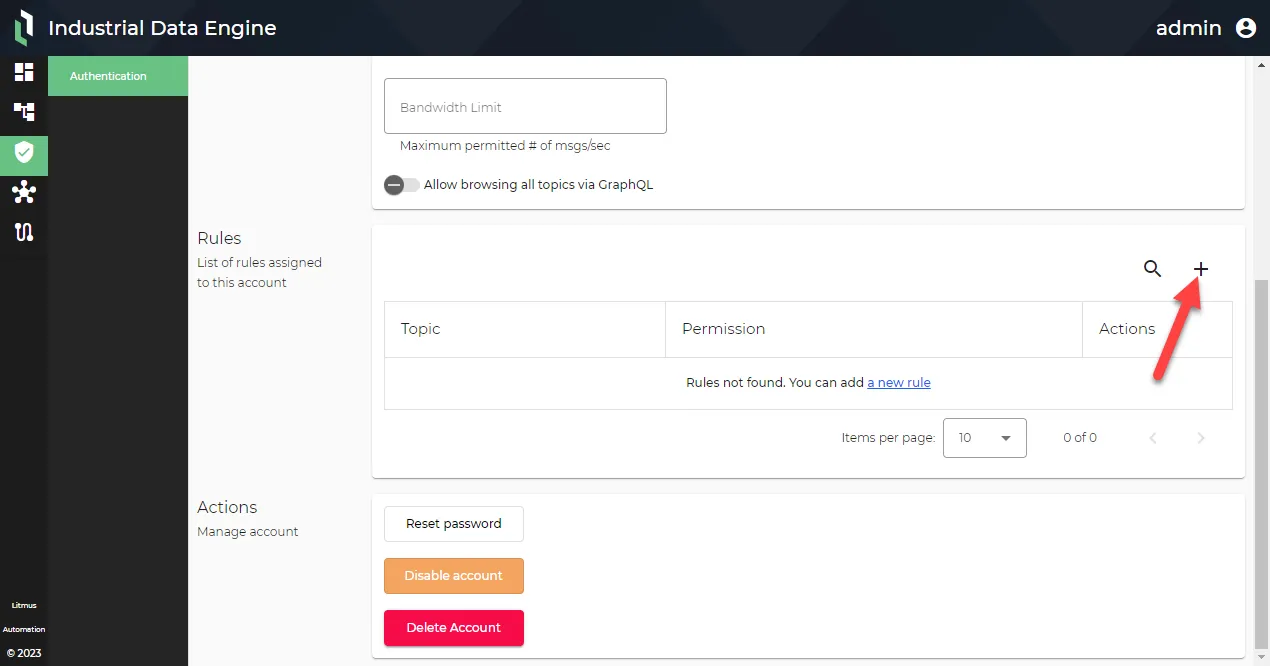
Add rule icon
- Enter the topic name the user will get access to. To define a wildcard so the user can access all topics, enter #.
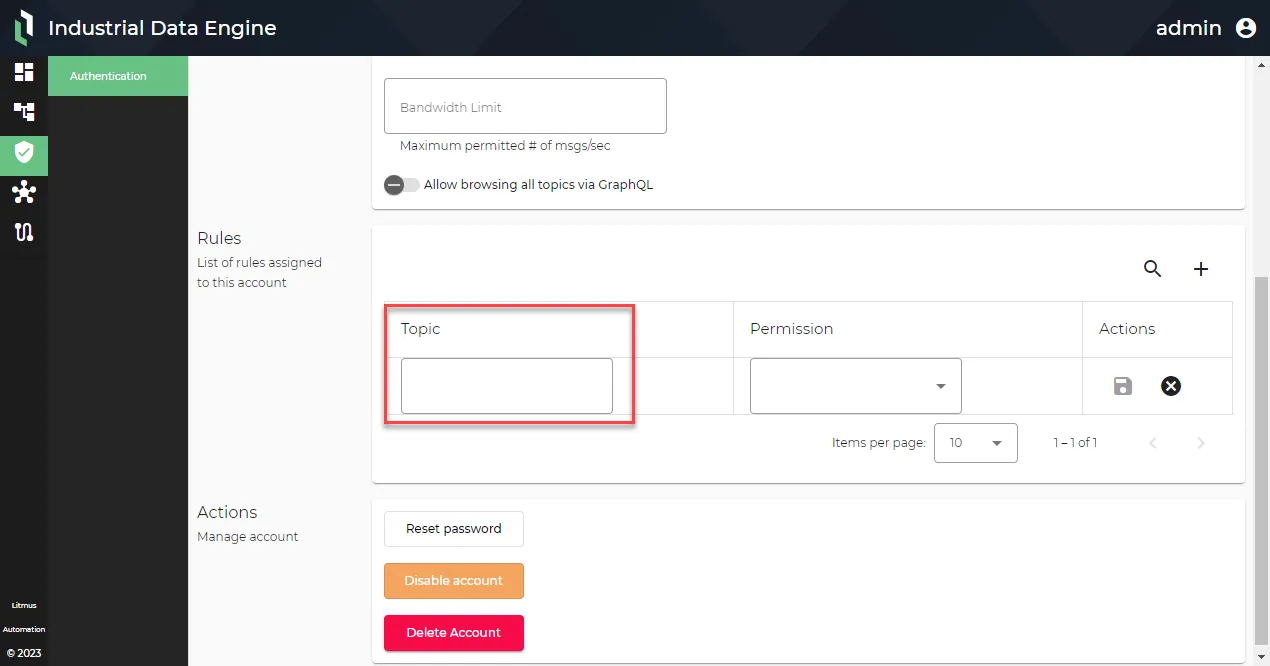
Topic definition field
- Define a permission for the user: Deny, Publish, Publish & Subscribe, or Subscribe.
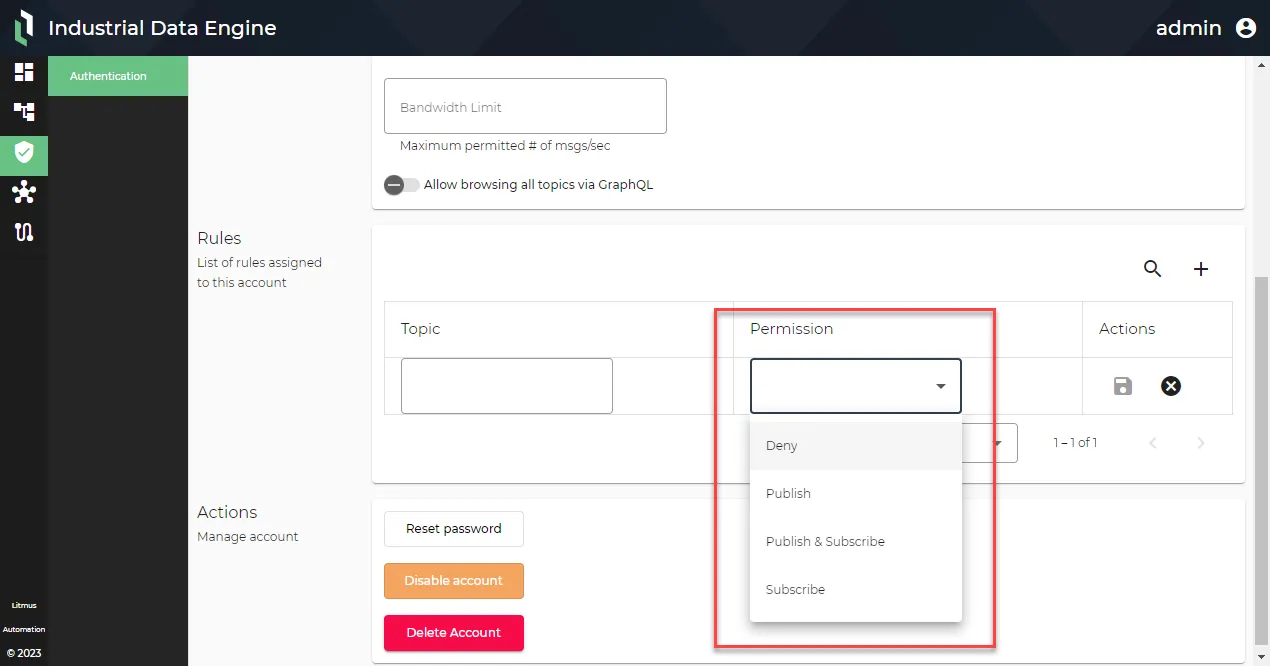
Permission field
- When done defining the rule, click the Save icon.
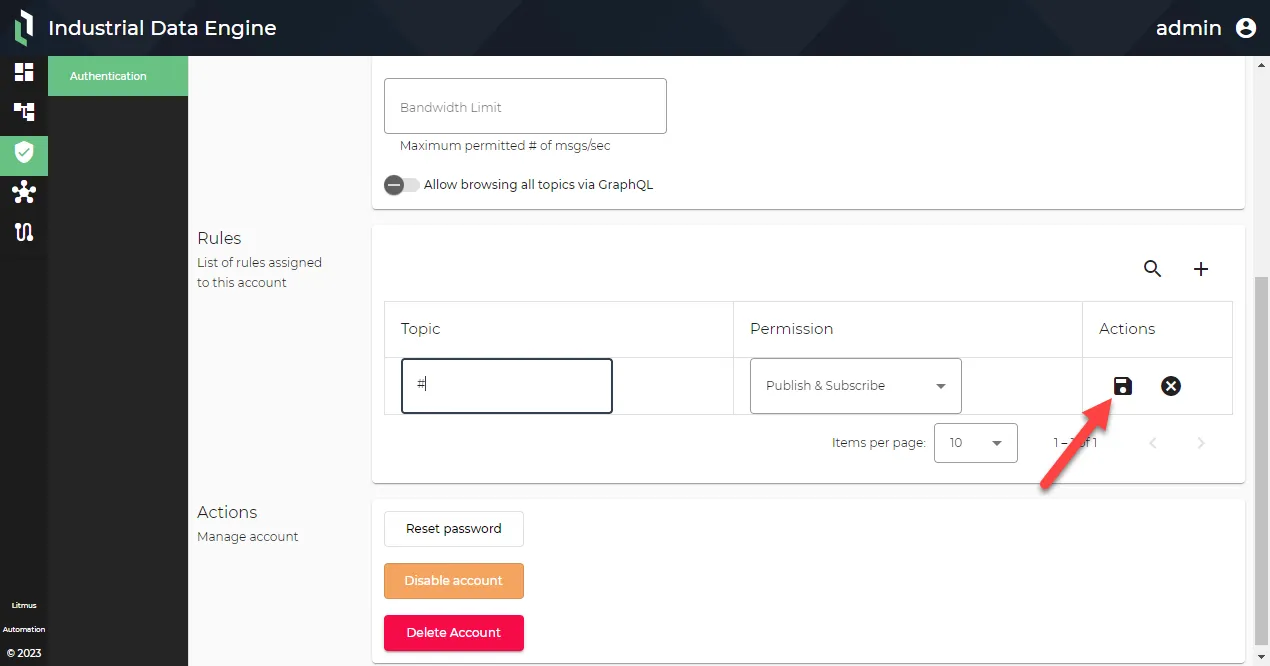
Save rule icon
The rule is added for the user. You can edit or delete the rule under Actions.
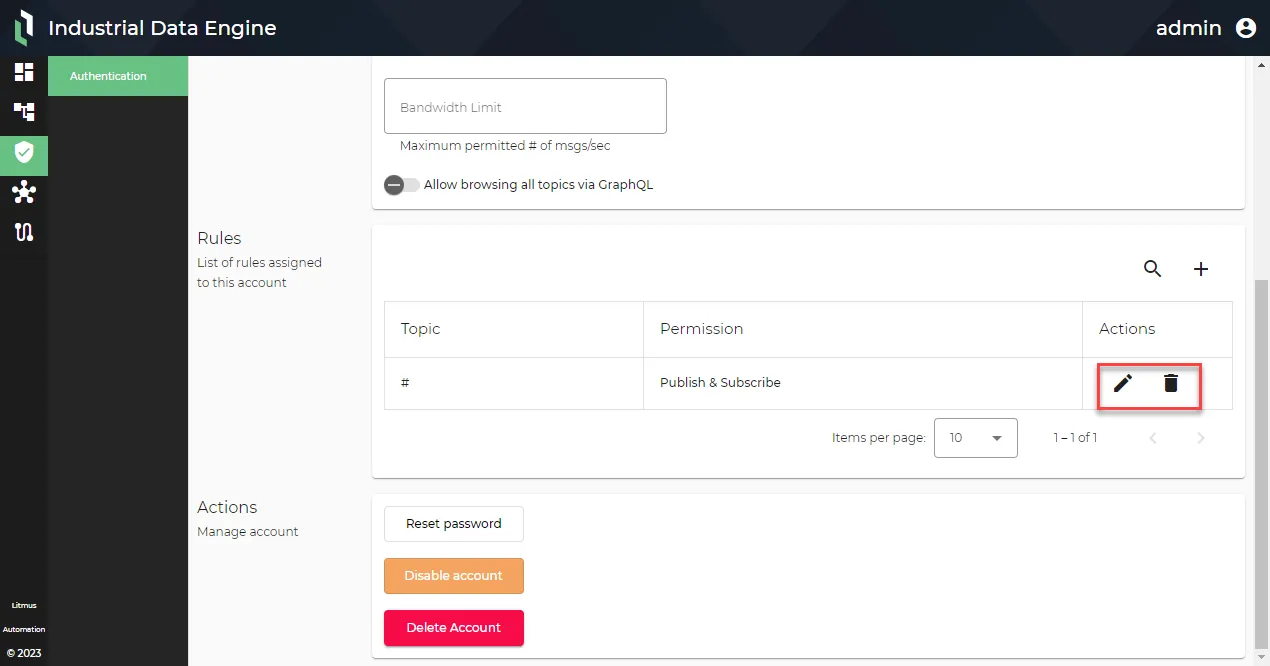
Edit and delete rule options