Connect Litmus Central portal
5 min
Litmus Central Portal connects Litmus Edge Manager (LEM) to the Asset Hub catalog, so you can import Litmus-provided and partner-provided assets directly into LEM.
Note: For overview and background information, see Asset HubAsset Hub.
Before you begin
Before you connect Litmus Central Portal, ensure you have the following:
- Administrative access to the Litmus Edge Manager (LEM) Admin Console.
- Fewer than 10 active LEM clients on your account, since an account can have at most 10 active clients at a time.
Step 1: Get your client ID and lient secret
The administrator of Litmus Central Portal creates a client for your account and shares the Client ID and Client Secret with you, as the admin user for your company.
Caution: Store the Client ID and Client Secret securely. The Client Secret is shown only once at creation, so if it is lost a new client has to be created.
Step 2: Connect LEM to Litmus Central Portal
To enter the client credentials in LEM:
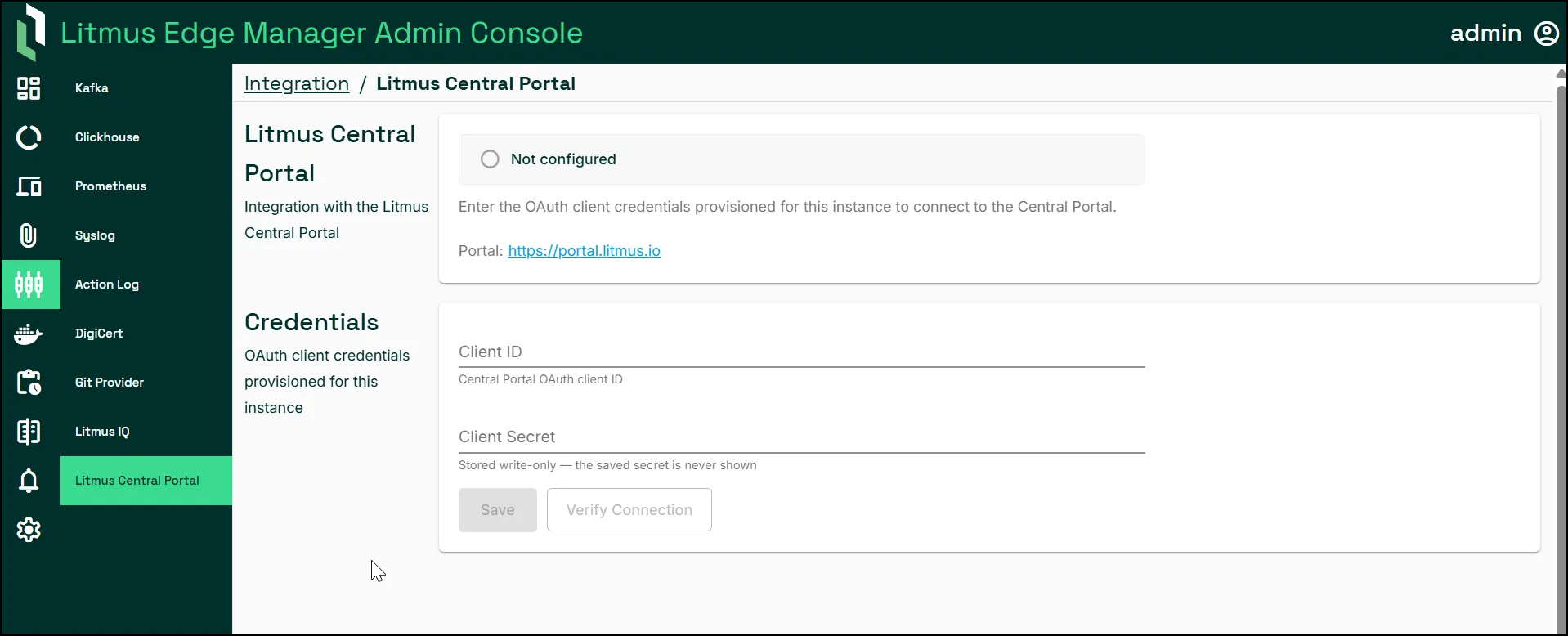
- In the LEM Admin Console, navigate to Integration > Litmus Central Portal.
- In Client ID, enter your Client ID.
- In Client Secret, enter your Client Secret.
- Click Verify Connection.
- Click Save.
Verify Litmus Central Portal is connected
To confirm the connection succeeded:
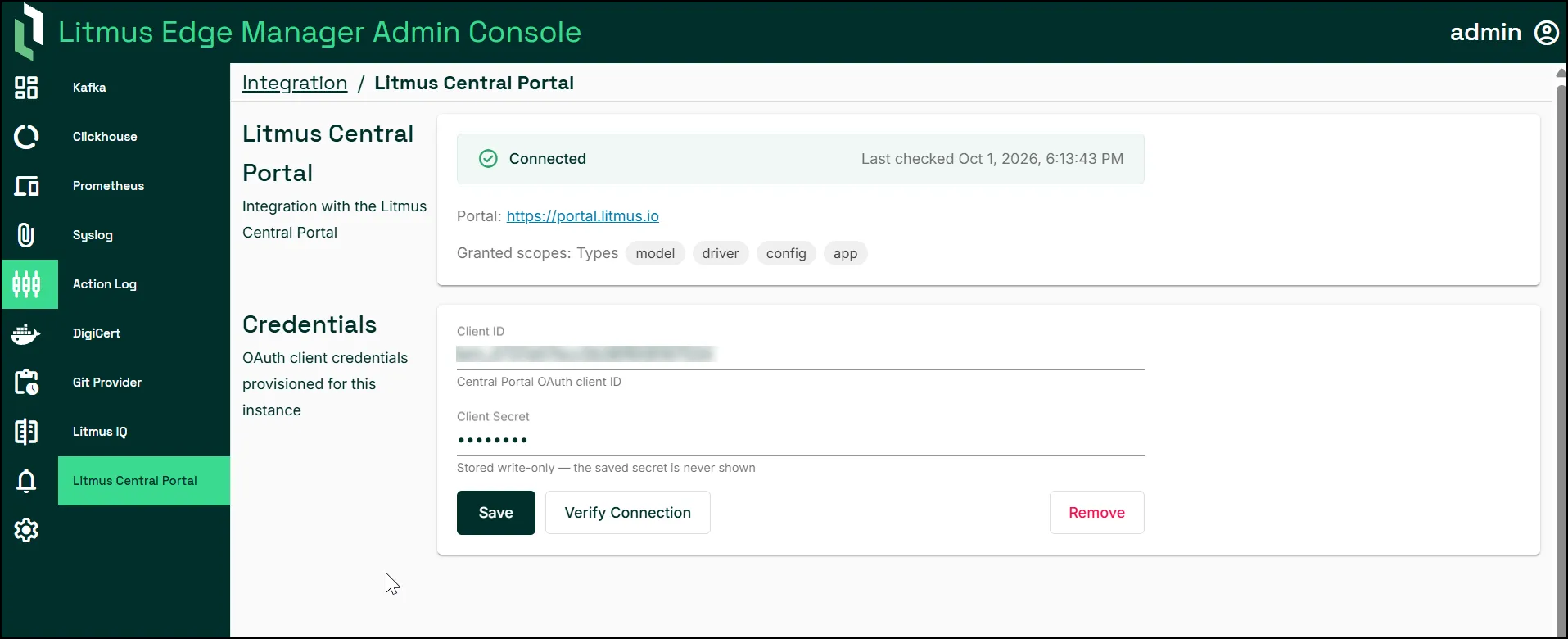
- On the Litmus Central Portal integration screen, confirm that the status shows Connected, with a Last checked timestamp.
- Confirm that Granted scopes lists the asset types you expect, for example model, driver, config, and app.
Next steps
- Import assets from Asset Hub