Import assets from asset hub
7 min
Asset Hub gives you a catalog of ready-to-use Digital Twins models and other assets that you can bring into Litmus Edge Manager (LEM). Import assets from the catalog, and optionally deploy them to your edge devices in the same step.
Note: For overview and background information, see Asset HubAsset Hub.
Before you begin
Before you import assets from Asset Hub, make sure you have the following:
- A LEM instance that an administrator has connected to Litmus Central Portal. If LEM is not connected, it shows the Asset Hub is not available message when you try to import. The message links to the Litmus Edge Manager Admin Console, where an administrator can configure the connection.
- The assets you need from the catalog.
- The edge devices to deploy to, if you plan to deploy during import.
Step 1: Open the Asset Hub catalog
To start an import:
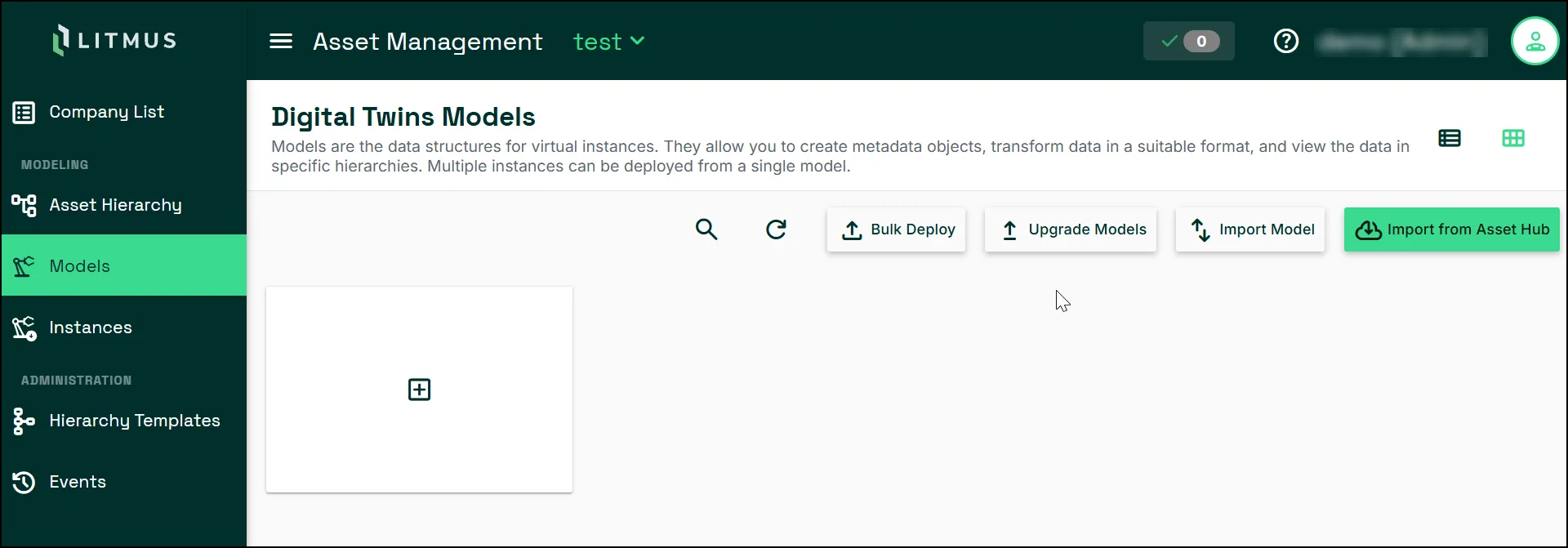
- In LEM, navigate to Asset Management > Models.
- Click Import from Asset Hub.
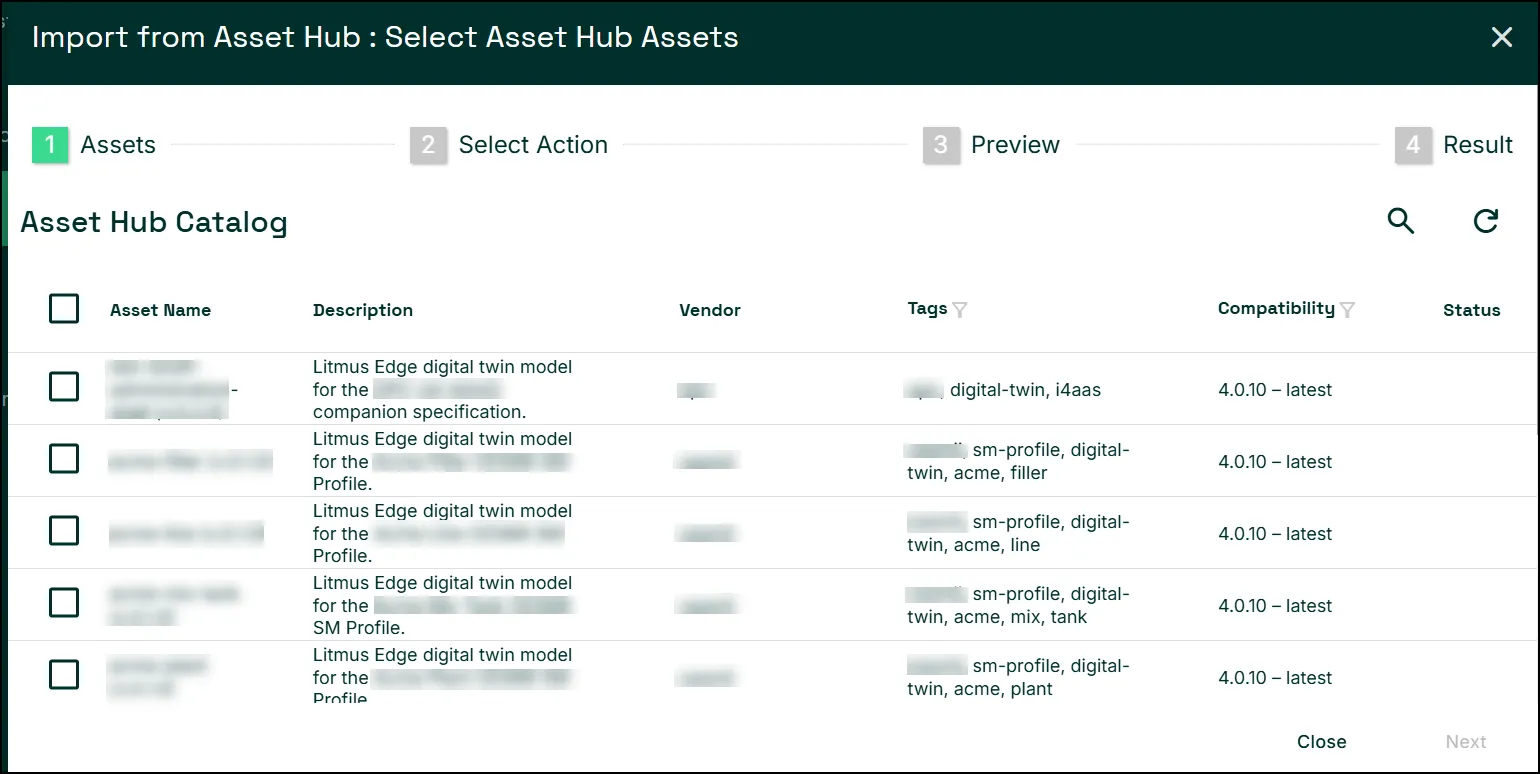
- In the Asset Hub Catalog, select the checkbox next to each asset you want to import. The Status column shows Imported (vX.X.X) — N model(s) for an asset already imported into this LEM instance.
- Click Next.
Step 2: Choose what happens with the selected assets
To choose an action:
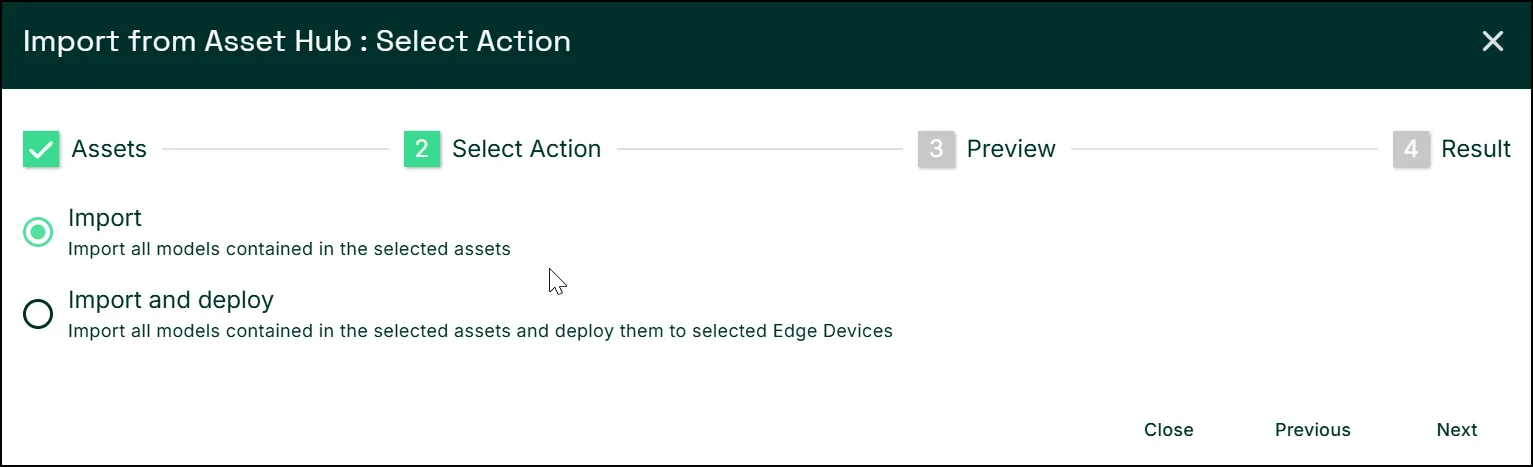
- On the Select Action screen, select Import to bring the models into LEM only, or select Import and deploy to also deploy them to edge devices.
- Click Next.
Step 3: Select edge devices
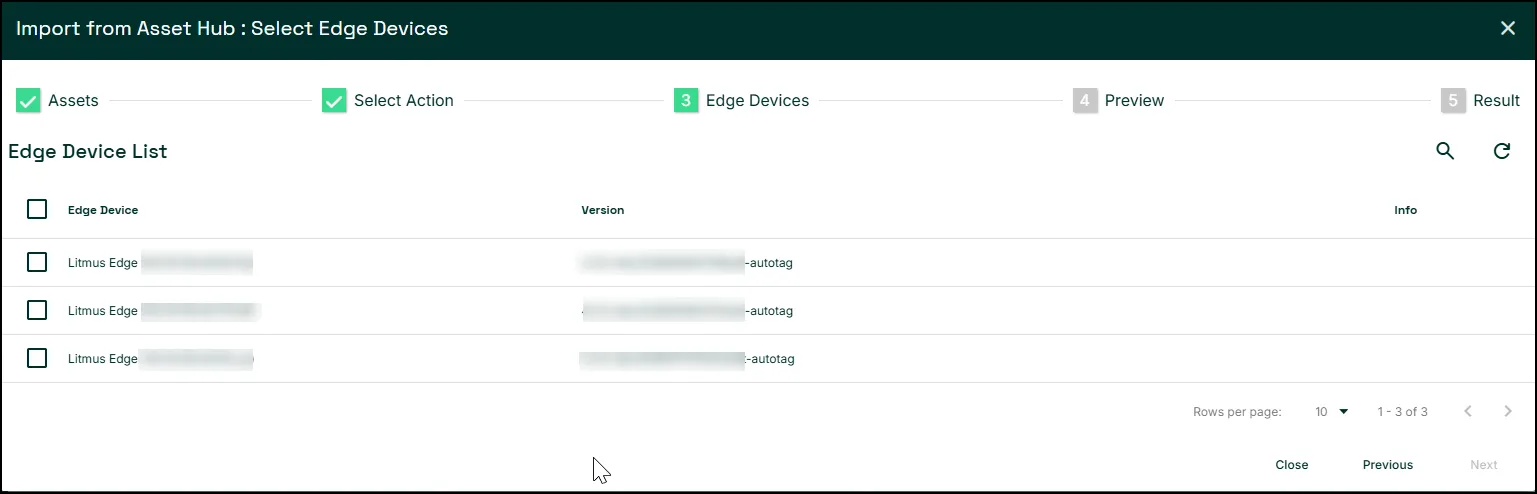
This step only appears only if you select Import and deploy in Step 2.
To choose deployment targets:
- On the Select Edge Devices screen, select the checkbox next to each target edge device.
- Click Next.
Step 4: Review and confirm
To finish the import:
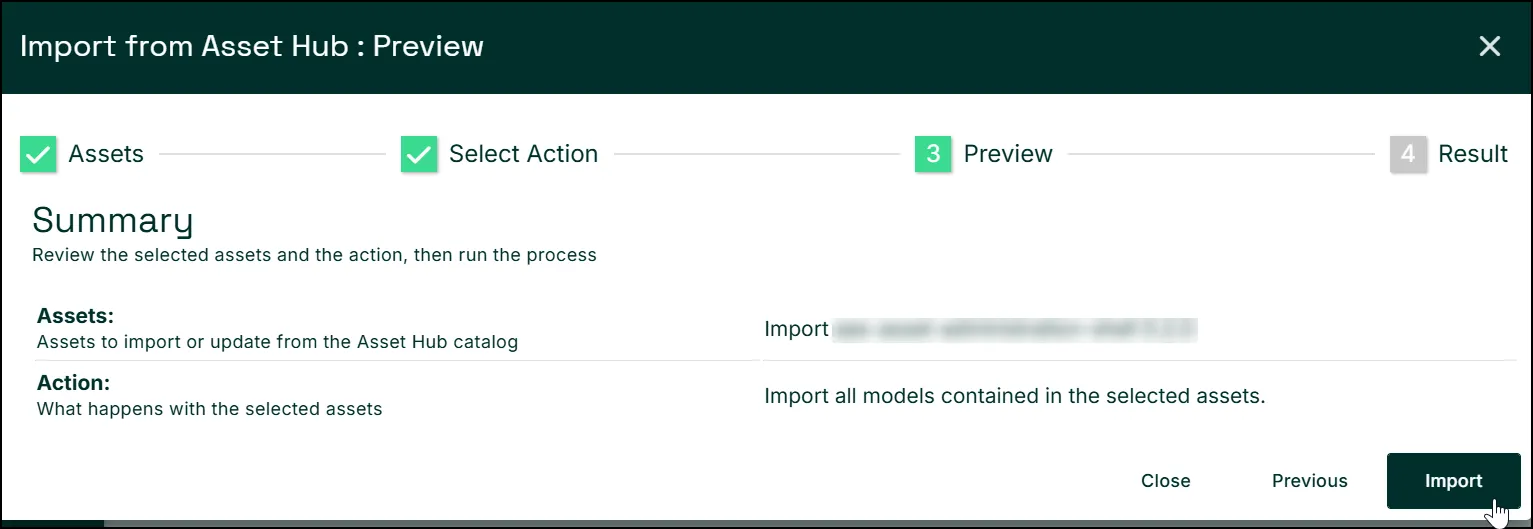
- On the Preview screen, review the Assets and Action summaries and, if applicable, the Edge Device summary.
- Click Import if you chose Import in Step 2, or click Import and deploy if you chose Import and deploy.
Step 5: Check the import result
To review the outcome,
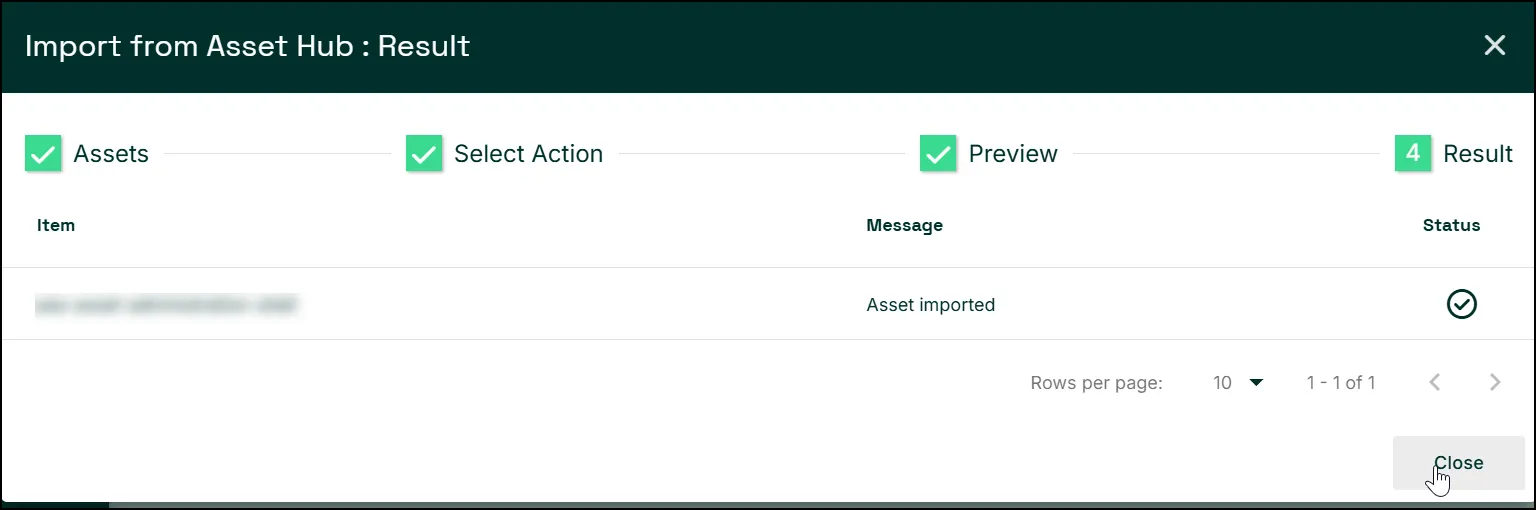
- On the Result screen, review the Item, Message, and Status columns for each asset, and for each edge device if you selected Import and deploy.
- Wait for every row's Status to show a checkmark. A clock icon means that item is still in progress, for example Deploying models....
- Click Import.
Note: If you try to import an asset that already exists in LEM, an error message states that the asset already exists.
Verify the import worked
To confirm the assets were imported:
- On the Result screen, confirm that each item shows a checkmark in the Status column with the message Asset imported.
- On the Digital Twins Models page, confirm that the imported model appears with a small cloud icon next to its version number.
- Point to the cloud icon and confirm that the tooltip names the source catalog asset, for example Imported from the Asset Hub asset aml-electric-screwdriver.
Next steps
- Manage Digital Twins modelsManage Digital Twins models
- Asset HubAsset Hub