Define an asset hierarchy and publish asset context
An asset hierarchy organizes your assets into a structured tree that you define and maintain in one place in Litmus Edge Manager (LEM). When you define a hierarchy, you activate a hierarchy template and build the tree. You can also optionally bind Digital Twins instances to nodes. If your deployment does not use Digital Twins, the node tree on its own is a complete hierarchy.
Binding a Digital Twins instance to a node gives that asset an address. You define the address once in LEM, and from then on it travels with the asset's data. Litmus Edge (LE) attaches the address to each payload the asset publishes, so anything downstream knows which machine, line, and site the reading came from.
This guide follows one asset and shows how to build the structure, place the asset in it, bind its Digital Twins instance, subscribe to the topic in Litmus Edge, and subscribe to the payload in Analytics.
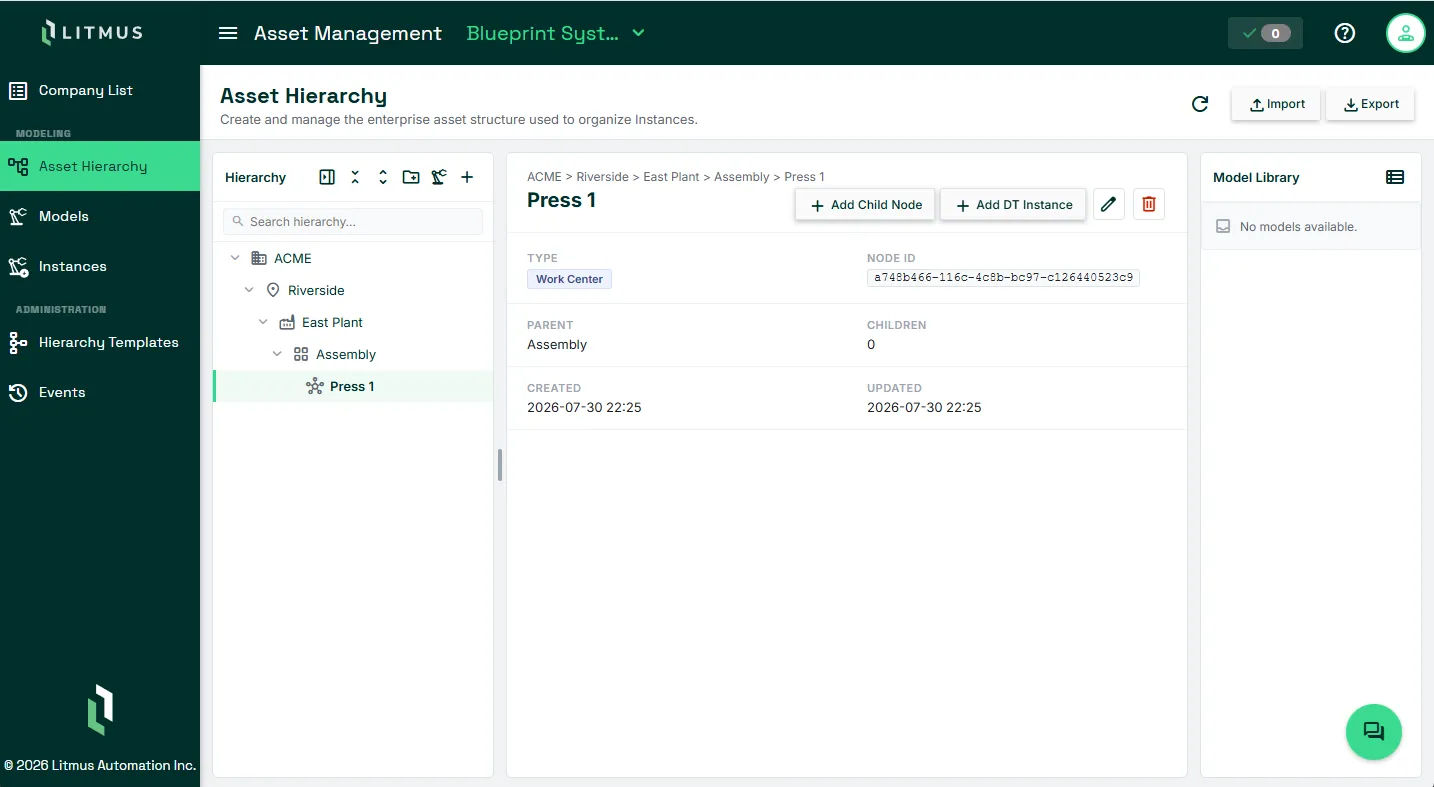
Also see Asset hierarchy for overview and background information.
Before you begin
Before you build a hierarchy, make sure you have:
- Industrial Asset Hierarchy Management enabled in Settings > Experimental Features. See Experimental Features.
- Access to the Asset Management area for your company and project.
- A Digital Twins model and an instance created from the model for the asset you want to place in the hierarchy.
- A device running Litmus Edge 4.0.15 or later to host the instance.
Step 1: Choose the levels for your hierarchy
A hierarchy template defines the level chain your assets sit in. LEM includes system templates. ISA-95 (Standard) provides the full seven-level chain from Enterprise to Work Unit. Compact (No Region) provides a simplified chain without Region. ISA-95 (Standard) is active when you enable the feature, so you only need to activate another template if ISA-95 does not fit your operations. Only one template is active at a time.
On template cards, the Active badge indicates the active template, Draft a template that is not yet active, and System a built-in template.
To review the available templates:
- In the left navigation, under Administration click Hierarchy Templates. The Hierarchy Templates screen lists the available templates.
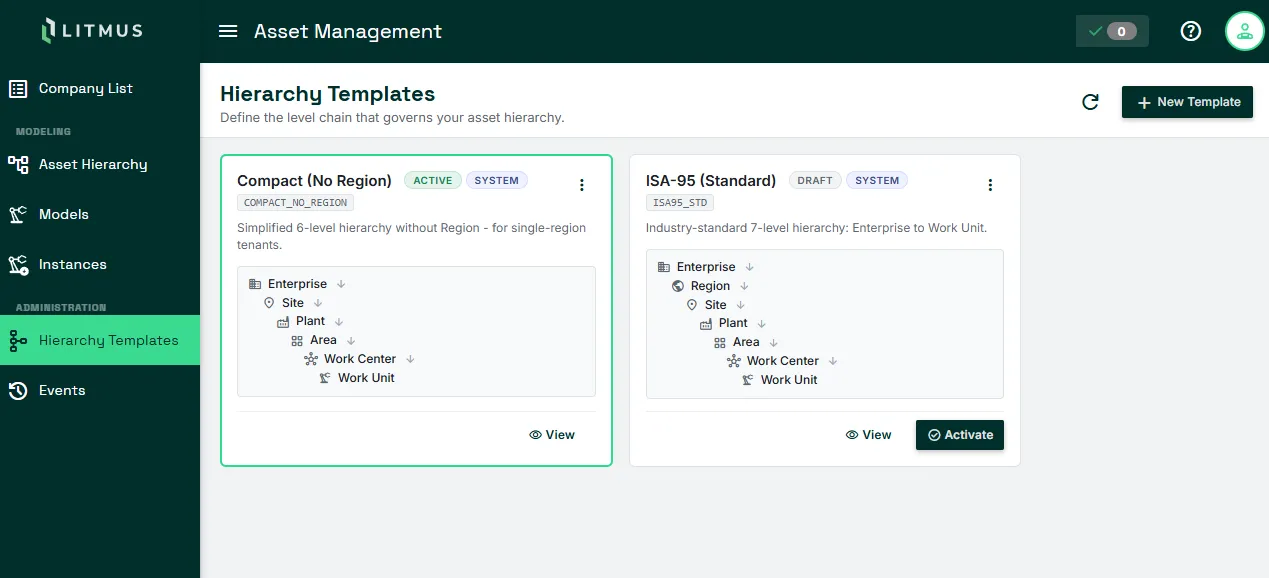
- To make a different template the active template, click Activate on another template card. The card shows the Active badge for the new active template.
Step 2: Build the tree down to your asset
The tree runs from the root level of your template down through as many levels as your structure needs. You can bind a Digital Twins instance to a node at any level.
To create the root node:
- In the Asset Hierarchy pane, click Create Root Node.
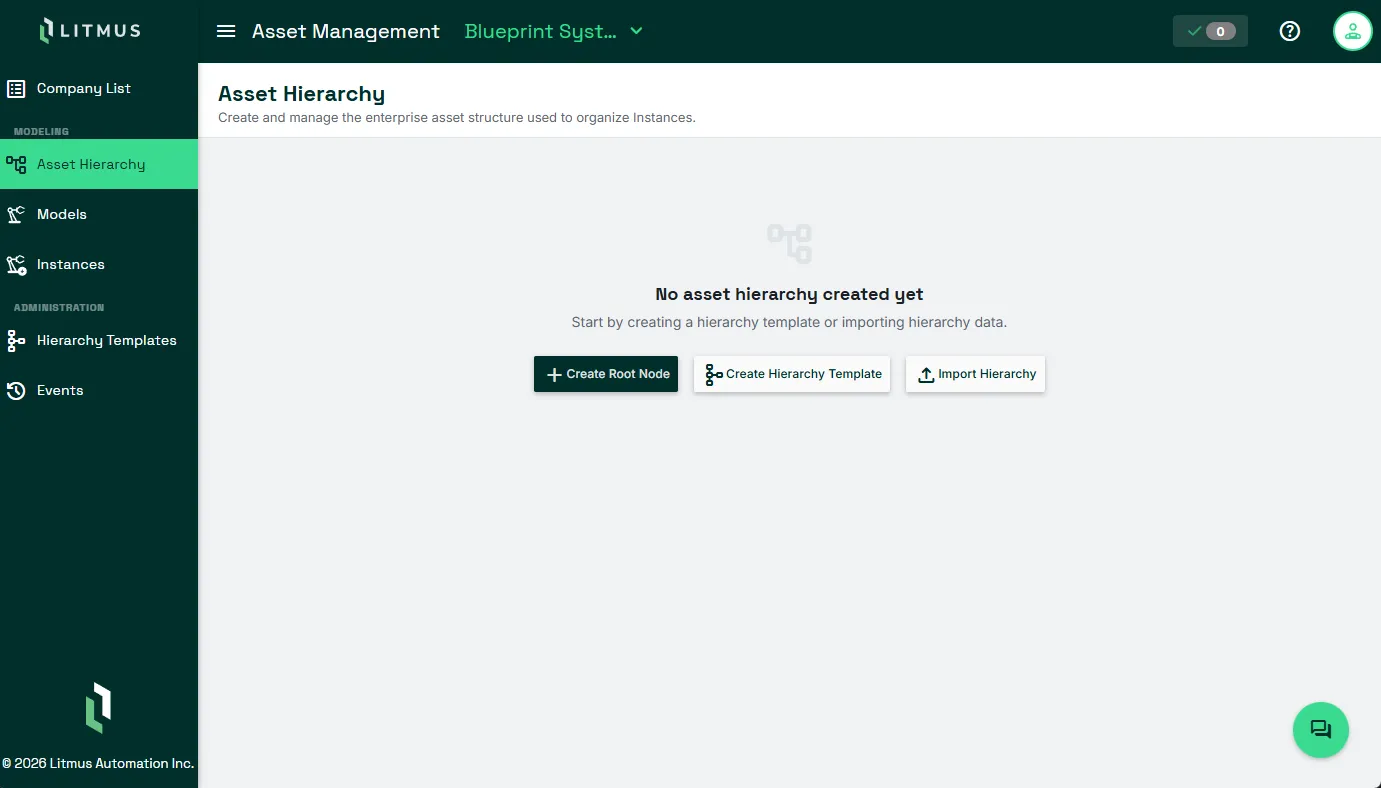
- In Level, confirm the root level of your template, for example Enterprise. The Add Hierarchy Node dialog opens with Parent Node set to None (root node).
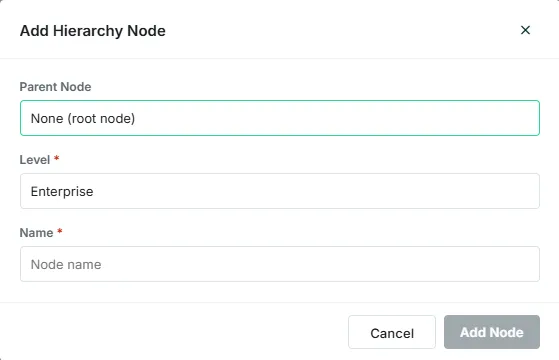
- Provide a node name and click Add Node. LEM adds the node as the root of the tree.
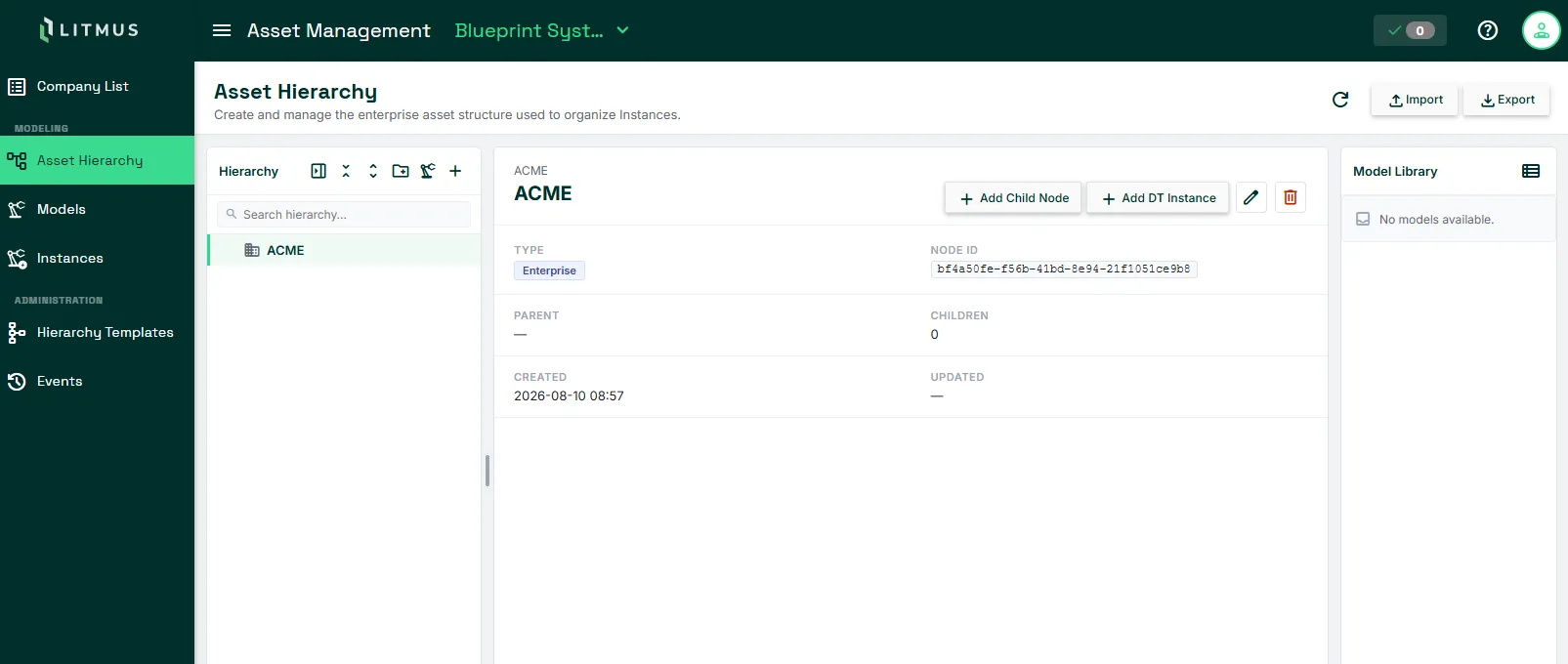
To add each level below the root:
- In the hierarchy tree, select the node you want to add a child to.
- Click Add Child Node. The Add Hierarchy Node dialog opens with the parent node set.
- In Level, select the level for the new node. LEM offers only the levels that the active template allows under the parent.
- Provide a node name and click Add Node. Repeat until you reach the node that represents your asset. Finish the branch before you bind an instance to it.
To create many nodes at once instead of building the tree by hand, see Import a hierarchy from a file.
Step 3: Bind the asset's Digital Twins instance
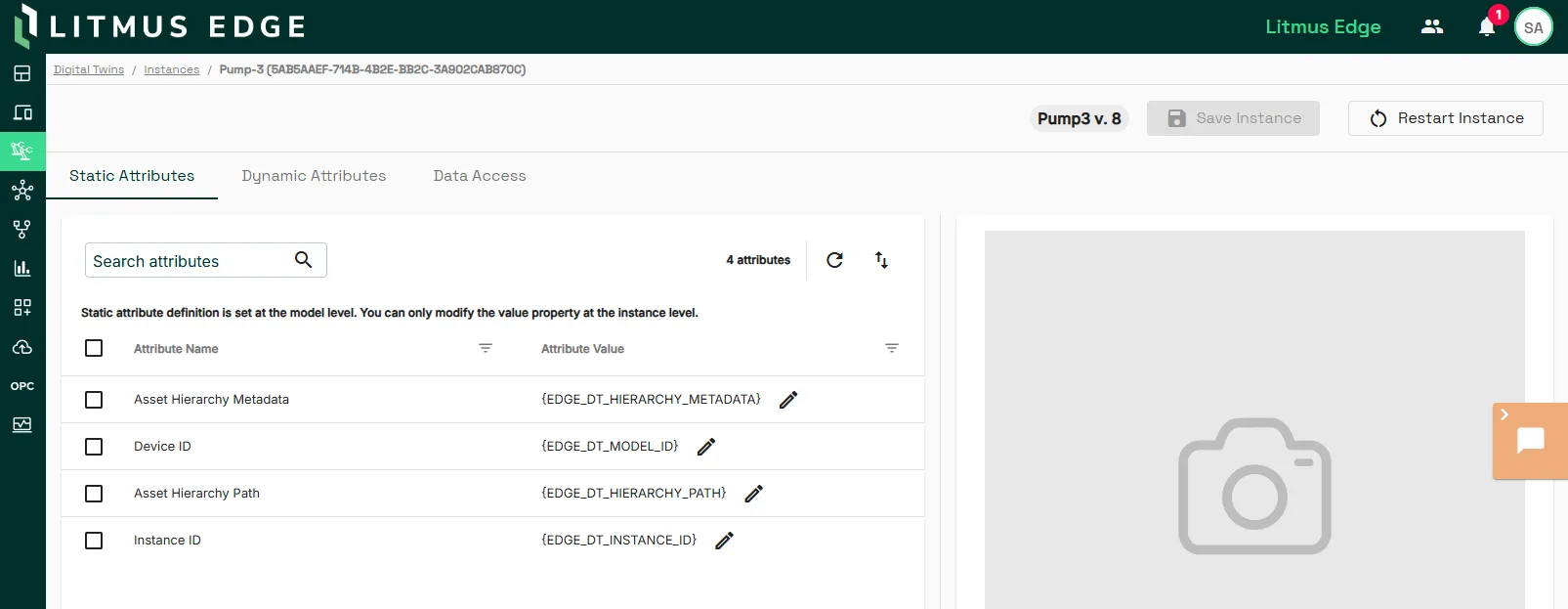
Binding is the step that connects your hierarchy to real data. When you bind a Digital Twins instance to a node, LEM sends the instance to the Litmus Edge device that hosts it, along with the node's position in the tree. The instance receives the following read-only attributes: hierarchyPath and hierarchyMetadata
Note: If the model was created before LEM version 2.35.0, add Asset Hierarchy Path and Asset Hierarchy Metadata as static attributes and then upgrade instances. Models created after version 2.35.0 include both attributes by default.
To bind an instance:
- In the hierarchy tree, select the node that represents your asset. The node must have no child nodes.
- Click Add DT Instance.
- In the Add Digital Twin Instance dialog, specify the Digital Twins instance to bind to. In Source, do one of the following:
- Choose Select existing instance and select an instance from the Instances list as shown below. Only instances tied to a governed LEM model display here.
- Choose Deploy new instance and click Continue to open the deploy instance wizard.
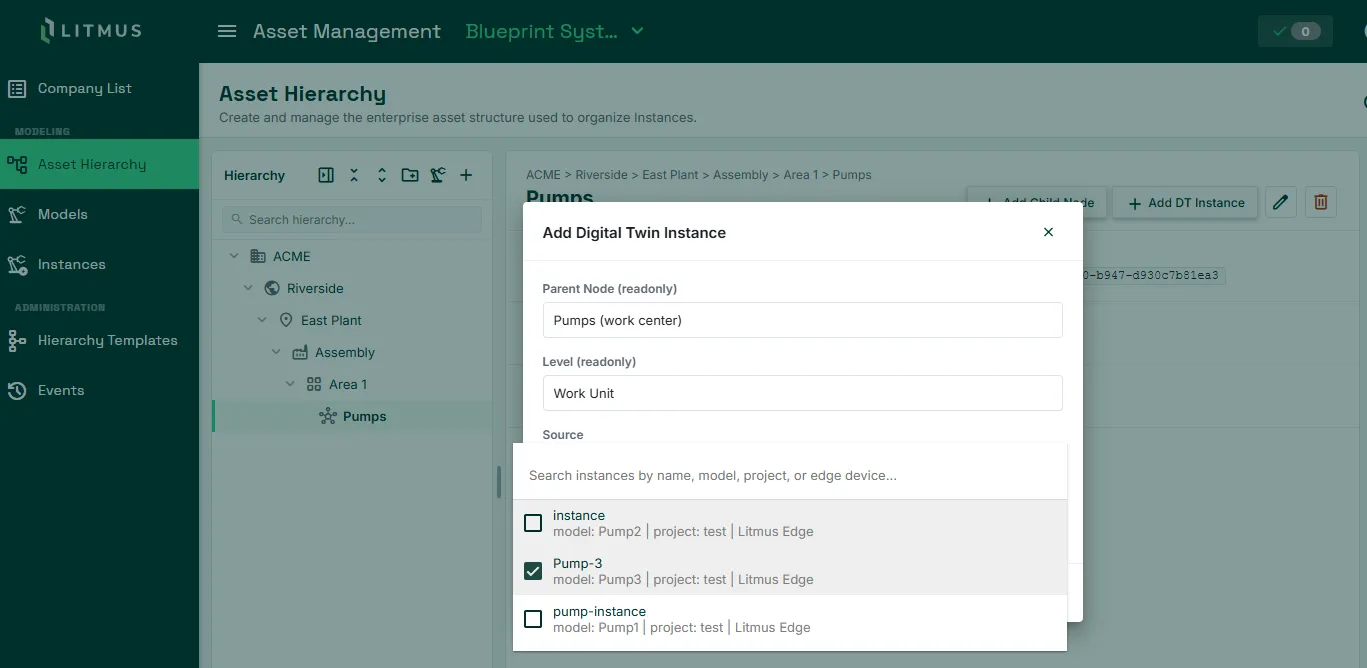
- Click Add Node. The instance appears in the hierarchy under the selected node.
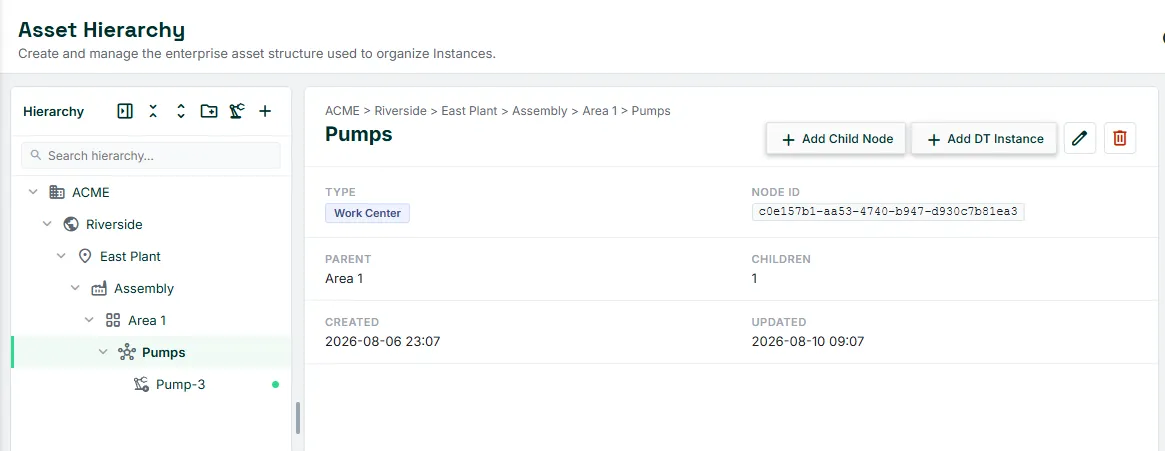
- Click Edit on the Digital Twins instance to add an Asset ID and Source System, which map the instance to a record in an external system such as an ERP or a cloud data platform. Click Save.
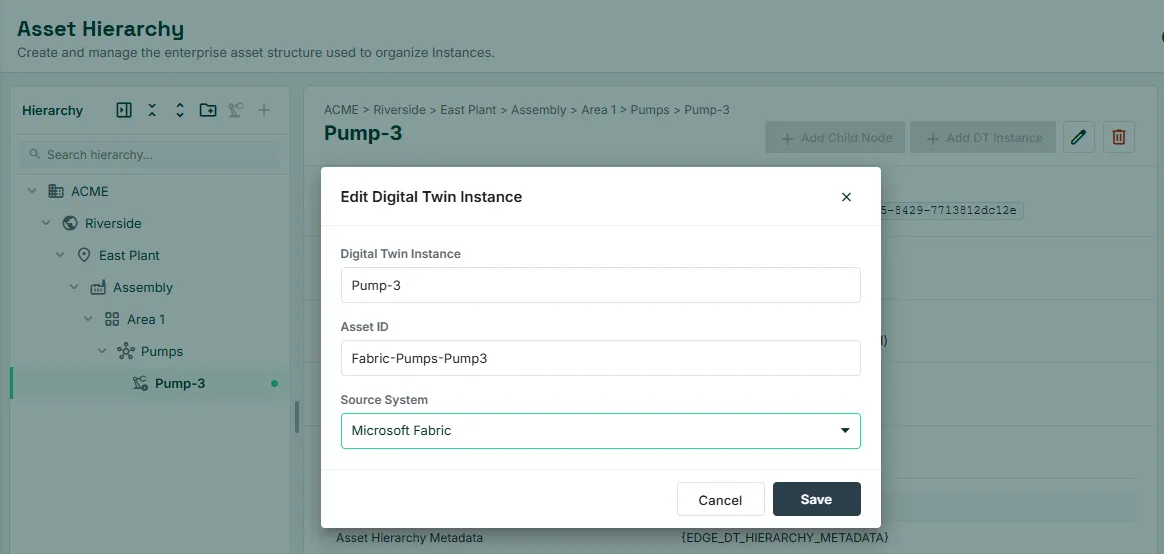
- Click Save. The instance displays in the main pane.
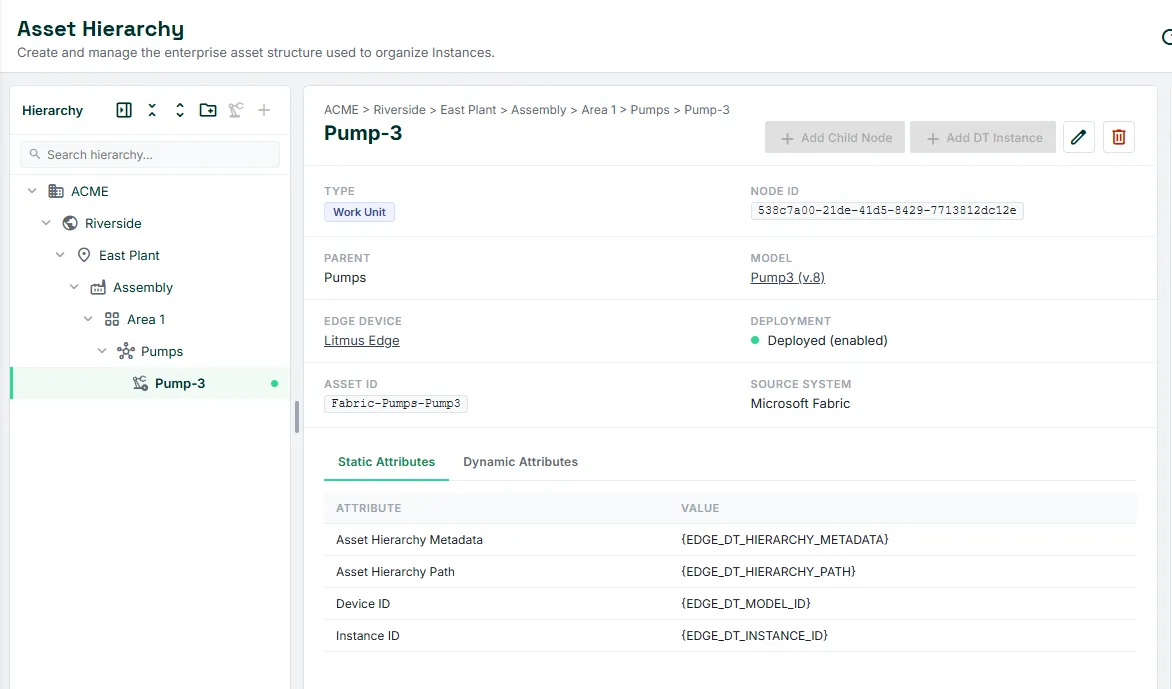
LEM maintains these values for you. If you move the instance to a different parent, LEM recomputes the path and pushes the update. If you detach the instance or delete its node, LEM clears the path and metadata values on the device in Litmus Edge.
Step 4: Check the payload
The remaining steps take place in Litmus Edge on the device that hosts the instance.
When the instance runs, Litmus Edge assembles a JSON payload from the instance's static and dynamic attributes and publishes it on the instance's own topic at the interval you configured. Because the instance is bound to a hierarchy node, that payload carries the asset's location as two static attributes.
To check the payload:
- In Litmus Edge, open the Digital Twins instance you bound earlier.
- Open the Data Access tab and click Subscribe. The payload appears.
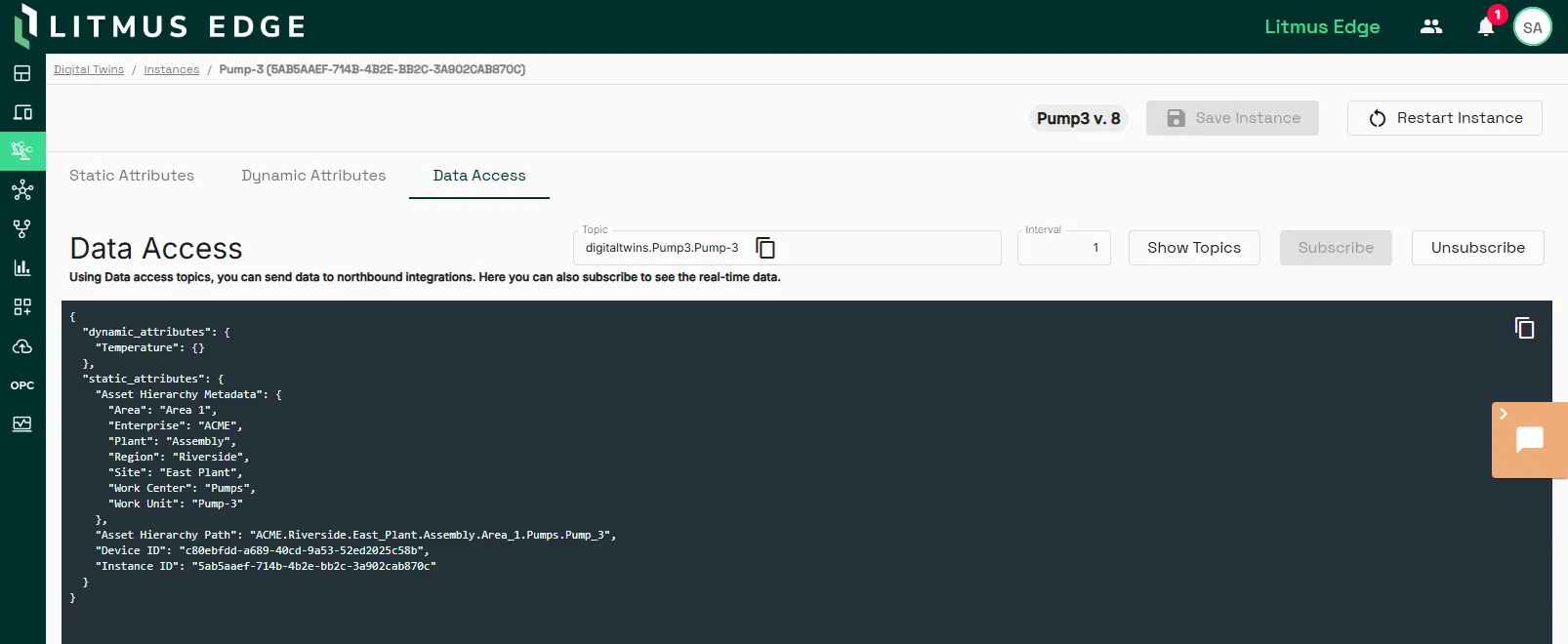
- Under static_attributes, Asset Hierarchy Metadata lists a value for every level of your template and Asset Hierarchy Path shows a dot-delimited path to where you placed the asset in the tree.
Step 5: Subscribe to the payload in Analytics
Each running instance publishes its assembled payload to the internal message broker on its own topic. Analytics subscribes to that topic so the asset context you defined in LEM arrives in your flow without any further mapping.
To bring the payload into an Analytics flow:
- In the Data Access tab for the Digital Twins instance, copy the topic the instance publishes on.
- In Analytics, add a DataHub Subscribe input processor. Paste the topic in Topic. Click Save.
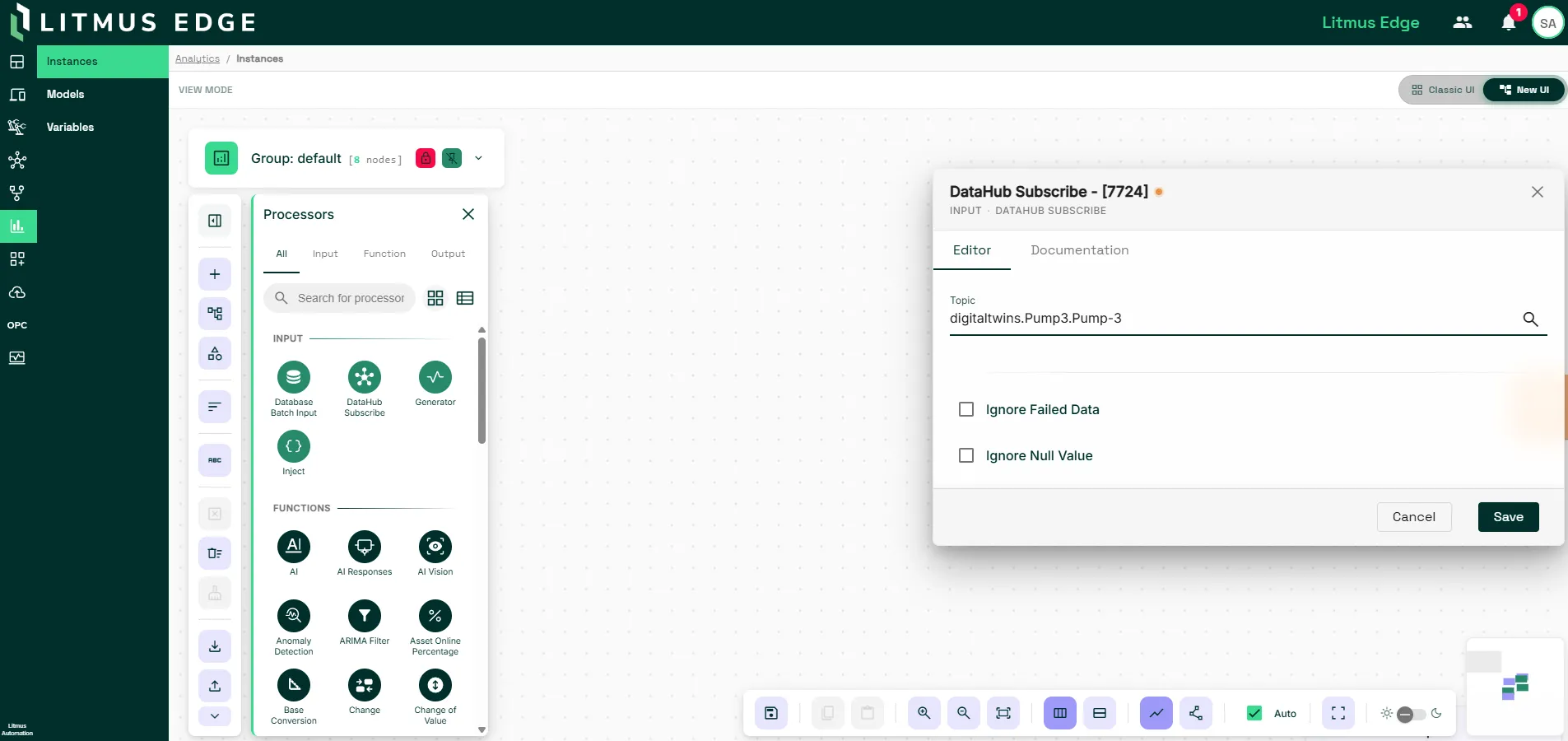
- In the processor, click Watch Output and verify static attribute content in the bottom pane.
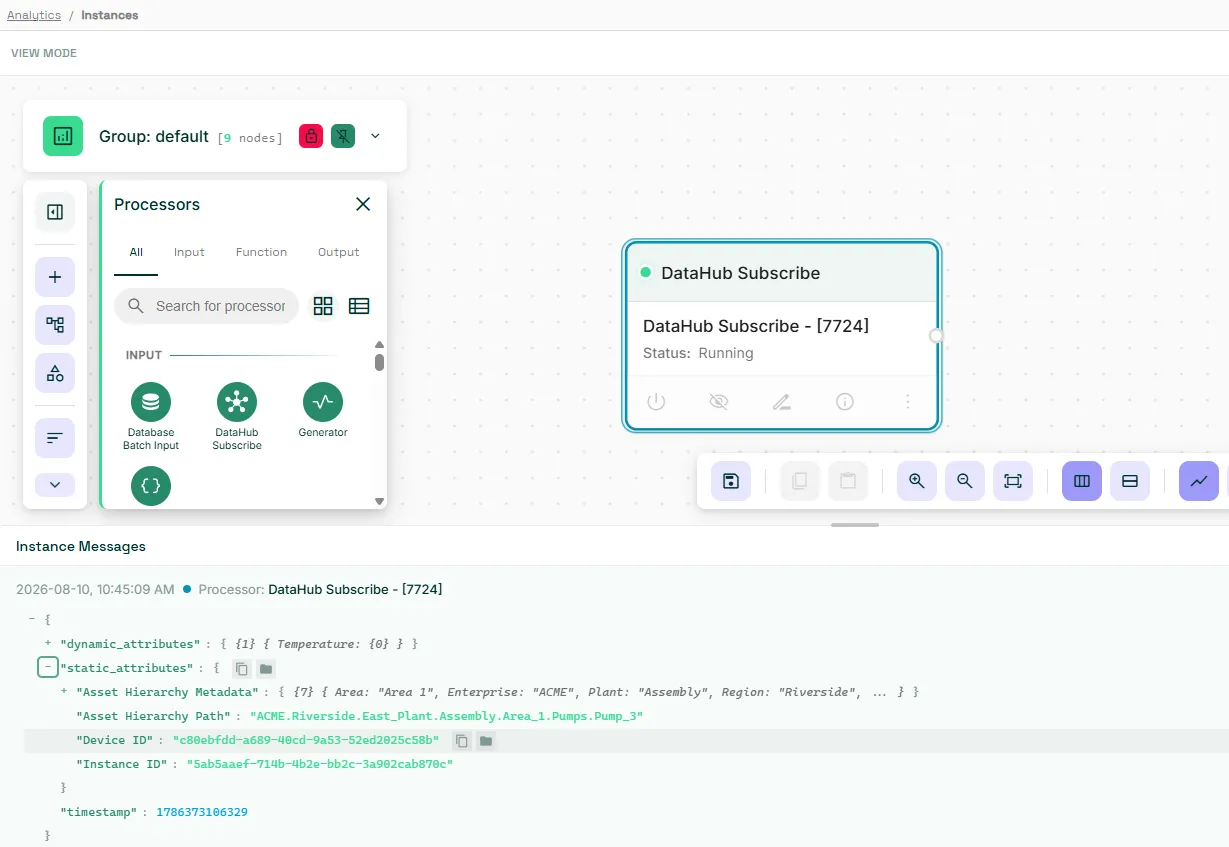
Verify the asset's path end to end
To confirm the asset is addressed correctly from LEM through to Analytics:
- In LEM, in the Asset Hierarchy pane, confirm the tree shows the levels you created and that your asset sits on the node you expect.
- Select the asset's node and review its details, including Type, Parent, and the Children count.
- In Litmus Edge, in the instance's Data Access tab, confirm the payload carries a resolved hierarchy path that matches the tree.
- In Analytics, confirm the flow receives the payload and that the hierarchy path is present in the incoming data.
- Optional: move the asset's node to a different parent in LEM, then confirm the path in the payload changes to reflect the change.
- Optional: send data to Litmus Unify.