Set up and use Streaming Logs
Streaming Logs provides a central view of logs forwarded from Litmus Edge devices in a project. To use the log feature, you enable the Edge logs streaming management experimental feature in the Admin Console, start log forwarding on your devices, and then view and filter the logs from the Streaming Logs page.
Note: Also see Streaming logs, Log Forwarding, and Action logs for overview and background information.
Before you begin
Before you set up Streaming Logs, ensure you have:
- Administrative access to the Litmus Edge Manager (LEM) Admin Console
- One or more edge devices running Litmus Edge version 4.1.0 or later
- Litmus Edge Manager version 2.34.0 or later
Step 1: Enable Edge logs streaming management
Edge logs streaming management is an experimental feature. You must enable it before log forwarding controls and the Streaming Logs pane become available.
To enable Edge logs streaming management:
- In the Litmus Edge Manager Admin Console, select Settings > Experimental Features.
- In the Experimental Features page, click the Edge logs streaming management toggle to enable it.
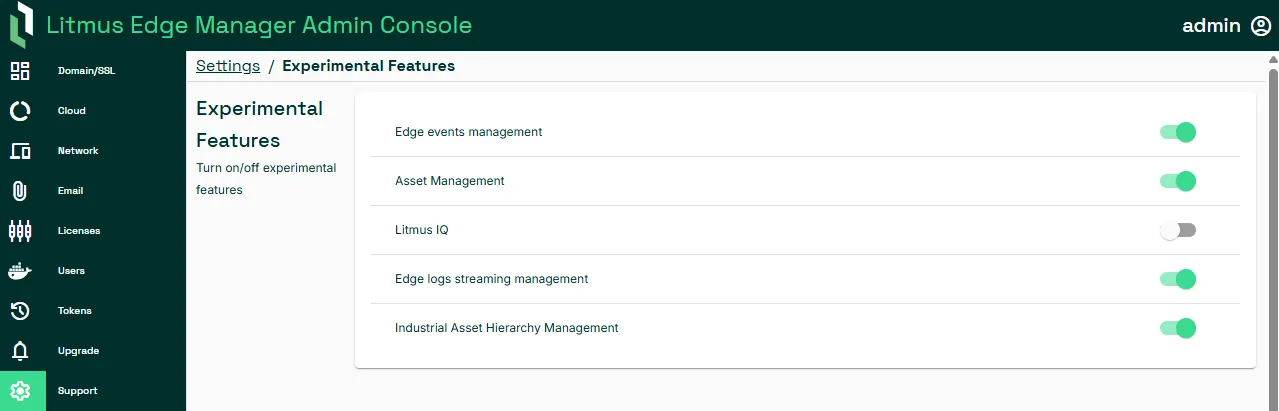
The Streaming Logs page and is now available in the User UI.
Step 2: Start log forwarding on your edge devices
You can start log forwarding on a single edge device or across multiple edge devices at once.
Enable log forwarding on a single edge device
To start log forwarding on an individual edge device:
- In Litmus Edge Manager, select a company and project.
- From the navigation panel, select Edge Devices.
- In the Edge Devices page, click the edge device name to open the edge device details page.
- Select the Manage tab and the Log Forwarding subtab. Toggle Enable Log Forwarding on.
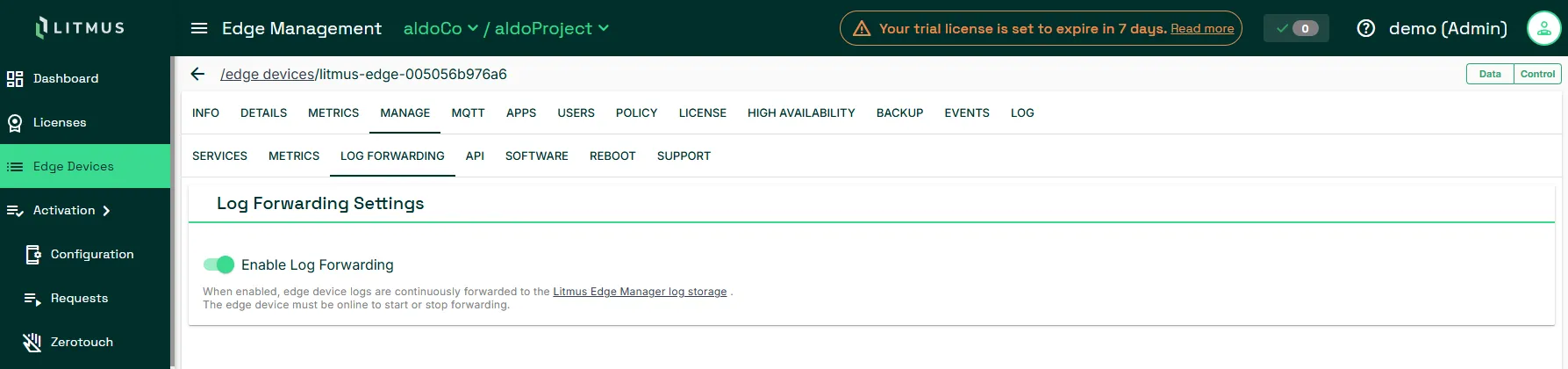
Streaming logs are enabled for this edge device.
Note: Log forwarding configuration persists across edge device reboots. If forwarding was enabled before a reboot, it resumes automatically when the edge device comes back online.
Enable log forwarding on multiple edge devices
To start log forwarding on several edge devices at once:
- In Litmus Edge Manager, select a company and project.
- From the navigation panel, select Edge Devices.
- In the Edge Devices pane, click the Multi-Select icon. Selection boxes appear next to each edge device.
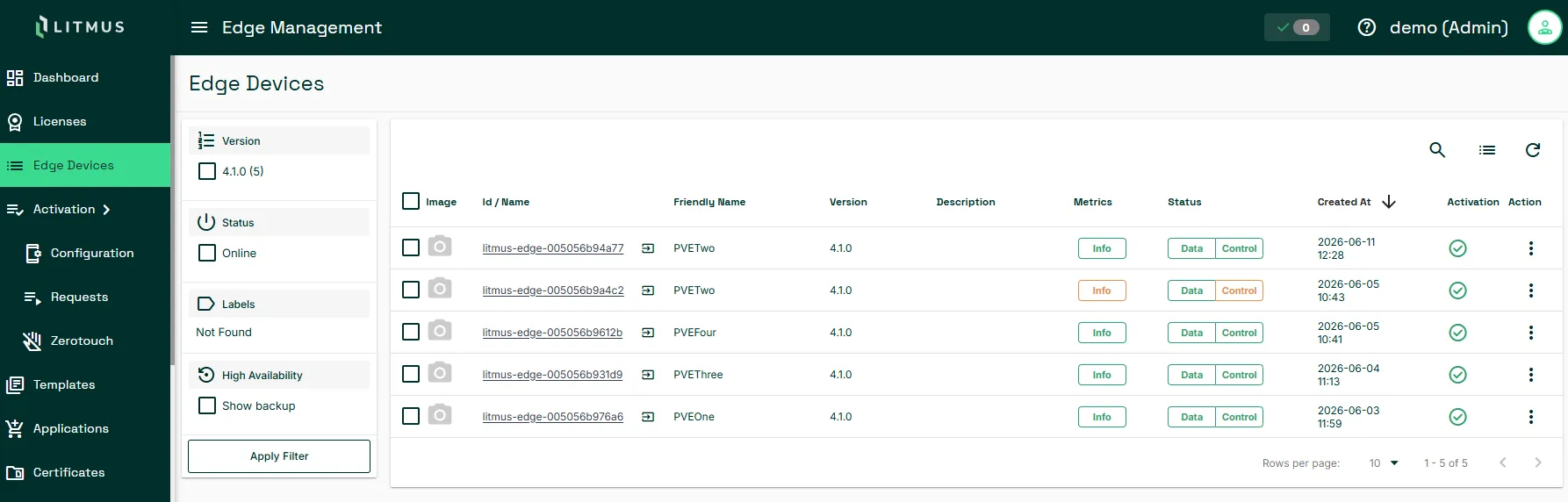
- Select the edge devices you want to enable log forwarding on.
- From the bulk actions menu, select Manage Logs Forwarding.
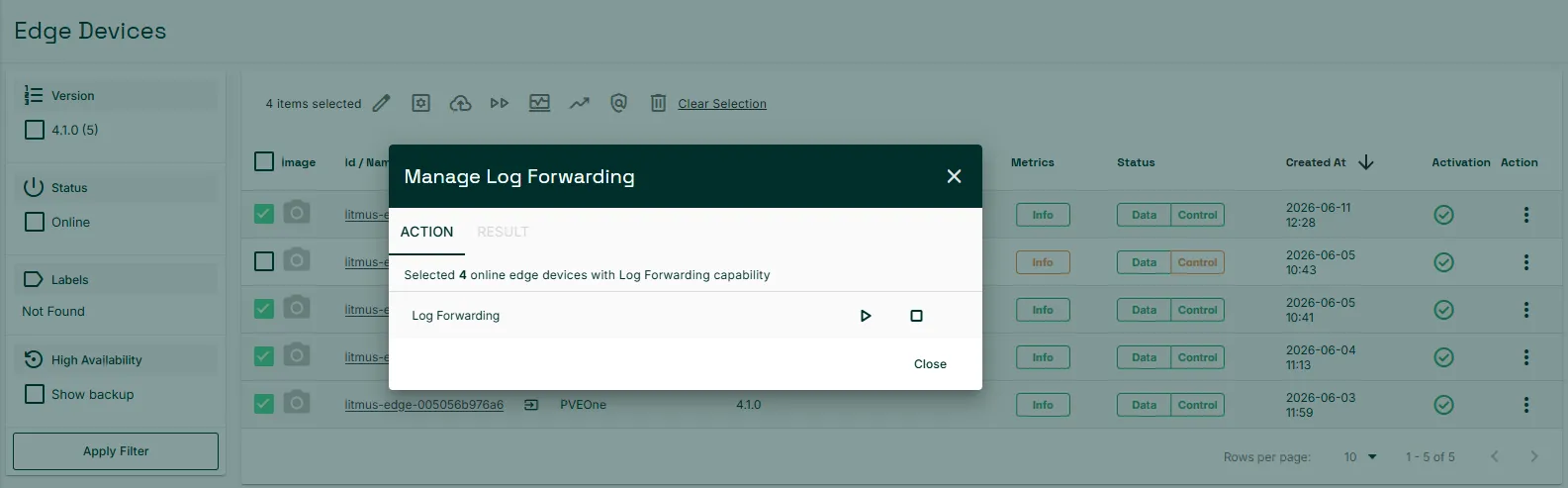
- In the Manage Logs Forwarding dialog, click the Enable Logs Forwarding start icon.
A summary appears showing how many edge devices were started, stopped, and skipped. Devices running Litmus Edge earlier than version 4.1.0 and offline edge devices are skipped.
- Click Close.
Streaming logs are enabled for the selected edge devices.
Step 3: Configure log retention settings
Next configure how long logs are retained and the maximum disk space allocated for log storage.
To configure log retention settings:
- In the Litmus Edge Manager Admin Console, navigate to Integration > Action Log.
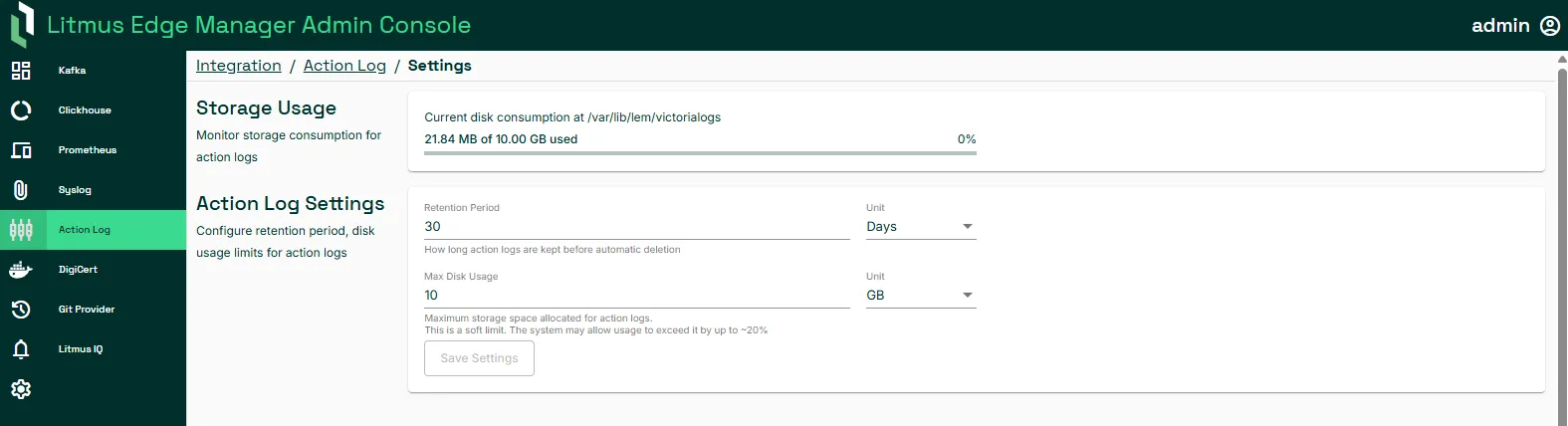
- Set the retention period and maximum disk allocation for logs.
For more information, see Action logs.
Step 4: View and filter logs
To view streamed logs from your edge devices:
- Log in to Litmus Edge Manager and select a company and project.
- From the navigation panel, select Streaming Logs. The Streaming Logs pane appears with log entries from all edge devices that have forwarding enabled.
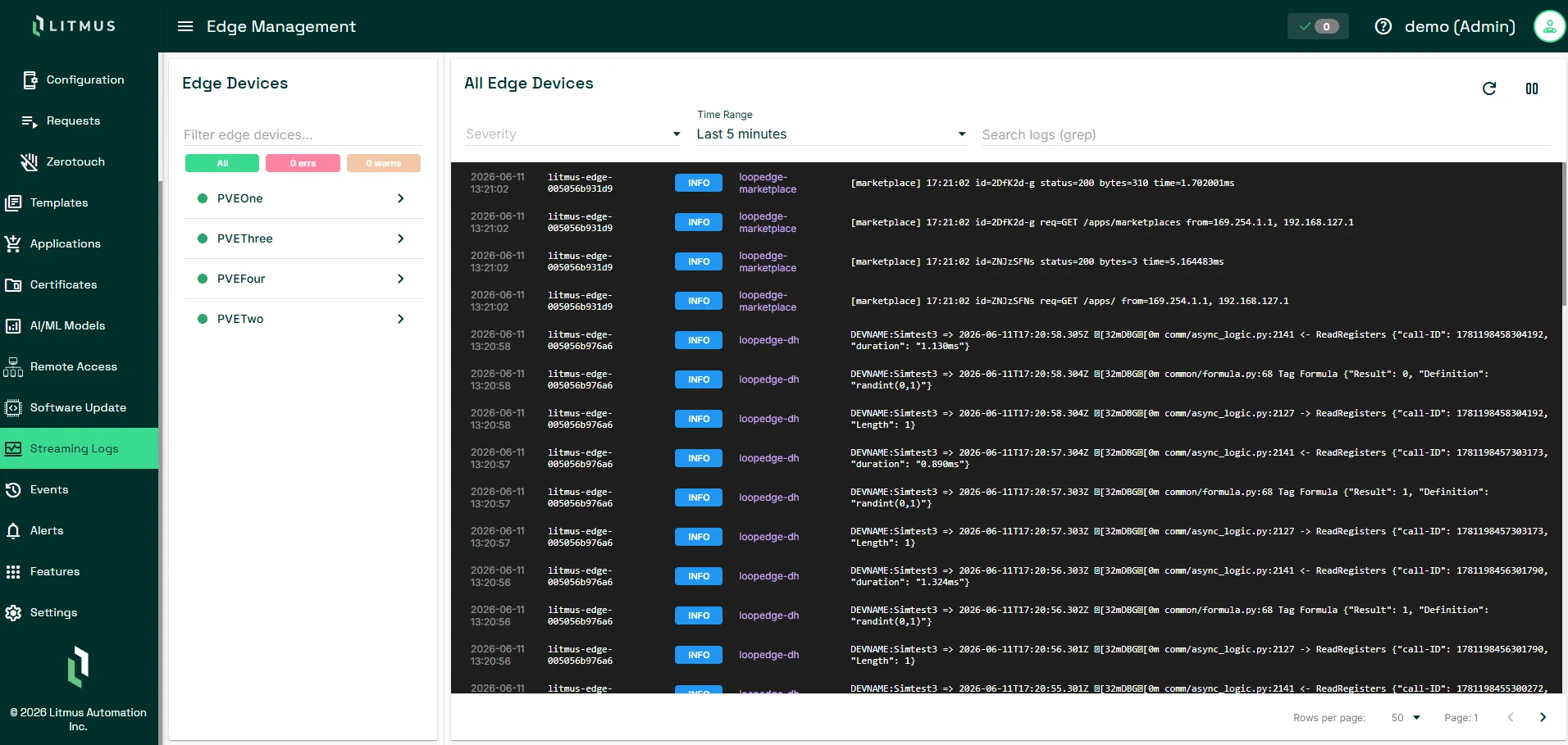
- Use the filters at the top of the page to narrow the entries displayed.
Filter | Details |
|---|---|
Edge Device | Select an edge device to show logs for only that device. Filter by all (info), error, or warning logs. |
Severity | Filter by info, warning, or error logs |
Time Range | Specify a time range for log entries |
Search | Free-text search across log message content |
- Click Refresh to update the list with the latest entries.
Each entry in the log list includes:
Field | Description |
|---|---|
Timestamp | Date and time the log was recorded on the edge device |
Device | The hostname of the originating edge device |
Component | The service or process that generated the log |
Level | The log severity: Debug, Info, Warning, or Error |
Message | The log message content |
Verify Streaming Logs is working
To confirm that log forwarding and streaming are set up correctly:
- In the Streaming Logs pane, confirm that log entries appear for the edge devices you enabled.
- Check the Device column to verify entries are coming from the expected edge devices.
- If no entries appear, confirm the edge device's Log Forwarding status shows Enabled on the Manage tab.