How to Setup Git Provider Integration
Git Provider is a one-directional integration that synchronizes Litmus Edge template files from your edge devices to a Git repository of your choice (GitHub, GitLab, or Azure DevOps). This integration enables you to maintain version control, track configuration changes, and ensure compliance across your distributed edge deployments.
When you configure Git Provider, Litmus Edge Manager (LEM) automatically pushes template updates to your Git repository based on a schedule you define (hourly, daily, weekly, or monthly) or when edge devices are backed up.
Before you begin, decide how to organize your repositories. You can create:
- One repository with folders mirroring your company or project structure
- Separate repositories per project or company
Note: We recommend using a private repository to protect your edge configuration data.
The examples in this topic use GitHub as a repository.
Note: Also see Git provider for additional overview and workflow information.
Prerequisites
Before you configure Git Provider integration, ensure you have:
- Administrative access to Litmus Edge Manager Admin Console
- A GitHub, GitLab, or Azure DevOps account with repository creation permissions
- Appropriate permissions on your Git repo
Step 1: Create a Git Repository
To setup a GitHub repository:
- In GitHub, create a new public or private repository. We recommend adding a private repo. The example repo here is named le-templates.
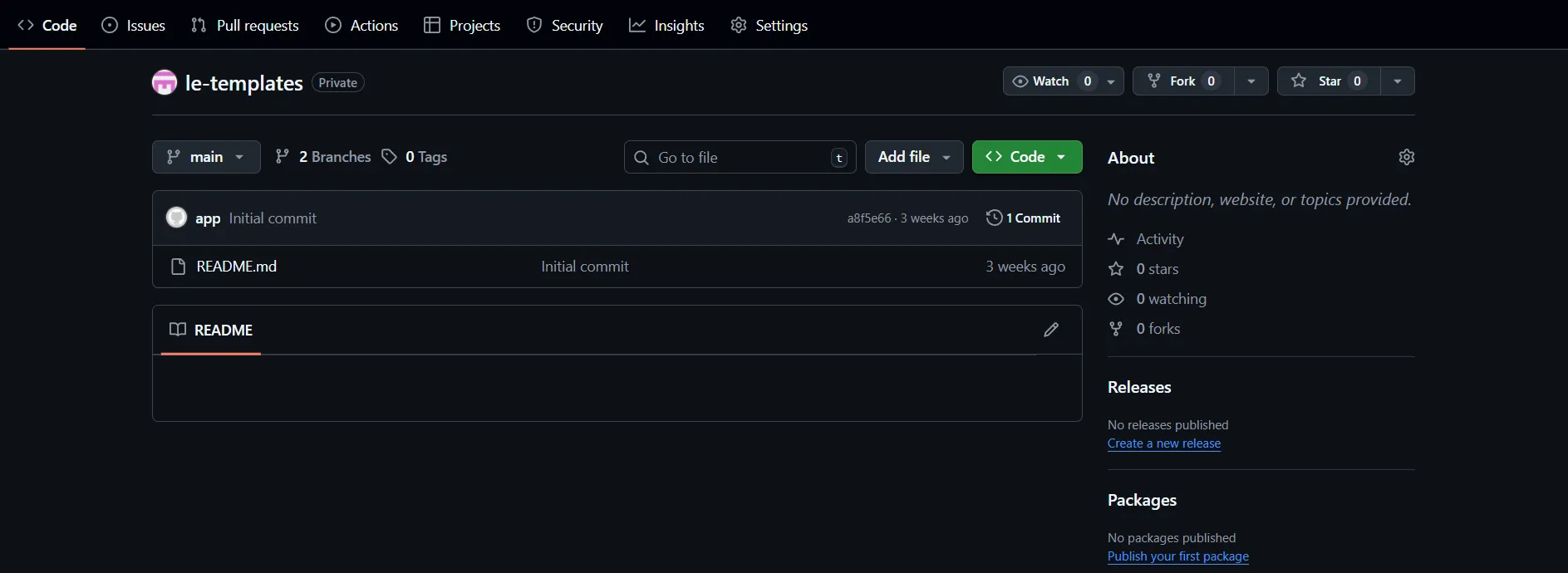
- Record the repository name.
Step 2: Configure Git Provider in LEM
To setup the LEM and Git integration:
- In LEM Admin Console, navigate to Integration > Git Provider.
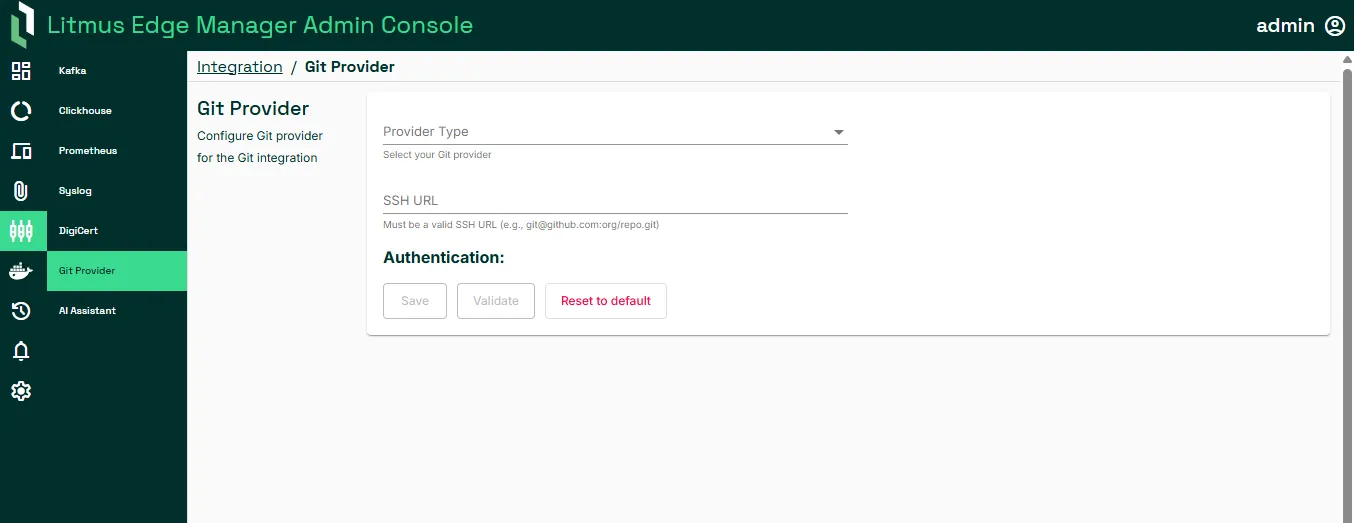
- In Provider Type, select one of GitHub, GitLab, or Azure DevOps. This example uses GitHub.
- In SSH URL, provide the GitHub URL with the following syntax: [email protected]:<your-org>/<github-repo>.git. For example:[email protected]:gpm-litmus/lem-template.git
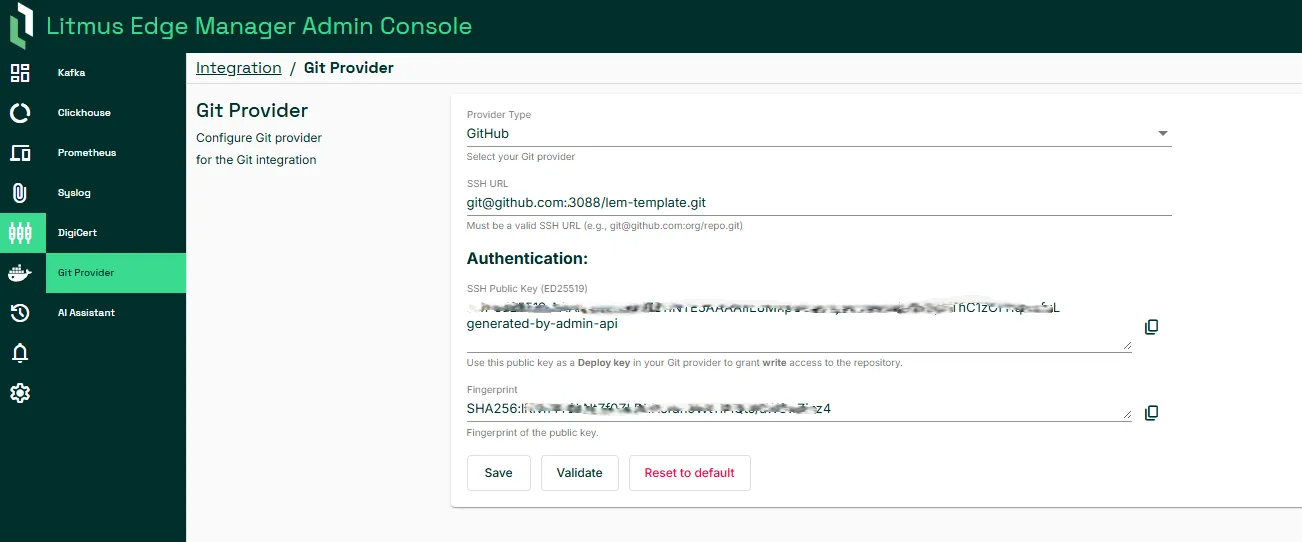
- Copy the value from SSH Public Key.
Step 3: Add the Deploy Key to Your Git Repository
- In GitHub, add the public key as a deploy key:
- Navigate to Settings > Deploy keys and click Add deploy key.
- Provide a key name in Title and paste the SSH public key in Key.
- Select Allow write access and click Add key.
- In LEM Admin Console and in Integration > Git Provider, click Validate. If successful, the Repository access successful message displays.
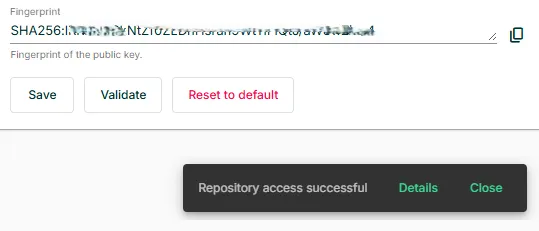
- Close the success message and click Save.
Step 4: Configure Synchronization Settings
To configure synchronization settings:
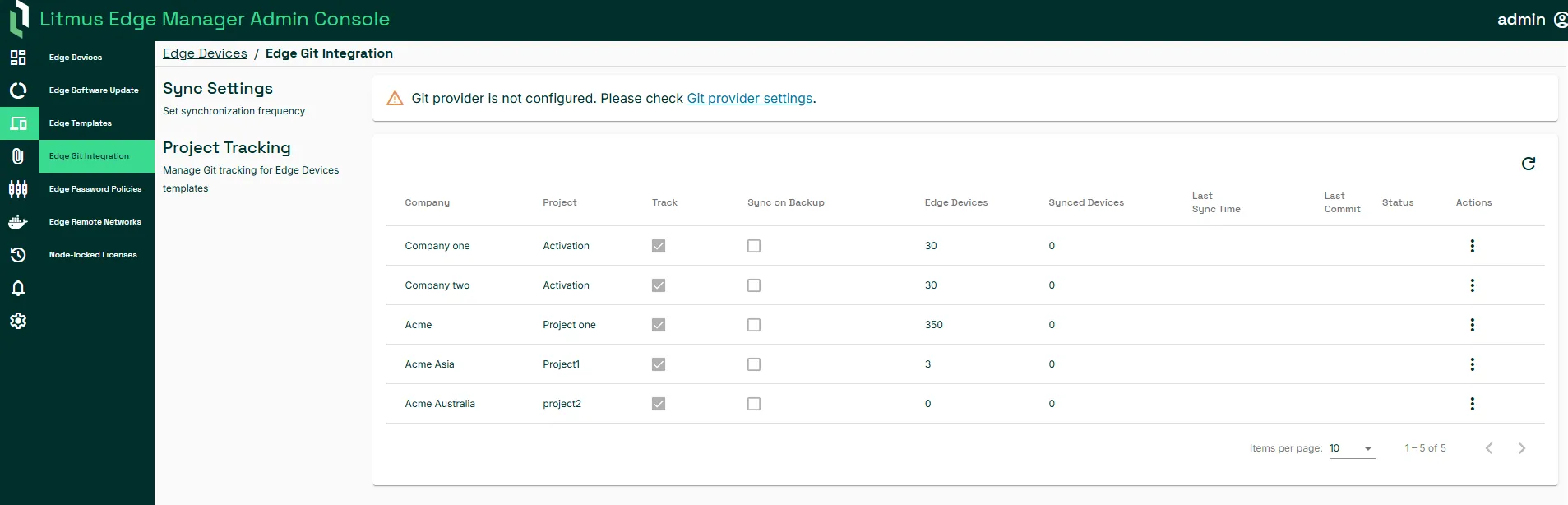
- Navigate to Edge Devices > Edge Git Integration. Verify that edge devices populate on the page.
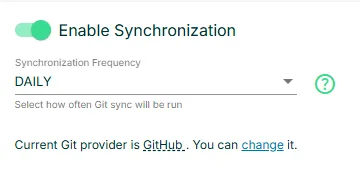
- In Synchronization Frequency, specify how often Git synchronization occurs: hourly, daily, weekly, or monthly. Syncs occur at 00:00 (UTC) daily, weekly on Mondays, and monthly on the first day of the month.
Step 5: Configure Synchronization Settings
Next configure in the integration for edge devices belonging to your company. Here you also view the number edge devices and synced devices, last sync and commit ID, and integration status. You set tracking at the project level.
The following columns display in Project Tracking:
Field | Description |
|---|---|
Company | Company to which the devices belongs |
Project | Project to which the devices belong |
Track | Enable to push changes to Git based on the selected synchronization frequency |
Sync on Backup | Enable to push changes to Git when the device is backed up |
Edge Devices | Number of devices in the project |
Synced Devices | Number of devices that have been synchronized |
Last Sync Time | The last time that a synchronization was performed from all edge devices in the current project to LEM |
Last Commit | Git commit hash which is a unique identifier representing a specific commit in a Git repository |
Status | Status of the integration: NEW, WAITING, RUNNING, CANCELING, SUCCESS, ERROR, or CANCEL |
Action | Options to enable or disable tracking on the predefined schedule, on device backup, or to run a manual synch |
To configure the integration for edge devices:
- Navigate to Edge Devices > Edge Git Integration.
- In Project Tracking, set the synchronization frequency for devices in a company. To sync templates:
- Based on the synchronization frequency, select Track.
- When the device is backed up, select Sync on Backup.
- To enable the integration, in the Actions shortcut menu, select Enable Sync on Backup or Run Manual Sync.
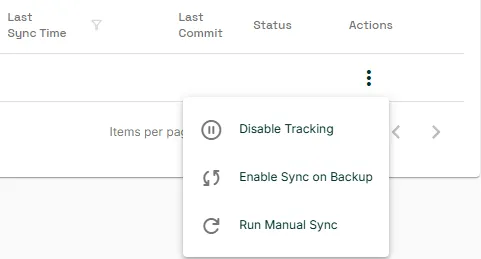
To test the sync, click Run Manual Sync. In Git, verify that the commit appears and contains the correct JSON template file.