Litmus OPC Fusion
Connect your legacy OPC DA systems to Litmus Edge
Prerequisites
- Windows 7 or later
- At least one OPC DA server installed and running (e.g., Kepware, Matrikon, RSLinx)
- Network access to target OPC DA servers
- Administrator privileges for installation
- Litmus Edge instance for final integration (optional for initial testing)
Step 1: Install OPC Fusion
- Download the OPC Fusion installer from the Central Portal.
- Run OPCFusionSetup.exe as Administrator.
- Accept the license agreement.
- Choose installation directory (default: C:\Program Files\Litmus\OPC Fusion).
- Select the components to install.
- Verify the ports and modify as needed.
- Click Install.
- Wait for installation to complete.
- Click Finish.
Step 2: Start the Service
The OPC Fusion service starts automatically after installation if selected on the last page. Verify it's running or start it by:
Option A: System Tray
- Look for the OPC Fusion icon in the system tray
- Icon should be green (running)
- Right click on the icon and select Start Service if not running.
Option B: Services Console
- Open Windows Services (services.msc)
- Find "Litmus OPC Fusion Gateway"
- Status should show "Running"
- Right click on the service and choose Start if not running.
Step 3: Access the Web UI
- Open your web browser
- Navigate to: http://localhost:8443
- Log in with default credentials:
- Username: admin
- Password: litmusfusion
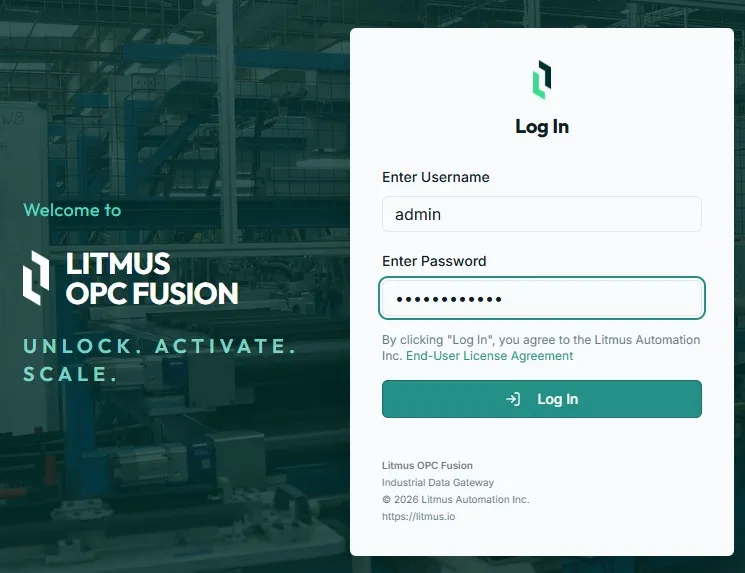
Important: Change the default password immediately after first login!
Step 4: Add an OPC DA Server
- Click OPC DA > DA Clients in the sidebar
- Local servers should automatically be displayed in the Discover tab. If the server is listed then click the + Add button and proceed to step 5.
- If need you can add a server manually by selecting the Servers tab clicking + Add Manually
- Fill in the connection details:
- Name: A friendly name (e.g., "Kepware Server")
- ProgID: The OPC server's ProgID (e.g., "Kepware.KEPServerEX.V6")
- Hostname: localhost for local, or IP/hostname for remote
- Update Rate: 1000 ms (default)
- Click Create
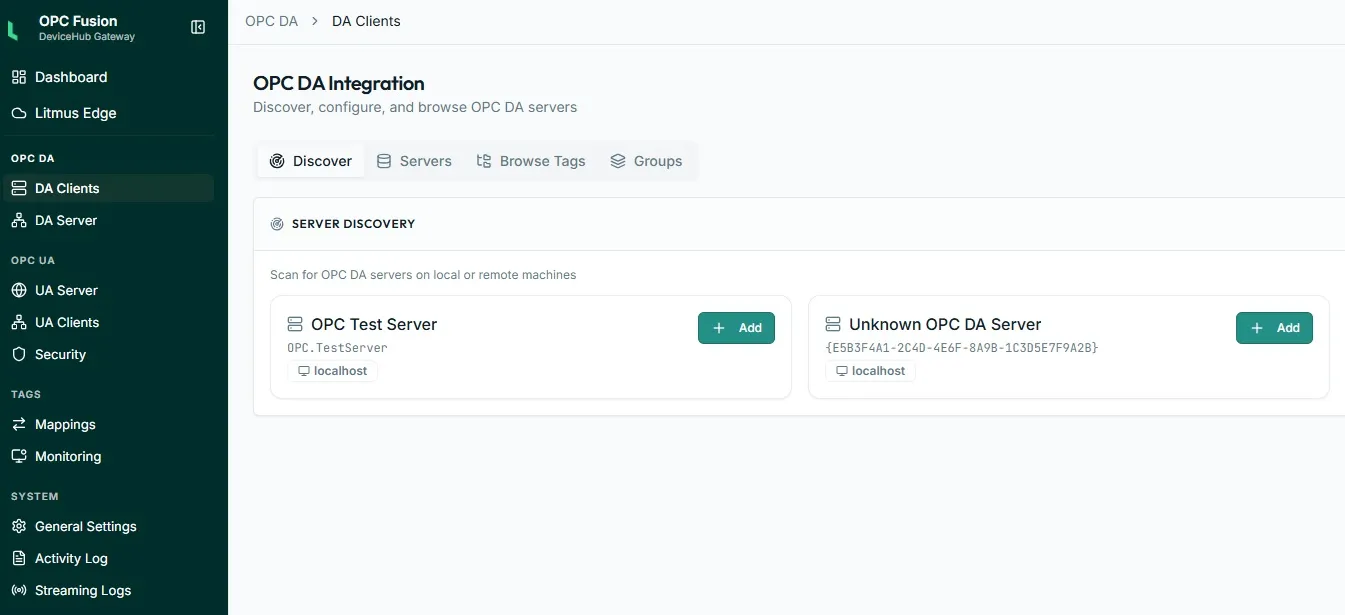
The server status should change from "Connecting..." to "Connected" within a few seconds.
Step 5: Create Tag Mappings
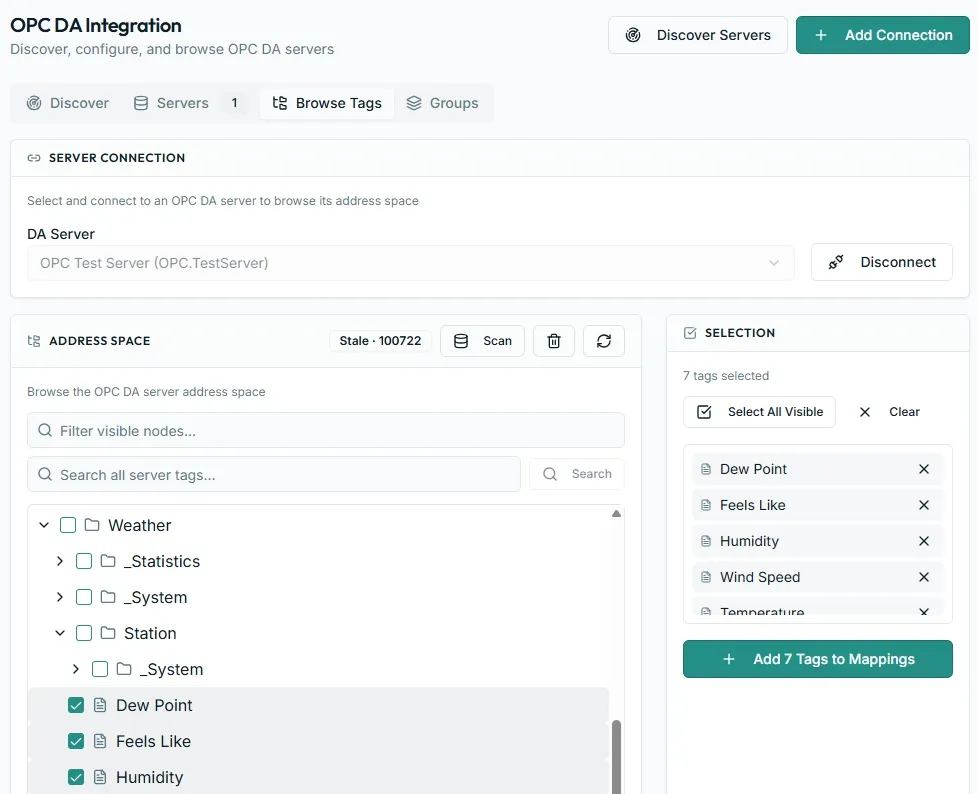
- Click the Browse Tags tab.
- Select your DA server from the dropdown.
- Click Connect to explore the server's address space.
- Select a tag and click Add.
- Repeat for additional tags.
- Click Add X Tags to Mappings when complete.
Step 6: Test OPC UA Output
Before connecting Litmus Edge, verify OPC Fusion is working with a test OPC UA client:
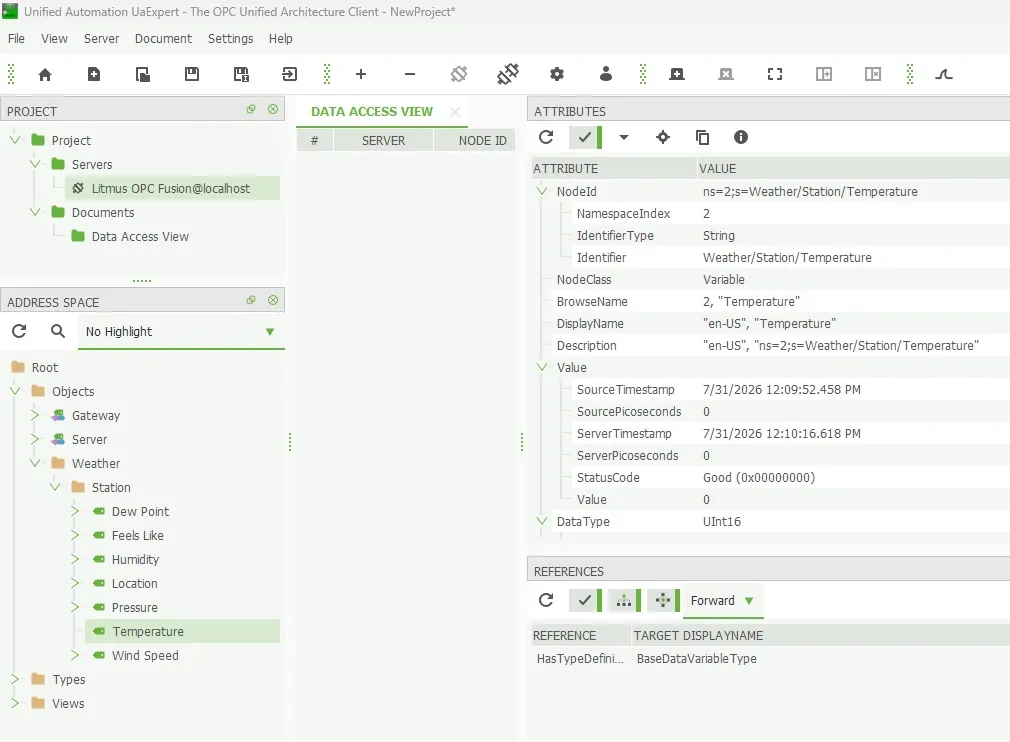
OPC Fusion Endpoint:
- Endpoint URL: opc.tcp://localhost:4840
- Security Mode: None (for initial testing)
- Namespace: ns=2 (default for mapped tags)
Test Clients:
- UaExpert (Unified Automation) - Recommended for testing
- Prosys OPC UA Browser
Step 7: Connect Litmus Edge
Now connect Litmus Edge to OPC Fusion to bring your legacy DA data into the Litmus Edge platform:
- Log in to your Litmus Edge instance
- Navigate to DeviceHub > Devices
- Click + Add Device
- Select OPC UA Client Advanced driver
- Configure the connection:
- Name: OPC Fusion Gateway
- Driver Mode: Subscription
- Server URL: opc.tcp://<opc-fusion-host>:4840
- Security Policy: None (Not recommended for production*)
- Security Mode: None (Not recommended for production*)
- Click Create Device
- Browse OPC Fusion's address space and select tags to import
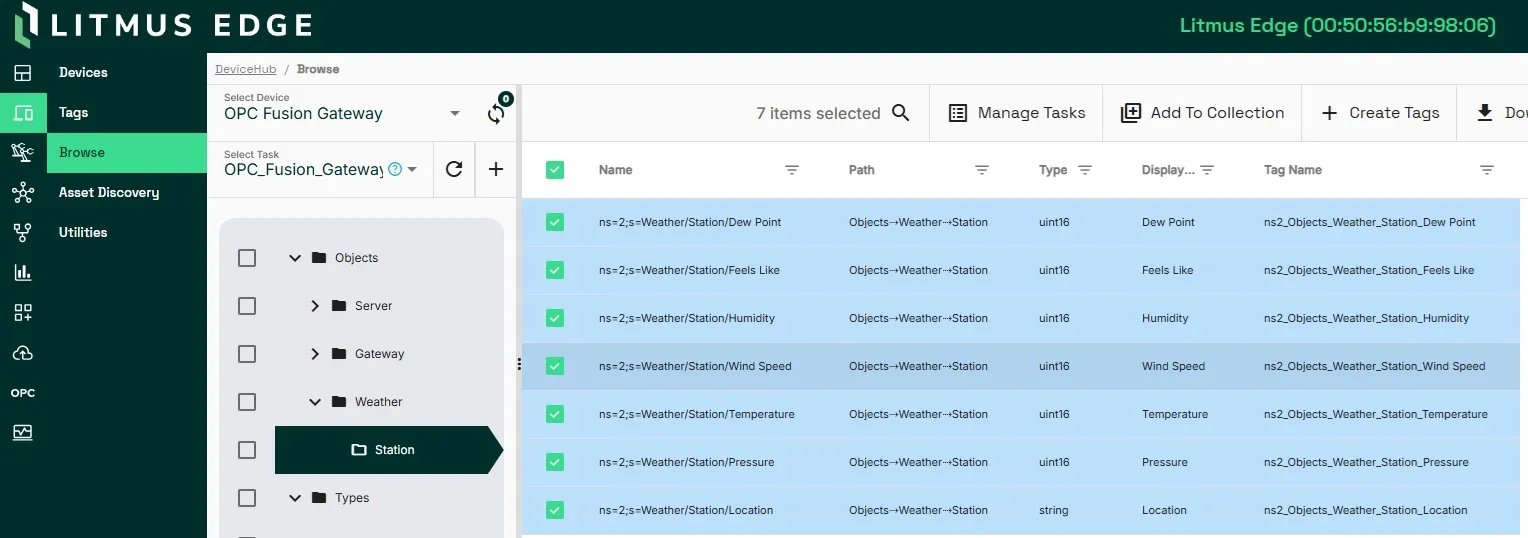
Your legacy OPC DA data is now flowing into Litmus Edge!
*For production it is best to use secure communication and setup certificates
Step 7: Monitor Operation
In the sidebar visit:
- Dashboard to see system overview
- Click Tags > Monitoring to view real-time tag values
- Click System > Streaming Logs to see operational logs
Troubleshooting Quick Reference
Problem | Solution |
|---|---|
Service won't start | Check Windows Event Log, run as Administrator |
DA server shows "Disconnected" | Verify ProgID, check DCOM settings |
Can't access Web UI | Verify port 8443 is not in use |
UA client can't connect | Check firewall for port 4840 |
Tags not updating | Verify DA subscription active, check update rate |
For detailed troubleshooting, see Troubleshooting Guide.
Congratulations! You've successfully set up OPC Fusion.