Litmus DataHub Explorer
A web UI for looking inside the DataHub, the NATS message broker on every Litmus Edge device. Connect to a device, watch its messages arrive live, browse every tag in one table, inspect payloads, and chart values over time.
Web UI | port 5005, HTTPS |
|---|---|
Connects to | Litmus Edge DataHub (NATS), or any NATS broker |
Credential | the device's DataHub access token |
Runs on | the Litmus Edge itself, or any Docker host that can reach it |
Image | litmus-datahub-explorer |
Overview
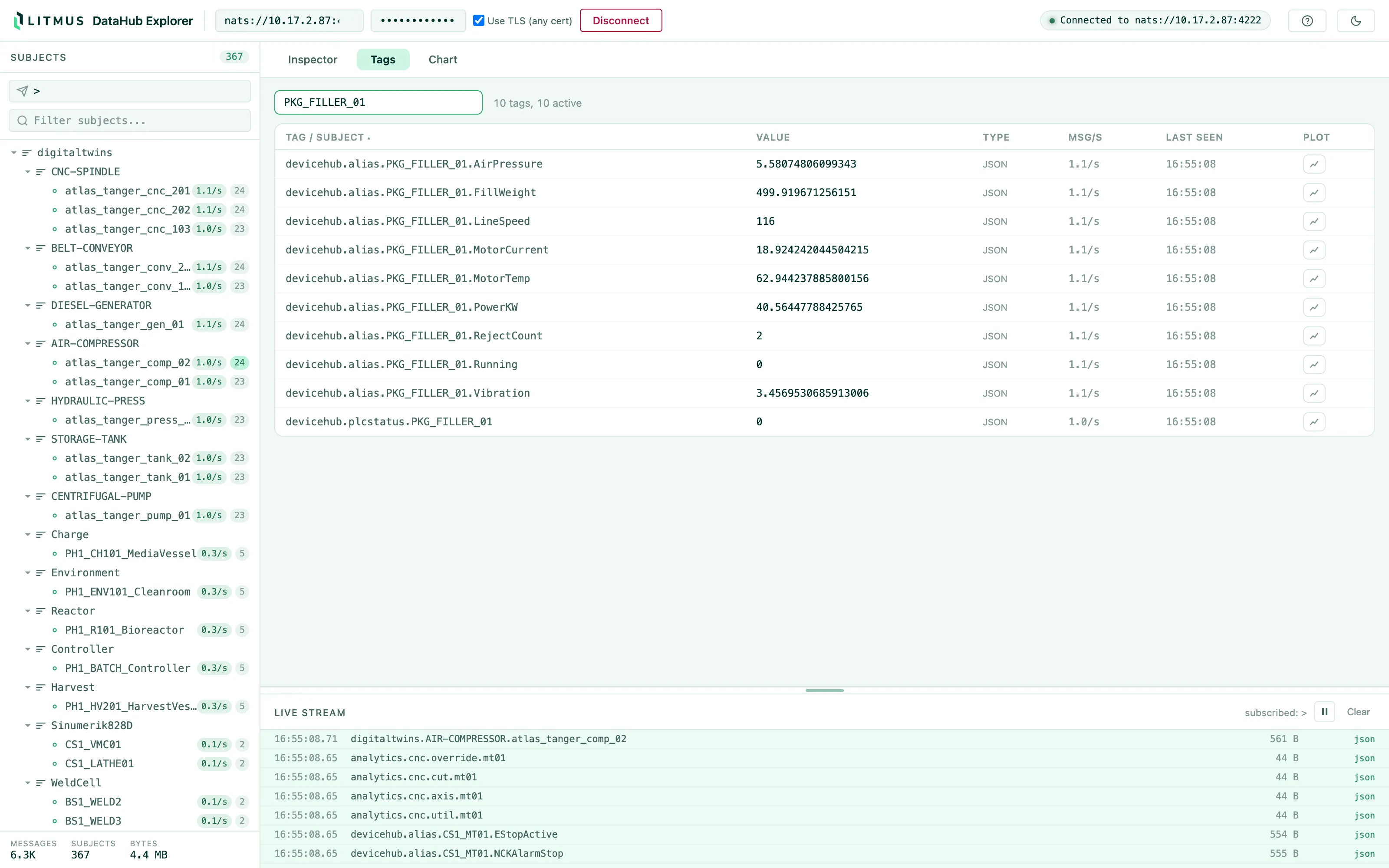
Everything a Litmus Edge device collects passes through DataHub: DeviceHub tag values, Digital Twin instances, analytics outputs and anything your own applications publish. DataHub Explorer subscribes to that broker and shows what is on it, as it happens, without writing a flow or a script.
- Live subject tree with a message count and a msg/s rate for every subject
- Tags table: every subject as a row with its current value, type, rate and last-seen time, sortable and filterable
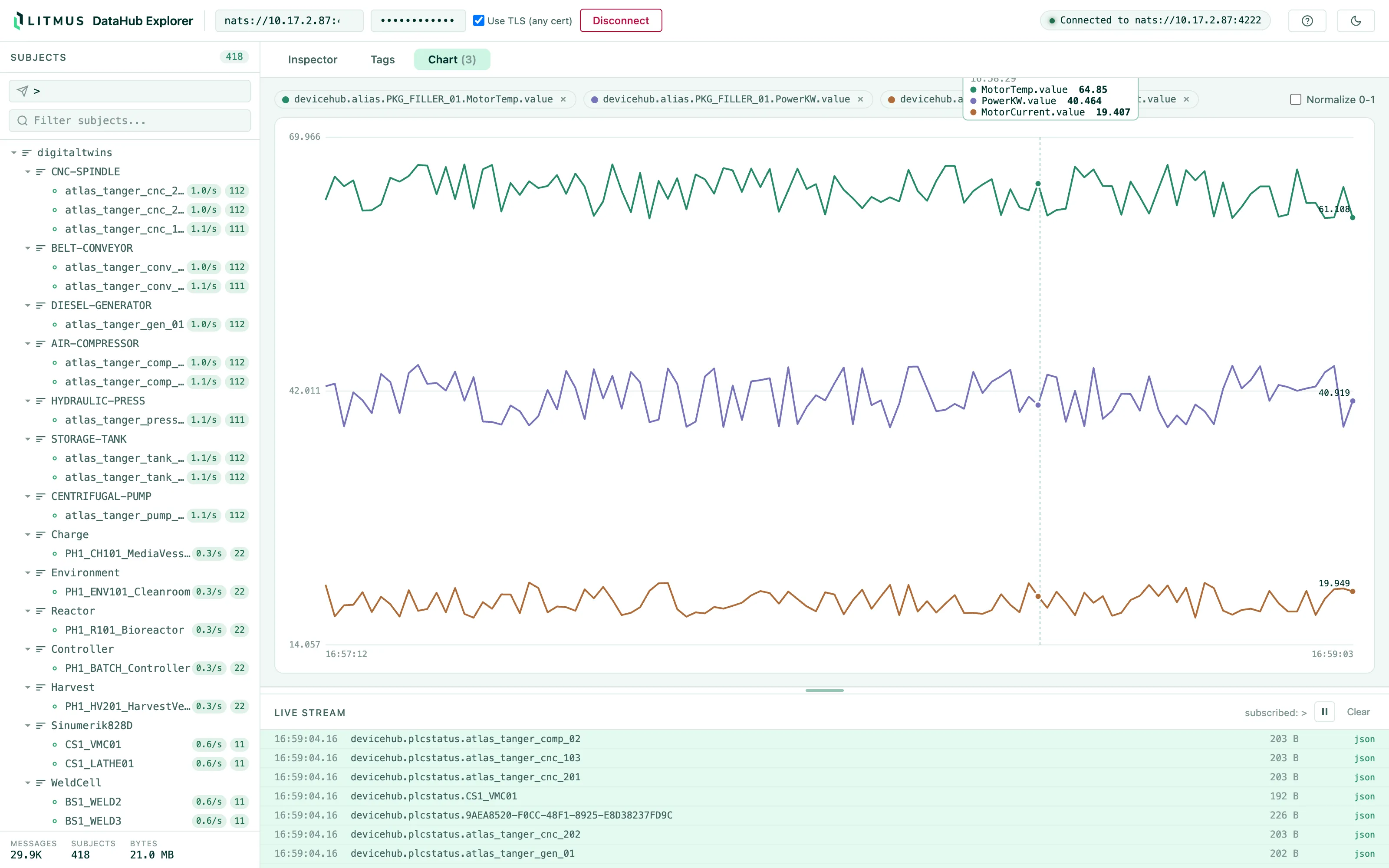
- Live charts: pin up to four numeric values from any subjects and watch them plot, with a crosshair tooltip and a normalize option for mixed scales
- Payload inspector: raw payload, pretty JSON, metadata and per-subject history
- Publish a message to any subject, or turn publishing off with read-only mode
- Light and dark themes
The browser never connects to NATS itself. The container subscribes on its behalf and forwards messages over a WebSocket in batches, so the page stays responsive on a busy broker: above a few hundred messages per batch the payload detail is sampled, while the per-subject counts and rates stay exact.
Requirements
- Litmus Edge 4.x, or any NATS server
- The DataHub access token of that device. Each device has its own, and it is found in the DataHub section of that device's Litmus Edge UI
- Docker, on the Litmus Edge itself or on a host that can reach the device's DataHub port, 4222
Deploy
Download litmus-datahub-explorer.tar.gz from the solution's page on portal.litmus.io. The archive is the container image, not a source bundle, and needs no registry access.
Option 1: on the Litmus Edge device
- In Litmus Edge, open Applications > Images, choose Upload Image, and upload litmus-datahub-explorer.tar.gz
- Open Applications > Containers and run:
docker run -d --name datahub-explorer --restart unless-stopped \
  -p 5005:5005 \
  -e WEBUI_TOKEN=choose-a-login-token \
  -v datahub-explorer-data:/app/data \
litmus-datahub-explorer:latest- Open https://10.0.0.5:5005, where 10.0.0.5 is the device's address
To reach the device's own DataHub from the UI, connect to 172.17.0.1, the Docker bridge gateway. localhost inside the container is the container itself.
Option 2: on any Docker host
docker load -i litmus-datahub-explorer.tar.gzdocker load prints the image it added. Use that name in the commands below if it differs from litmus-datahub-explorer:latest.
Save this as docker-compose.yml:
services:
  litmus-datahub-explorer:
    image: litmus-datahub-explorer:latest
    container_name: datahub-explorer
    ports:
      - target: 5005
        published: 5005
        protocol: tcp
    environment:
      WEBUI_TOKEN: "choose-a-login-token"
      READ_ONLY: "false"
      CONFIG_FILE: "/app/data/nats-config.json"
    volumes:
      - type: volume
        source: datahub-explorer-data
        target: /app/data
    restart: unless-stopped

volumes:
  datahub-explorer-data: {}
docker compose up -dOpen https://10.0.0.9:5005, where 10.0.0.9 is the host running the container, accept the self-signed certificate warning, and log in with the WEBUI_TOKEN you chose.
The compose file uses the long-form syntax that the Litmus Edge application importer accepts, so the same file also works as a Litmus Edge application definition.
Connecting to a broker
Enter the device's address in the top bar, paste its DataHub access token, and press Connect. Data starts flowing straight away.
- A bare address is enough: nats:// and port 4222 are assumed. Add a scheme or :port to override either.
- Litmus Edge's authentication style and its self-signed broker certificate are negotiated automatically. Checking Use TLS (any cert) skips the certificate check and connects straight over TLS.
- The server checks the broker before trying credentials, so an unreachable address or a missing token fails within about a second with a precise message.
- A connection that still times out after every authentication style was tried almost always means the token belongs to a different device. Litmus Edge drops a bad login silently rather than returning an error.
The last successful connection and its subscription are saved on the server and restored when the page is reloaded or the container restarts. Press Disconnect to forget them.
Using it
Subscription and filters
The subscription box at the top of the sidebar sets what the server subscribes to, > for everything. Narrow it to a pattern such as devicehub.alias.> and press Enter to apply it live. The filter boxes in the sidebar and above the tags table narrow what is shown without changing the subscription.
Charts
Press the plot button on any numeric row in the tags table, or pick a field in the inspector, to pin it to the chart. Up to four values can be pinned at once, from any subjects. Normalize 0-1 scales each series to its own range, which helps when the values differ by orders of magnitude.
Inspector
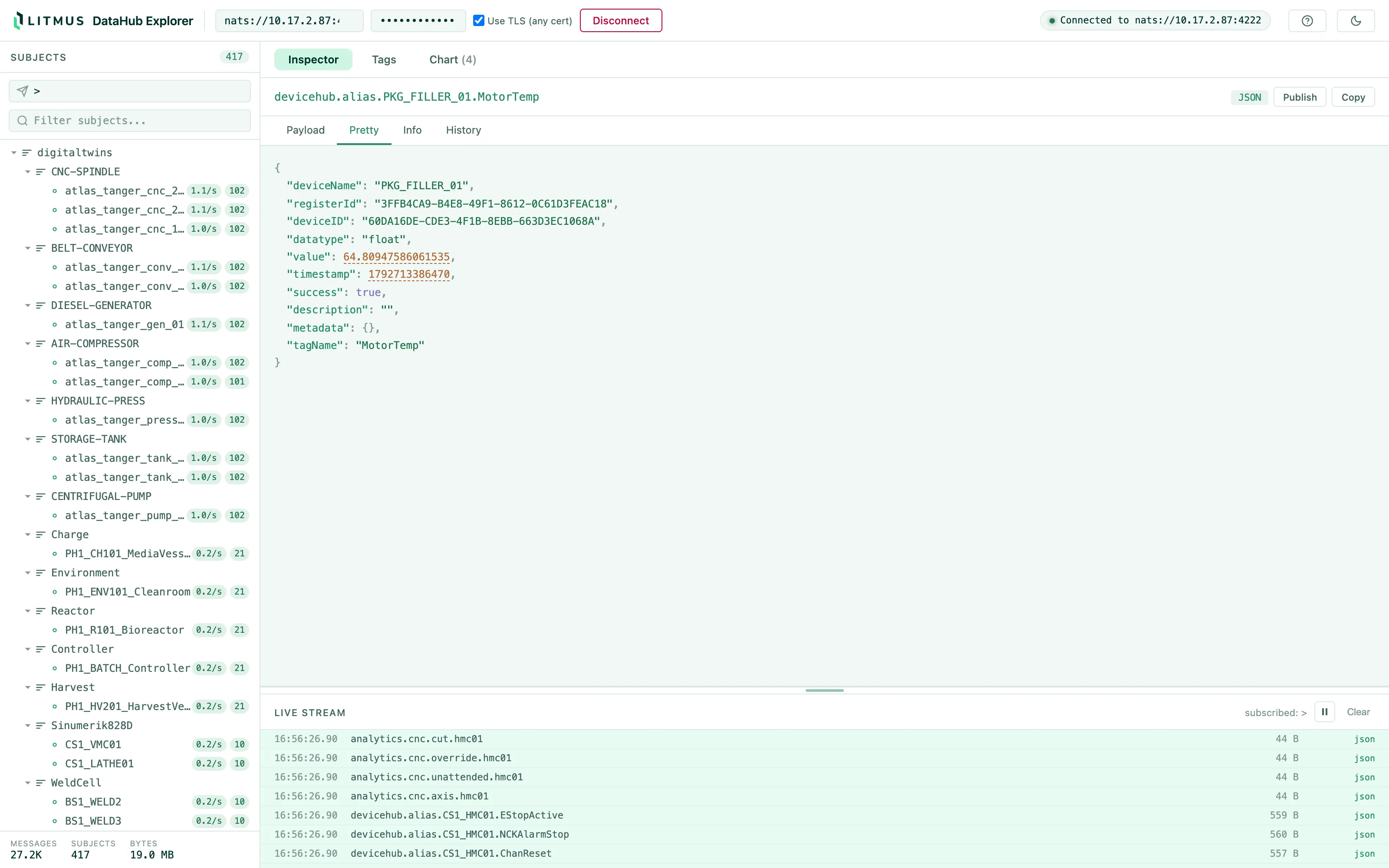
Selecting a subject opens it in the inspector: the raw payload, a pretty-printed JSON view, its metadata, and the history of recent messages on that subject.
Publishing
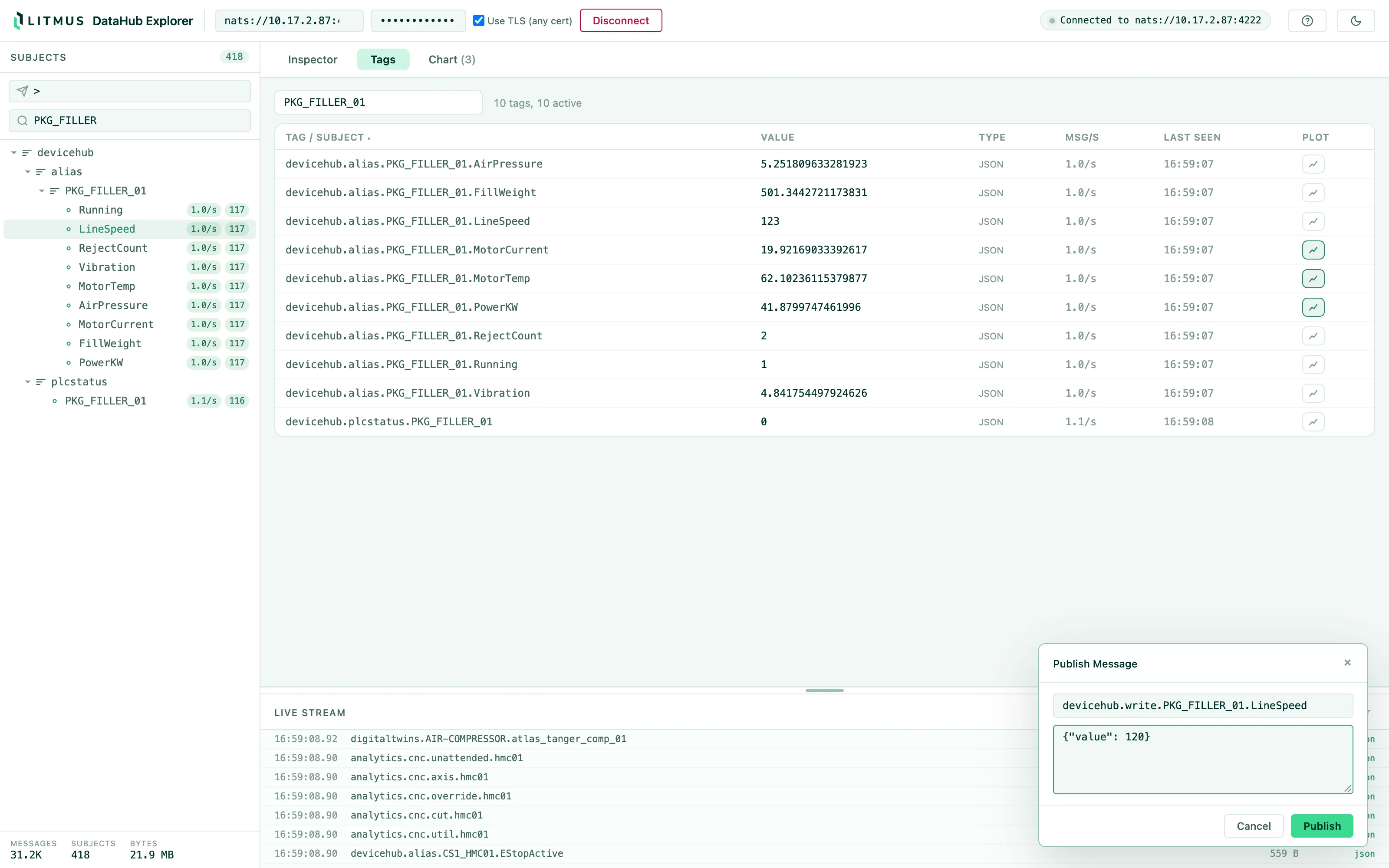
Publish in the inspector header opens a panel for sending a message to any subject, for example a DeviceHub write such as devicehub.write.<device>.<tag>. Set READ_ONLY=true to remove publishing from the UI entirely.
Configuration
All configuration is through environment variables.
Variable | Default | What it does |
|---|---|---|
WEBUI_TOKEN | unset | token required to log in to the UI. Unset means no login, so anyone who can reach the port can use it |
PORT | 5005 | HTTPS port. Plain HTTP requests on it are redirected to HTTPS |
READ_ONLY | false | true removes publishing from the UI |
NATS_URL | unset | pre-fills the broker address |
NATS_TOKEN | unset | pre-fills the access token |
NATS_INSECURE_TLS | false | true pre-checks Use TLS (any cert) |
CONFIG_FILE | /app/data/nats-config.json | where the last successful connection is saved. none disables saving |
TLS_CERT | unset | path to your own certificate. A self-signed one is generated if unset |
TLS_KEY | unset | path to the key for TLS_CERT |
TRUST_PROXY | false | true serves plain HTTP for a proxy that terminates TLS in front of it |
FLUSH_MS | 100 | how often batches are sent to the browser, in ms |
MAX_BATCH_DETAIL | 200 | messages per batch sent with full payload; beyond this only counts are sent |
MAX_PAYLOAD_BYTES | 65536 | payload bytes forwarded to the browser; larger payloads are truncated |
Security
- WEBUI_TOKEN gates the web UI and is separate from the broker credential. Leave it unset only on a trusted network. openssl rand -hex 32 makes a strong one
- Sessions expire after 8 hours, and broker credentials are never stored in the browser
- The saved connection, including its access token, is written to CONFIG_FILE with mode 600. Set CONFIG_FILE=none to keep credentials off disk. Disconnect also deletes the file
- WebSocket connections without a valid session are refused
- Use READ_ONLY=true when handing the address to someone who should only observe
Remove
docker compose downAdd -v to also delete the saved connection and the generated certificate.