Explore topics
Follow a topic from its published value to the components that use it. Use this view to investigate a data flow or understand a setup you inherited.
Start from the dashboard
Open Dashboard to review topic counts, data-quality indicators, and usage charts. Open Explore when you want to inspect individual topics.
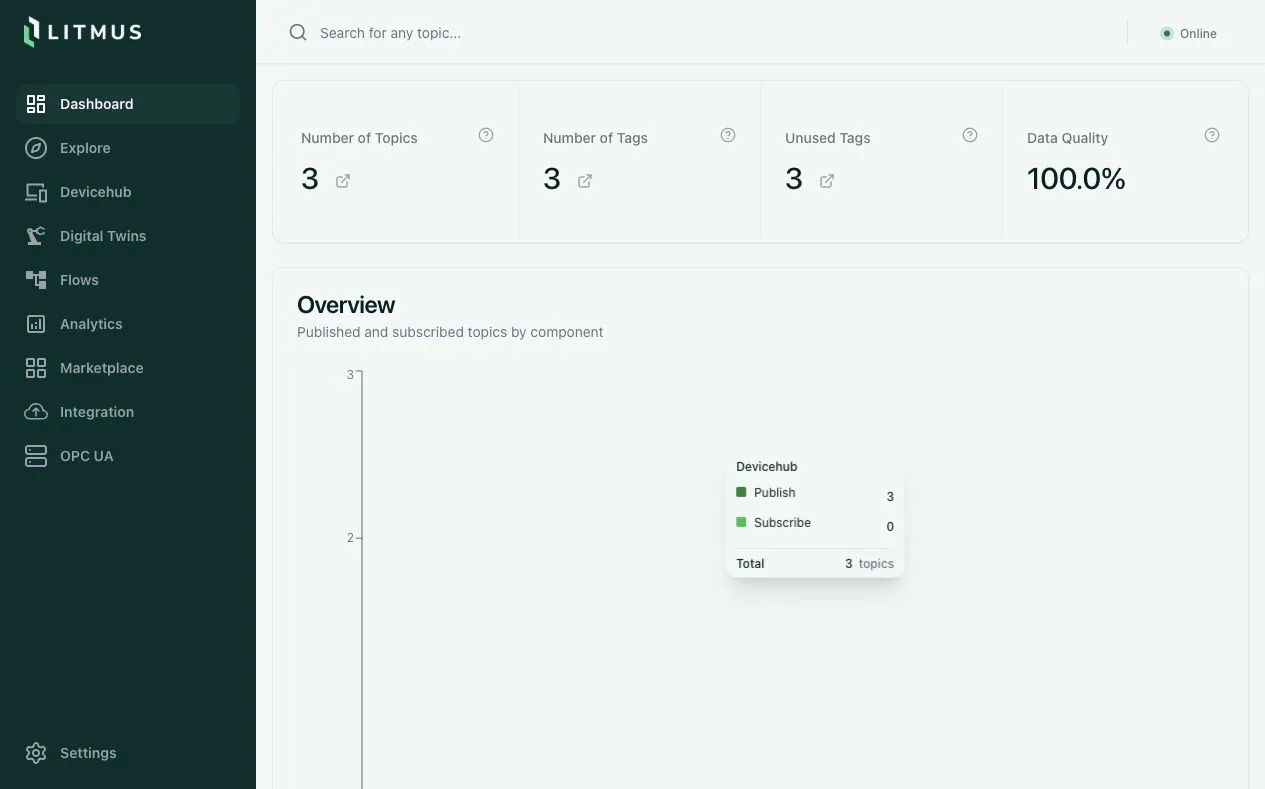
Search for a topic
- Open Explore.
- Search for a topic name in the table, or use the global search bar.
- Open the topic to view its Overview.
- In Overview, inspect Topic Value and Topic Context. The context groups configuration by component.
- Follow Inspect topic details to read the value, context, and relationships.
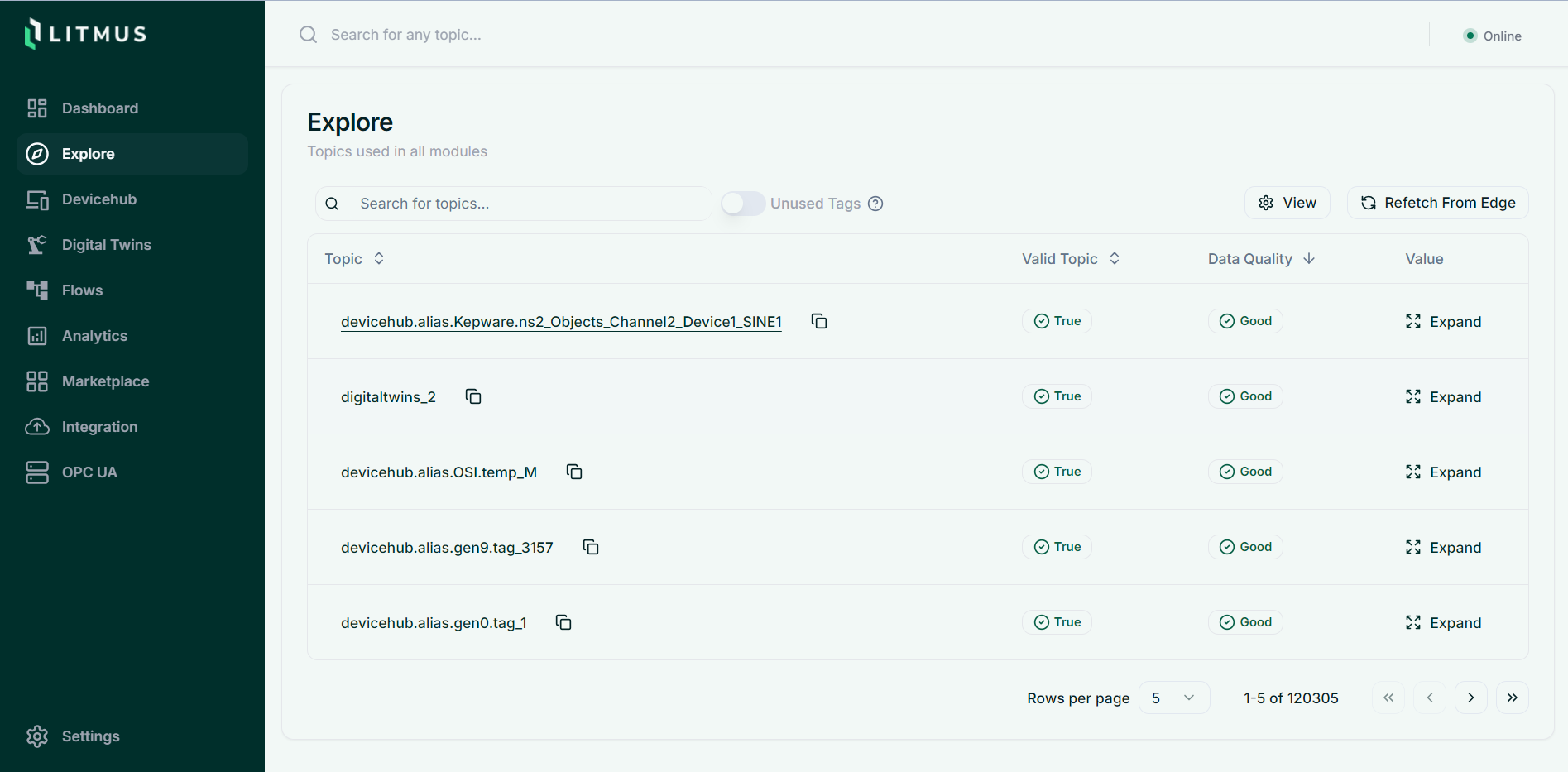
The table's Valid Topic column reports whether the name passes Topic Registry's format check. Data Quality reports whether a DeviceHub message contains success: true. Non-DeviceHub messages pass this check without inspecting their payload. These indicators help narrow an investigation; they do not prove the entire data flow is healthy.
Refresh configuration
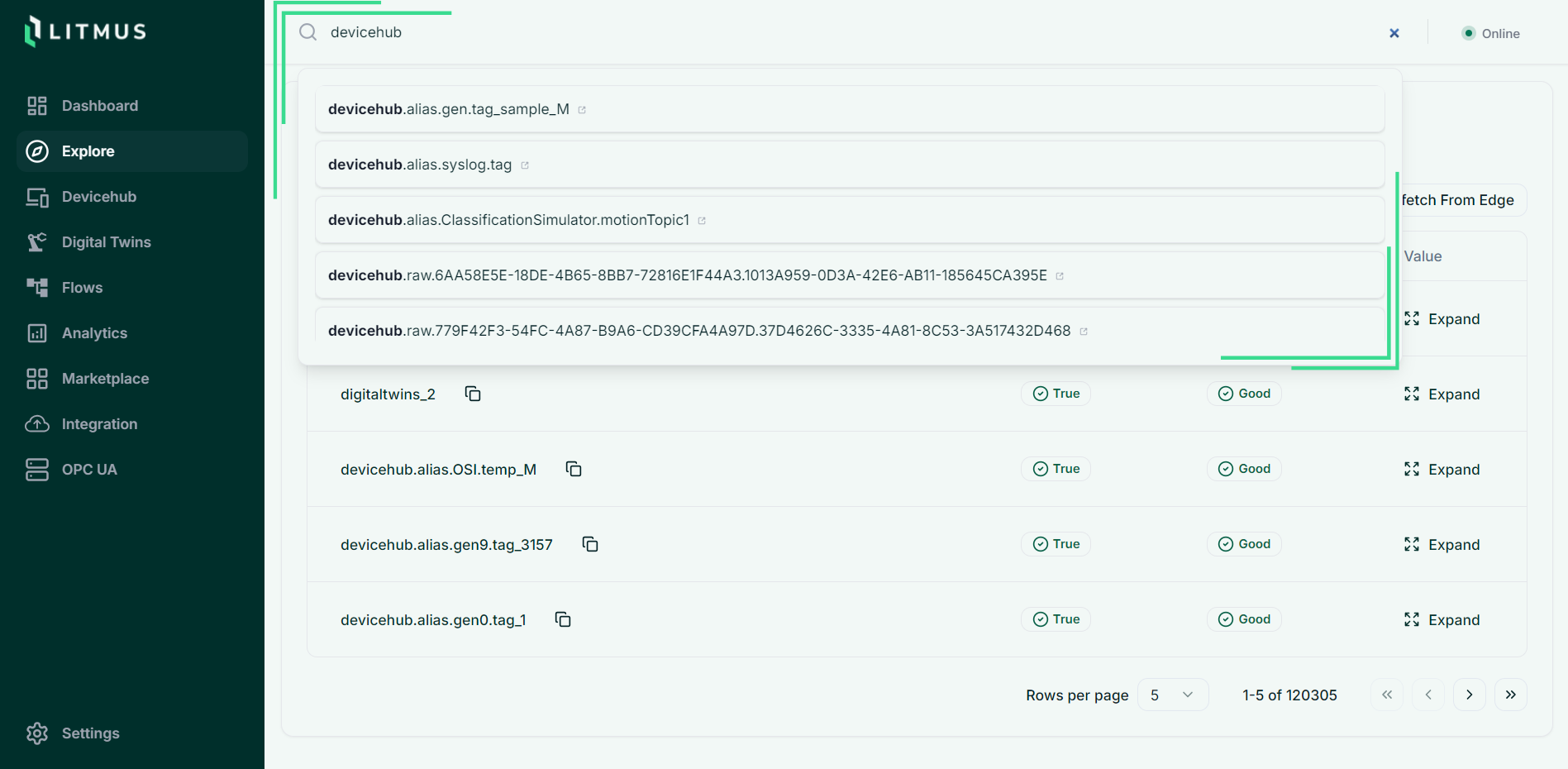
Select Refetch From Edge after changing Litmus Edge configuration. Select Proceed in the confirmation dialog. Review component retrieval results before relying on the refreshed inventory.
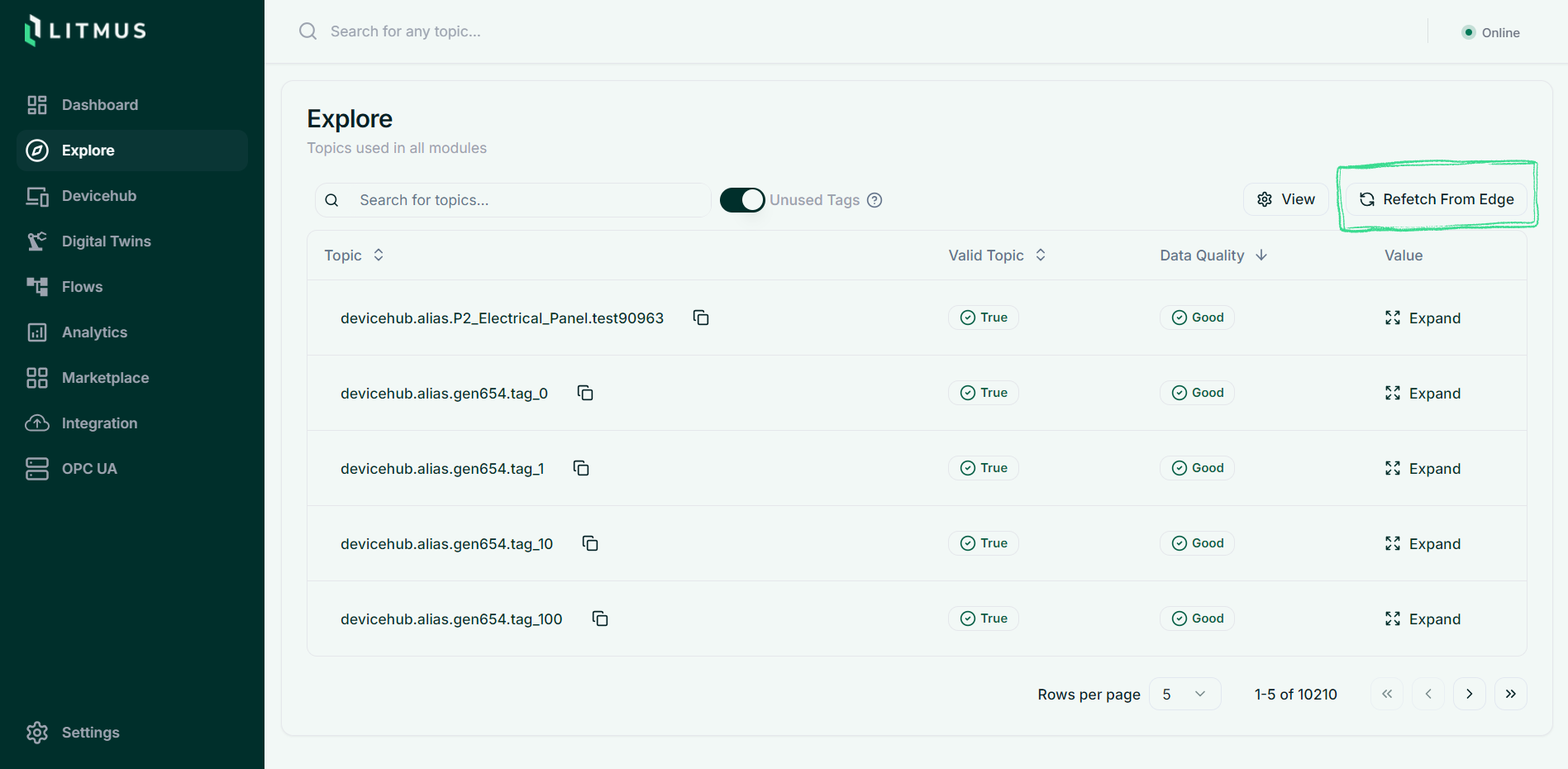
Topic discovery reads configuration from DeviceHub, Flows Manager, Digital Twins, Analytics, Integration, and the OPC UA Server.
Review unused tags
- Open Explore.
- Turn on Unused Tags.
- Review the tags with no detected consumers.
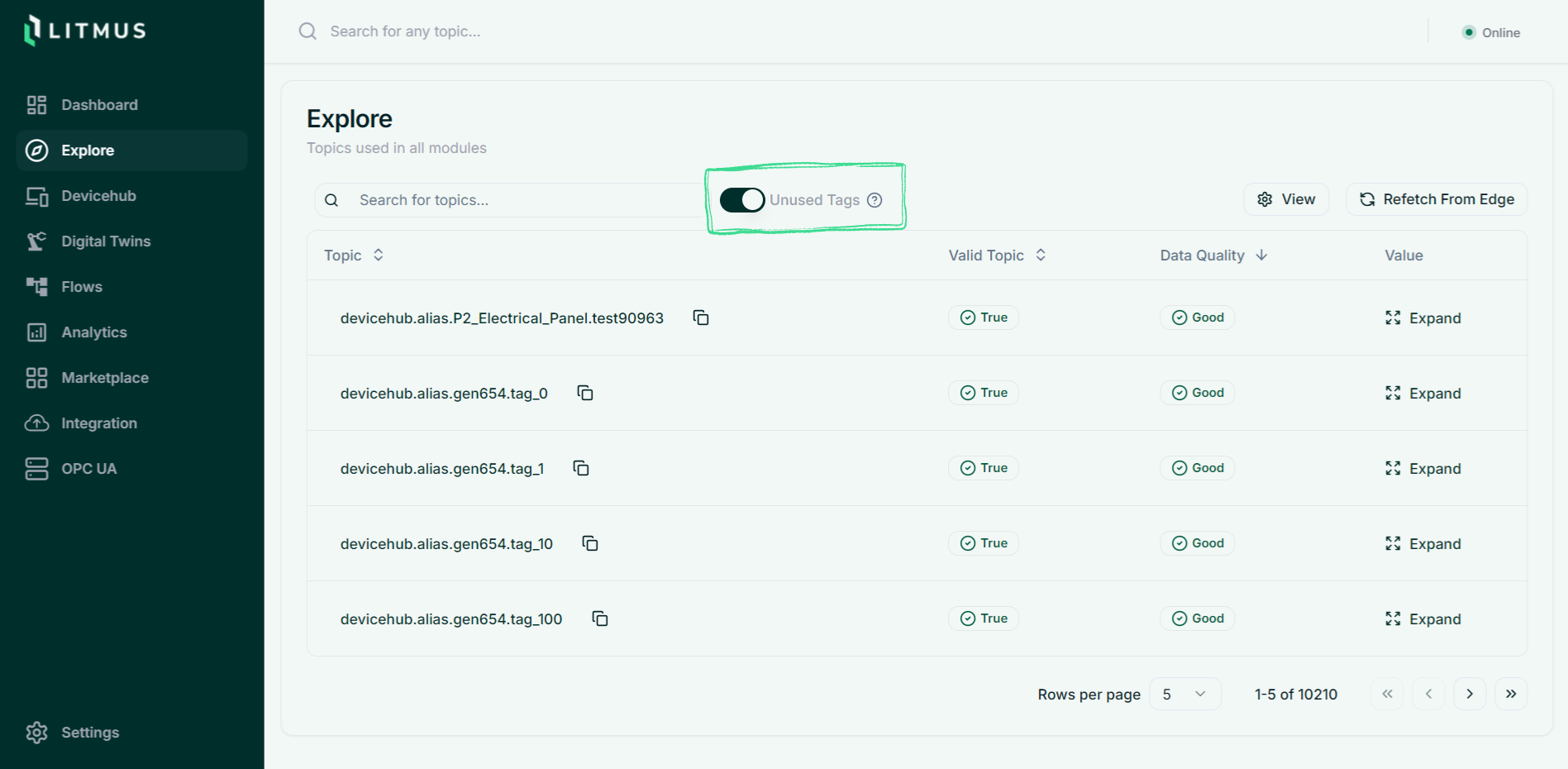
Do not delete a DeviceHub tag based on this result alone. Custom applications and flows with dynamic topic names can consume tags that configuration discovery does not identify.
Inspect topic details
Open a topic when you need to understand its value or trace the components that use it. Start from Explore, a component page, or the global search bar.
Read the value and context
- Open the topic.
- Select Overview.
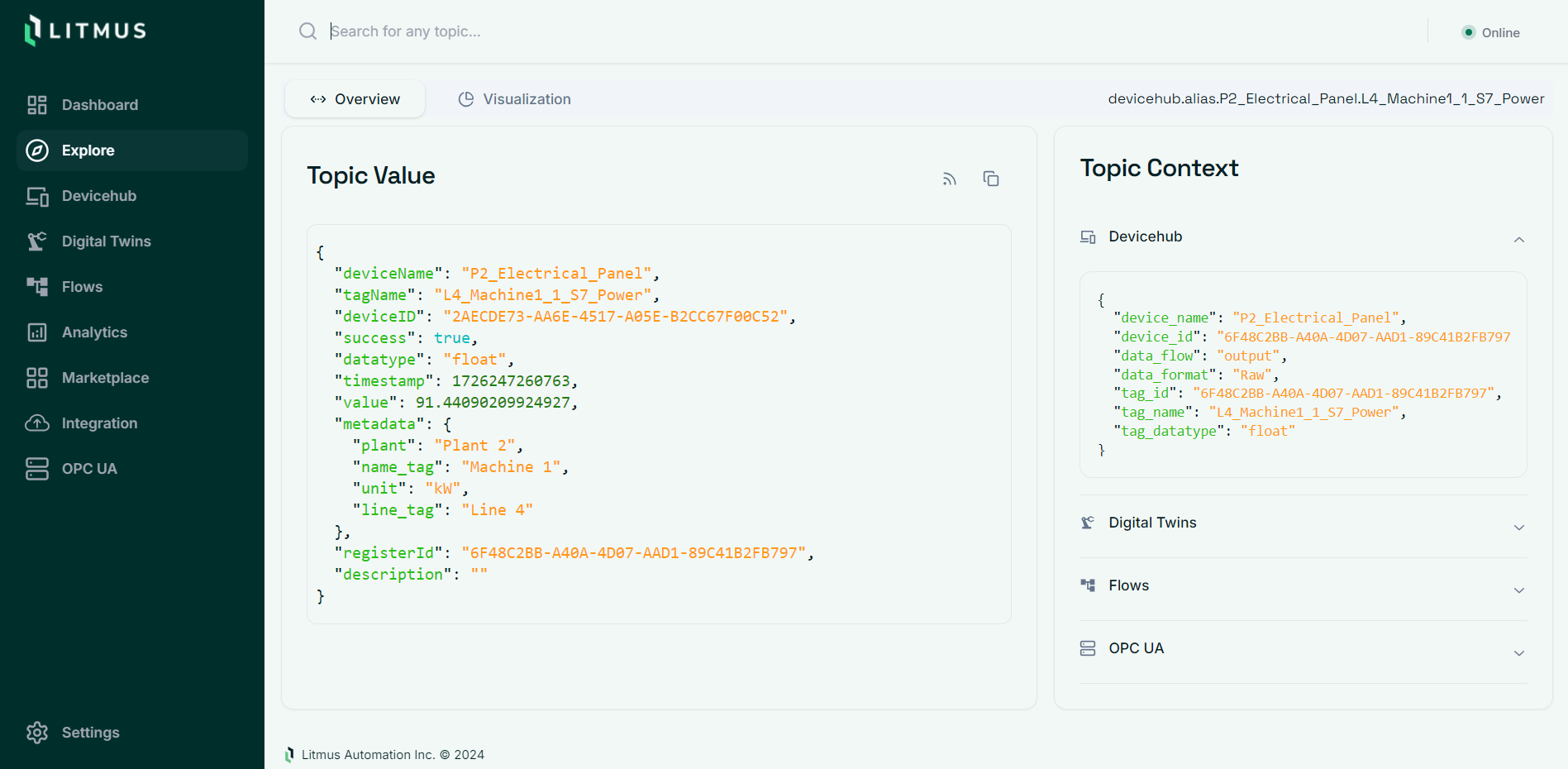
- Read Topic Value for the cached message.
- Expand a component under Topic Context to inspect its configuration.
Topic Value is a received sample. Use the message timestamp, when present, to assess its age. A cached value does not prove that the source still publishes.
Request a new value
Select the control labeled Resubscribe for updates beside Topic Value. Topic Registry subscribes and waits for a new message. If no message arrives before the wait ends, the subscription remains active.
Trace relationships
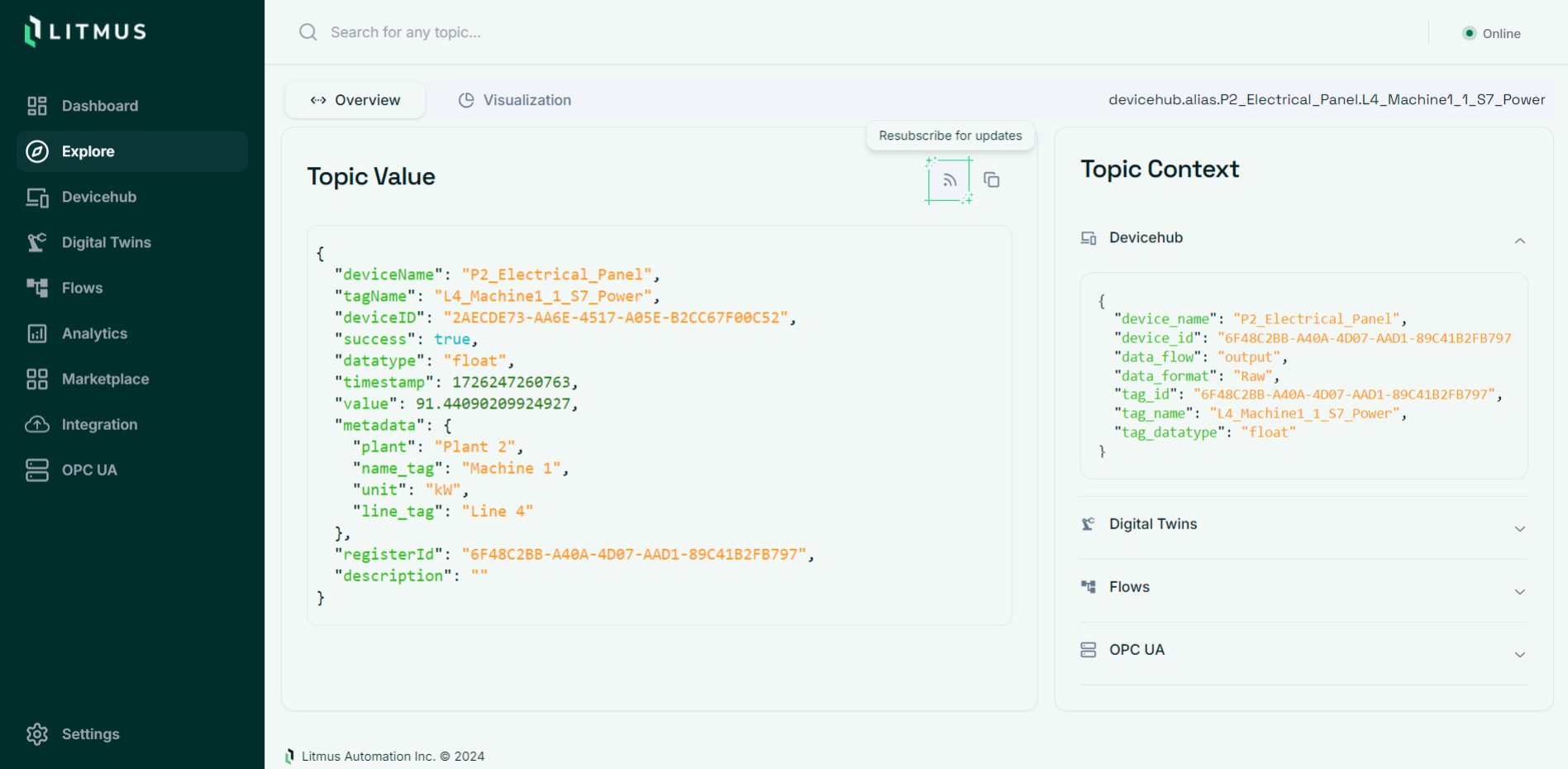
- Select Visualization.
- Review Overview and Topic Usage for publish and subscribe counts by component.
- Inspect the Topic Context graph to follow the relationships between the topic and its components.
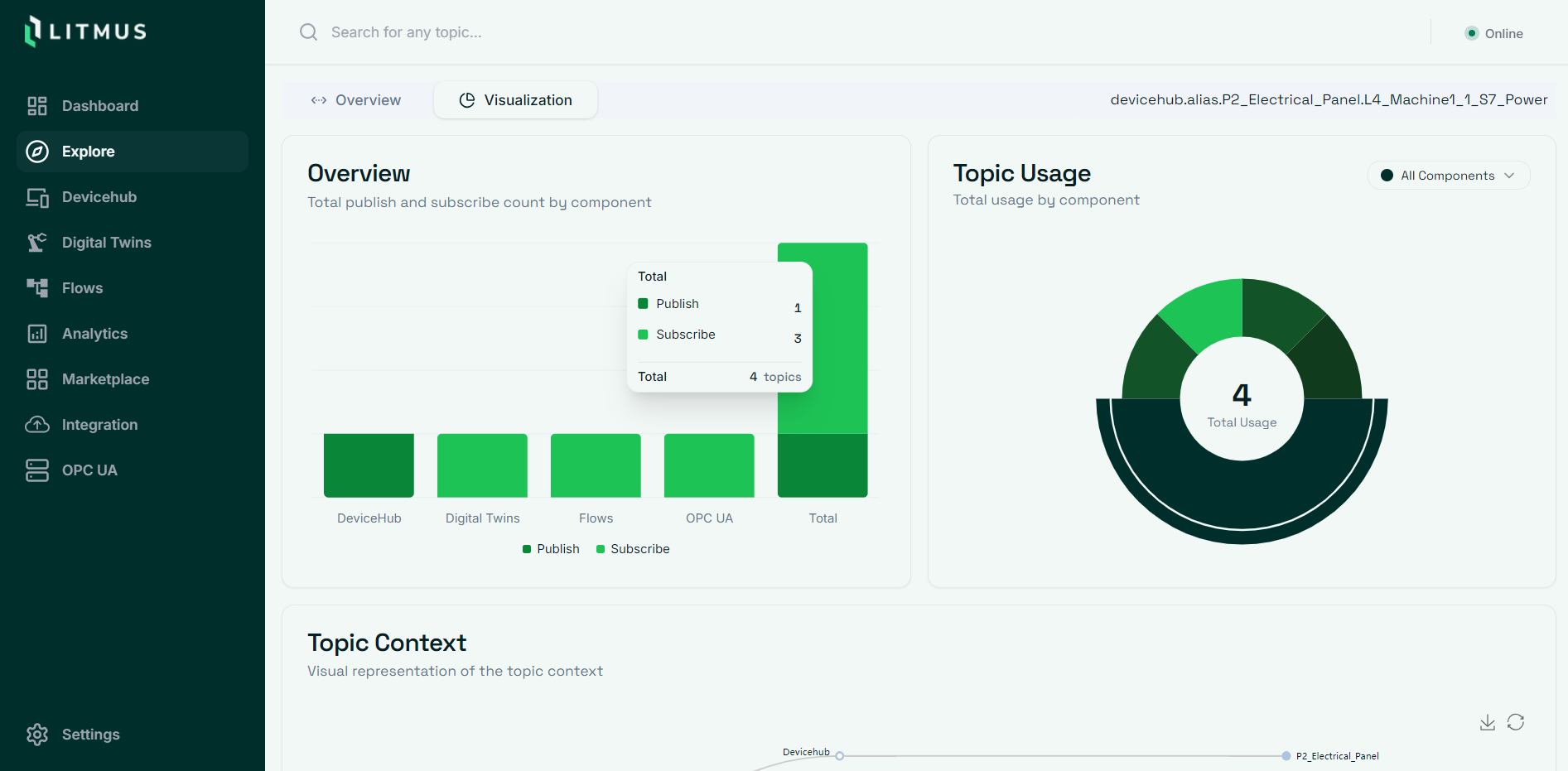
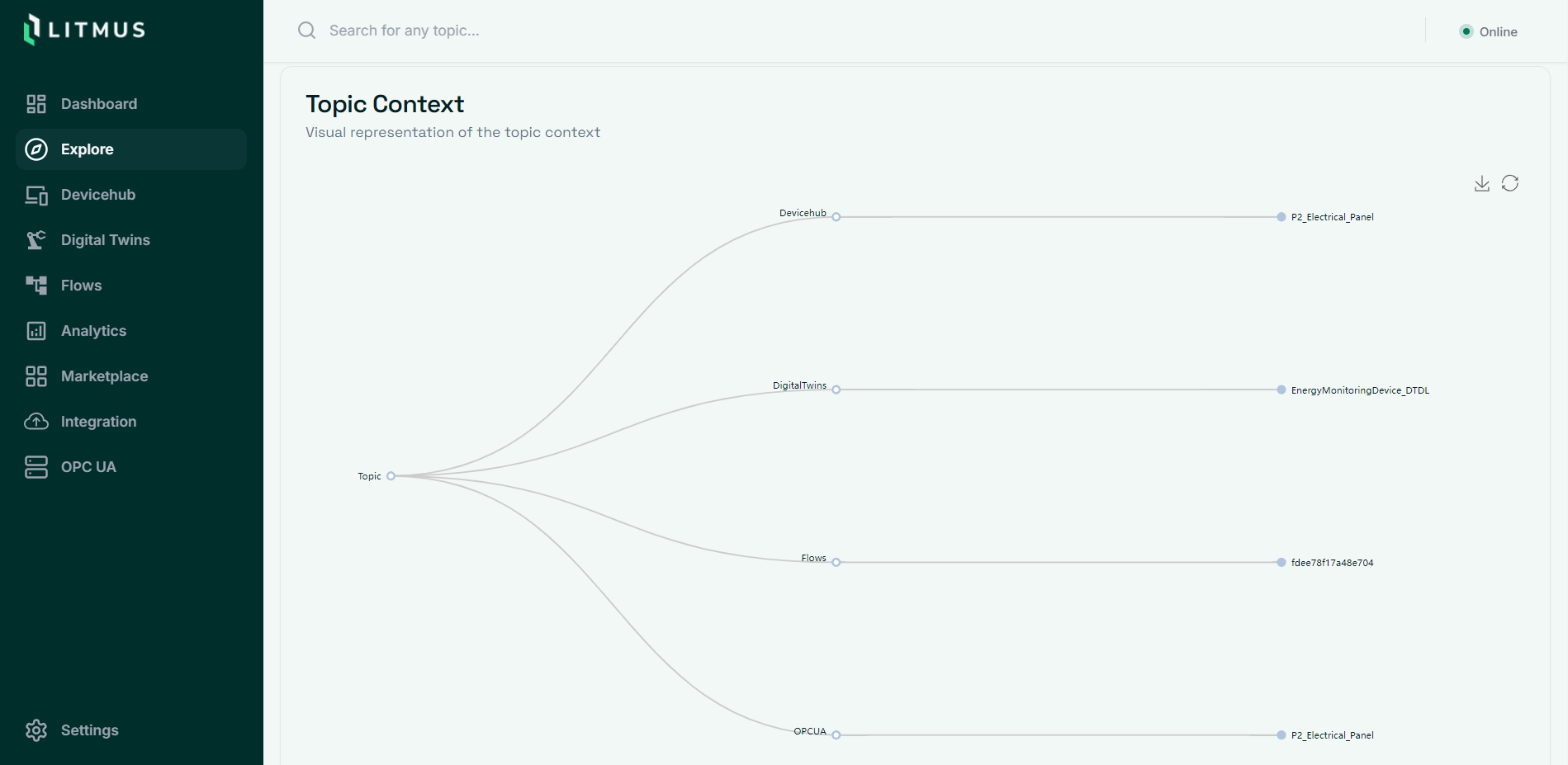
Relationships reflect discovered configuration. Custom applications and dynamic topic names can require topic namespaces.
Add topic namespaces
Add a namespace when configuration discovery does not identify a topic used by a custom application or dynamic flow. A namespace subscribes to a topic prefix and records matching topics as messages arrive.
Choose a prefix
Use the prefix shared by the topics you want to capture, without wildcards. For example, Site.Area.LineX includes Site.Area.LineX.temperature.
Reserved roots include devicehub, analytics, integration, flows, marketplace, digitaltwins, and opcua. Use a more specific namespace when the root is reserved.
Add the namespace
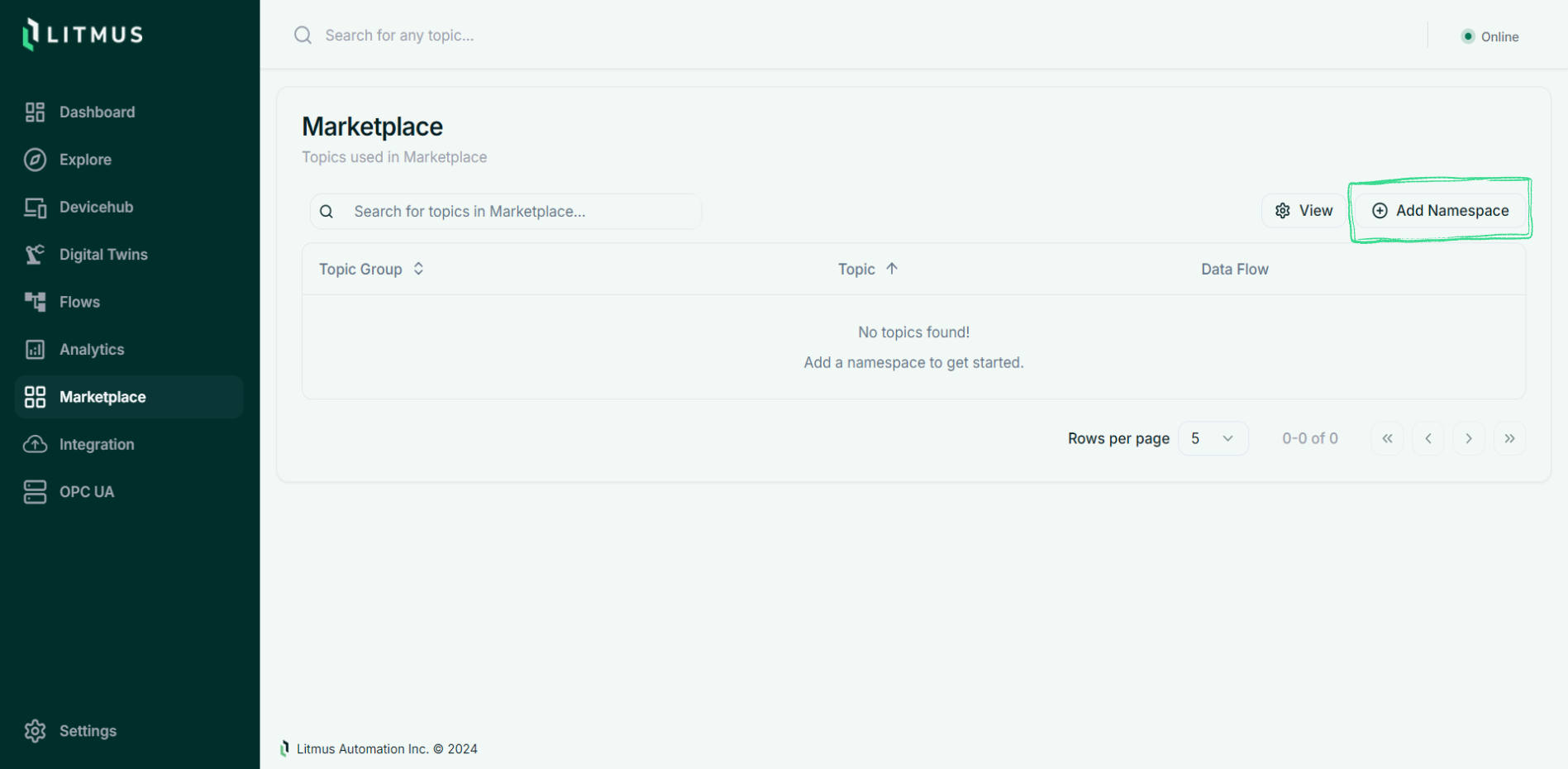
- Open Marketplace for application topics, or Flows for flow topics.
- Select Add Namespace.
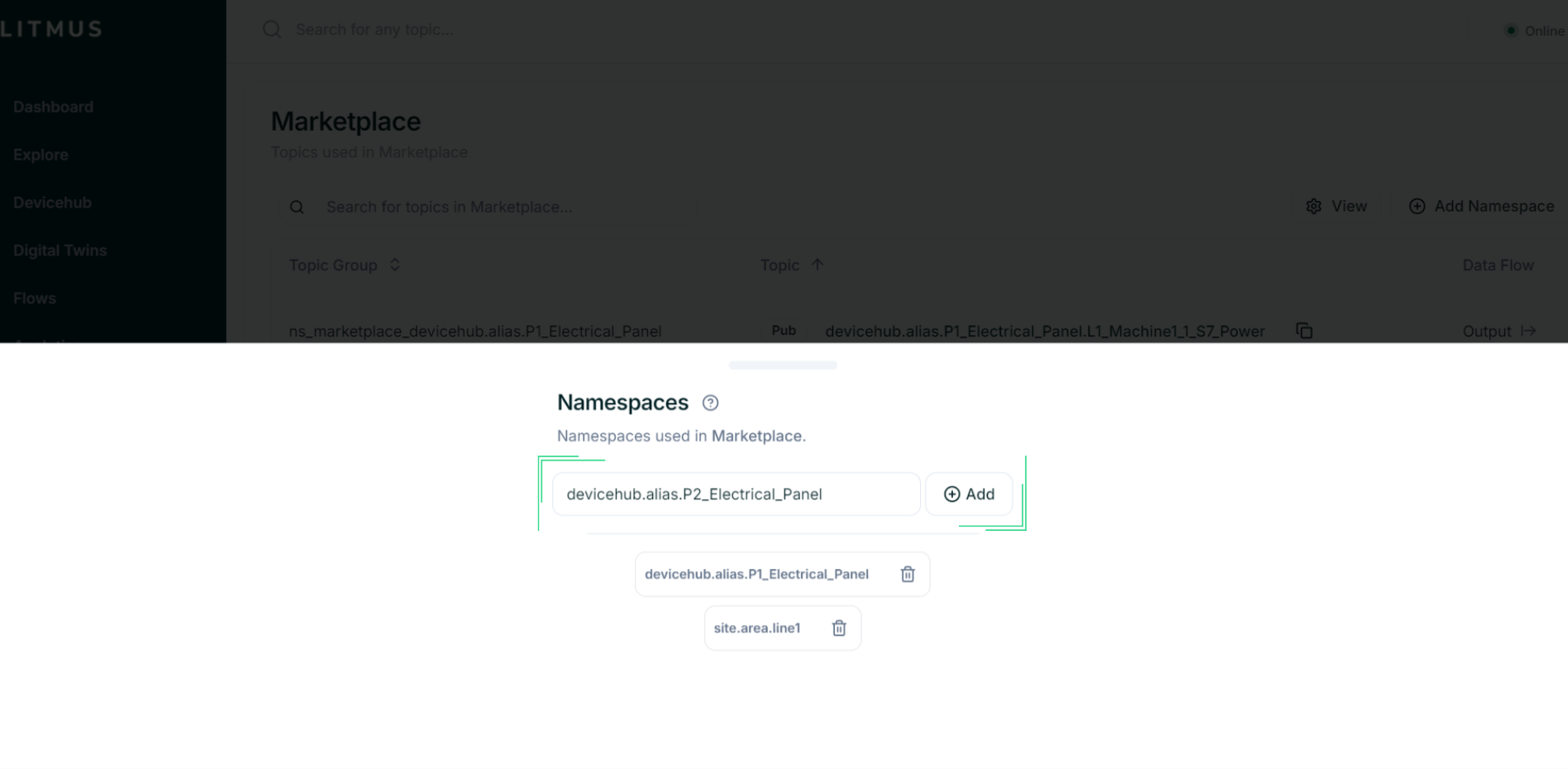
- Enter the topic prefix.
- Select Add.
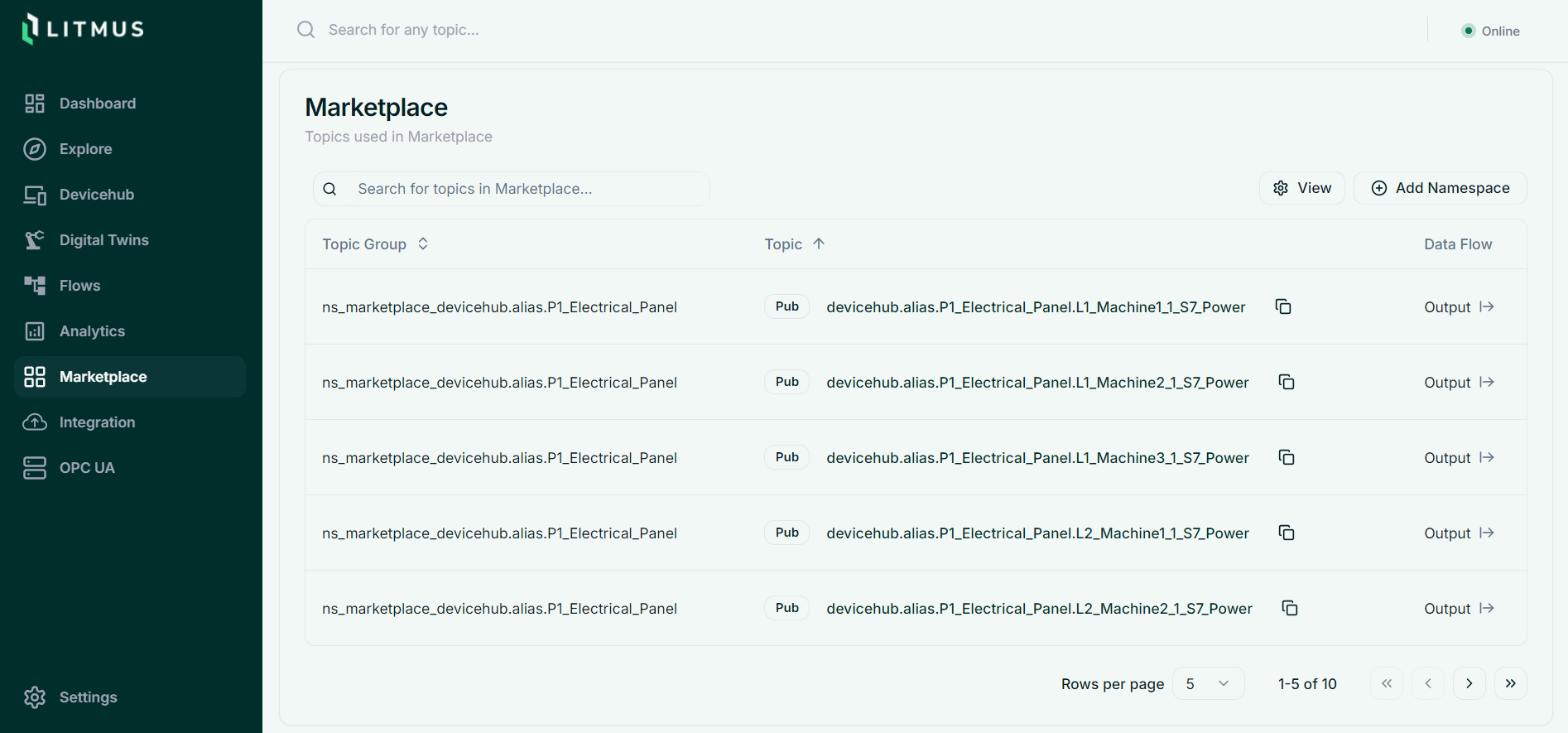
- Publish a matching topic from its source.
- Confirm that the topic appears in the component table or Explore.
For an external Docker installation, the NATS access-account token needs read permission for the chosen topics. Adding a namespace does not change that account's permissions.
A namespace captures messages. It does not prove which application consumes a topic, or that every consumer has been discovered. Check custom applications separately before removing an apparently unused tag.
What's next
Monitor live data to watch new messages, or use the reference for configuration and API access.