Install
Install Topic Registry from the Default Marketplace Catalog in Litmus Edge. If you manage images yourself, use an image archive. For Docker-based Litmus Edge instances without Applications, or for a separate Docker host, follow Run on Docker below.
Choose the installation path for your environment:
- Marketplace: the default path in Litmus Edge Applications.
- Image archive: import an image from Central into Applications.
- Docker: run beside Litmus Edge or on another host.
Install from Marketplace
Prerequisites
Use a trusted network and restrict access to operators who may view and change Litmus Edge connection settings. Topic Registry has no separate web sign-in; its API secret protects REST API requests, not access to the web interface.
- A running Litmus Edge instance with Applications available
- Permission to install and manage applications
- A Litmus Edge API token. See Create an API token.
- A topic that receives messages, for the live-data check
For Docker-based Litmus Edge instances without Applications, use Run Topic Registry on Docker.
Launch the application
- Open Applications > Marketplace.
- Select Default Marketplace Catalog.
- Find Topic Registry and select Launch.
- Select the latest available version.
- Give the application a unique name.
- Enter the Litmus Edge API token and choose a secret for the Topic Registry API. Keep the secret for programmatic access.
- Review the application port. Choose an unused port if the proposed port is occupied.
- Launch the application.
- Wait until its status is Running in Catalog Apps.
- Open Topic Registry at http://YOUR_LITMUS_EDGE_ADDRESS:YOUR_APPLICATION_PORT.
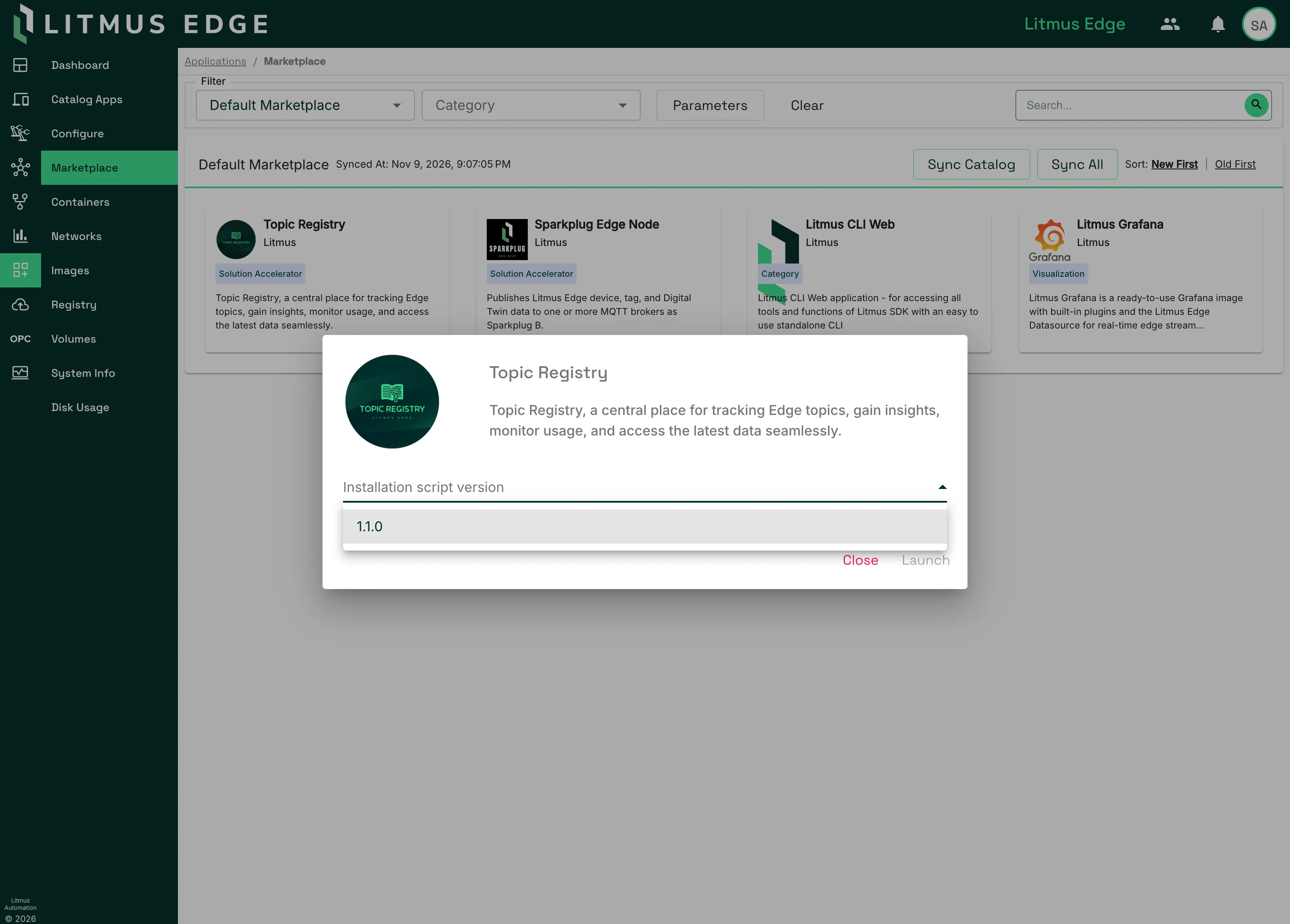
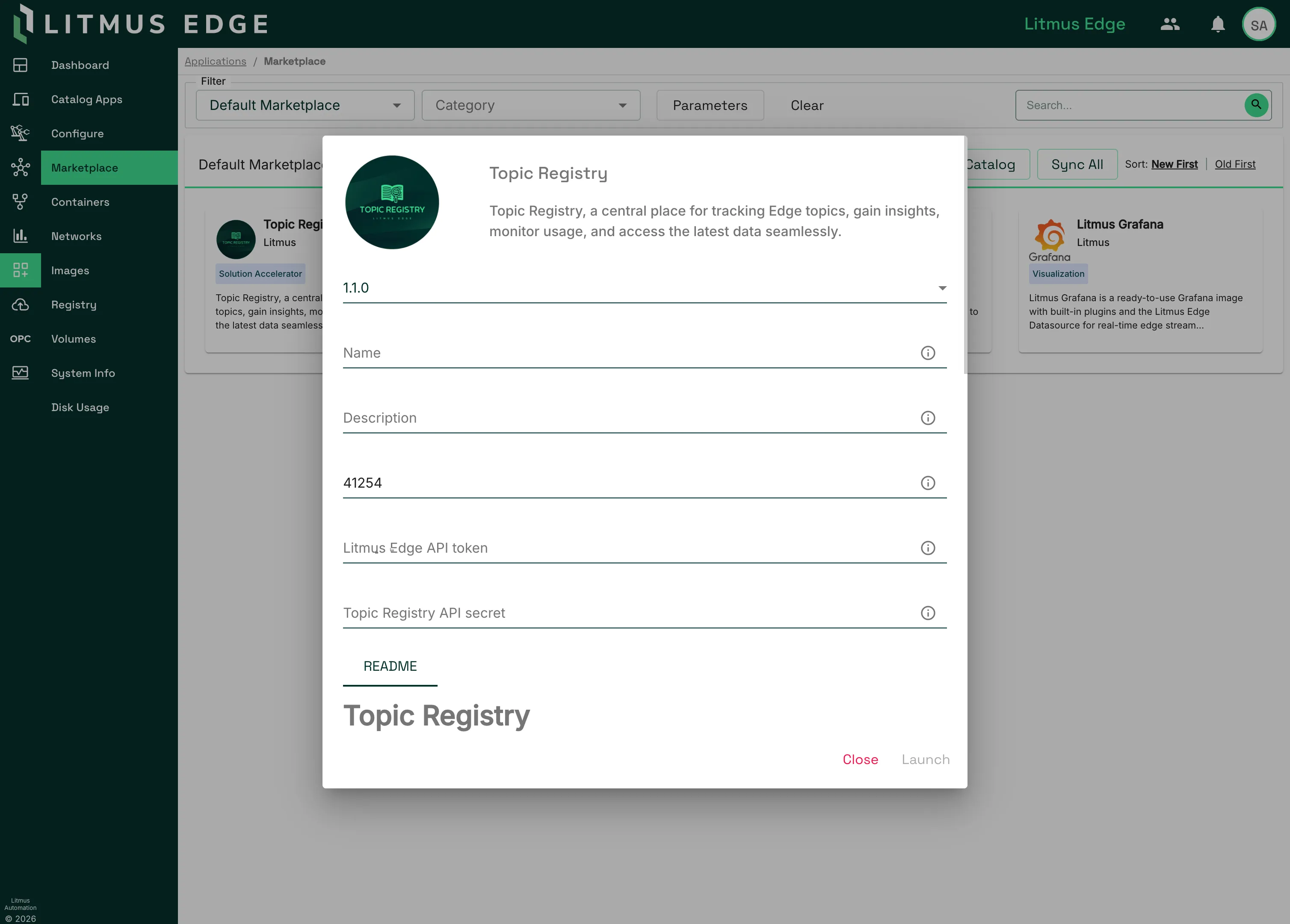
For installation on the same Litmus Edge instance, Topic Registry uses the Docker gateway. It needs no separate Docker host or NATS access-account token.
If you need to import an image yourself, see Install from an image archive.
Configure the connection
- Open Settings in Topic Registry.
- Confirm Litmus Edge URL and REST API Key.
- For a Marketplace installation, leave NATS token empty. For a Docker installation, keep the configured NATS token.
- Select Test Connection. Confirm that the success message names the intended instance.
- Select Save Settings.
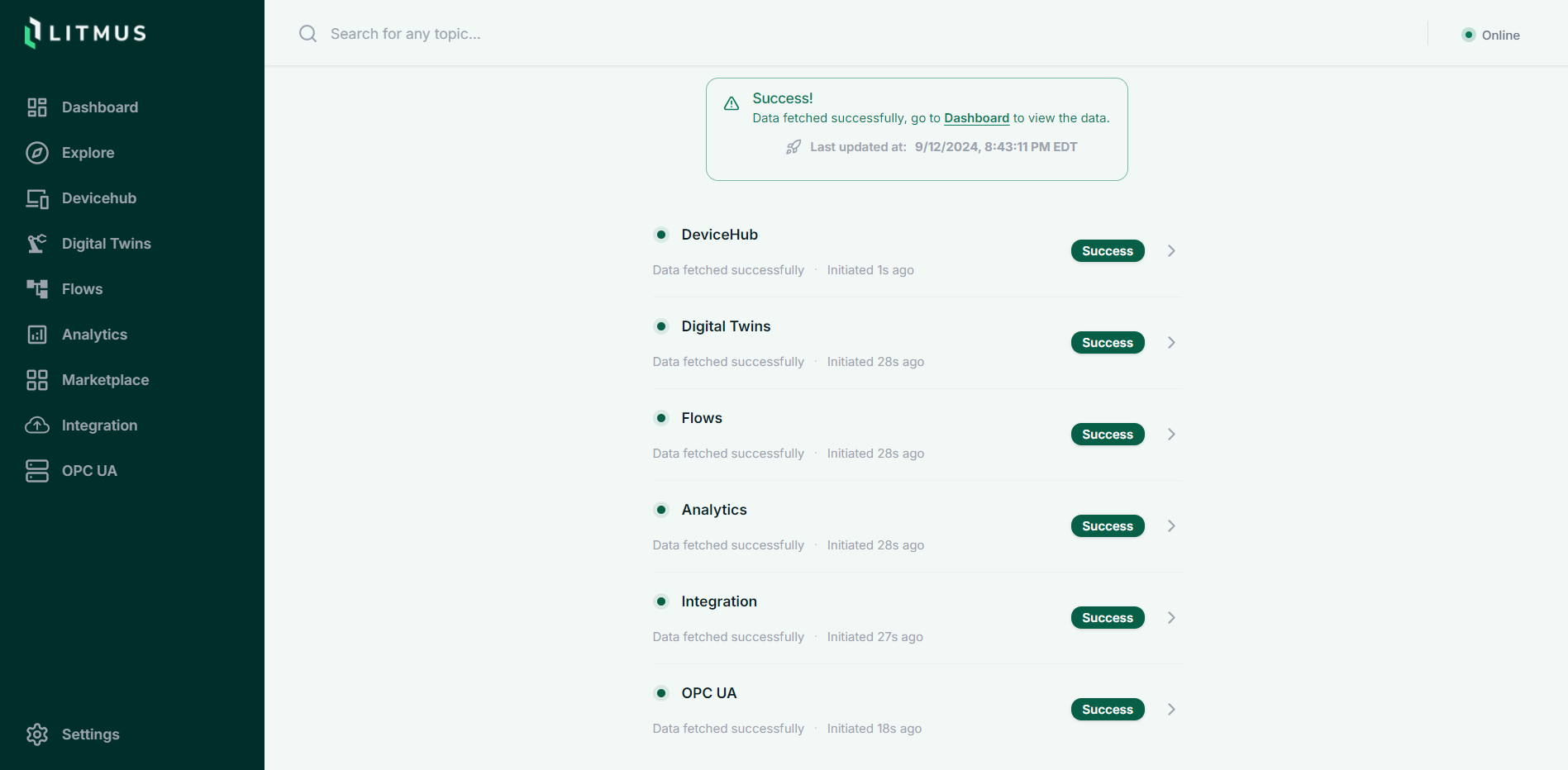
- Wait for component retrieval to finish. Open any failed component and resolve its reported error.
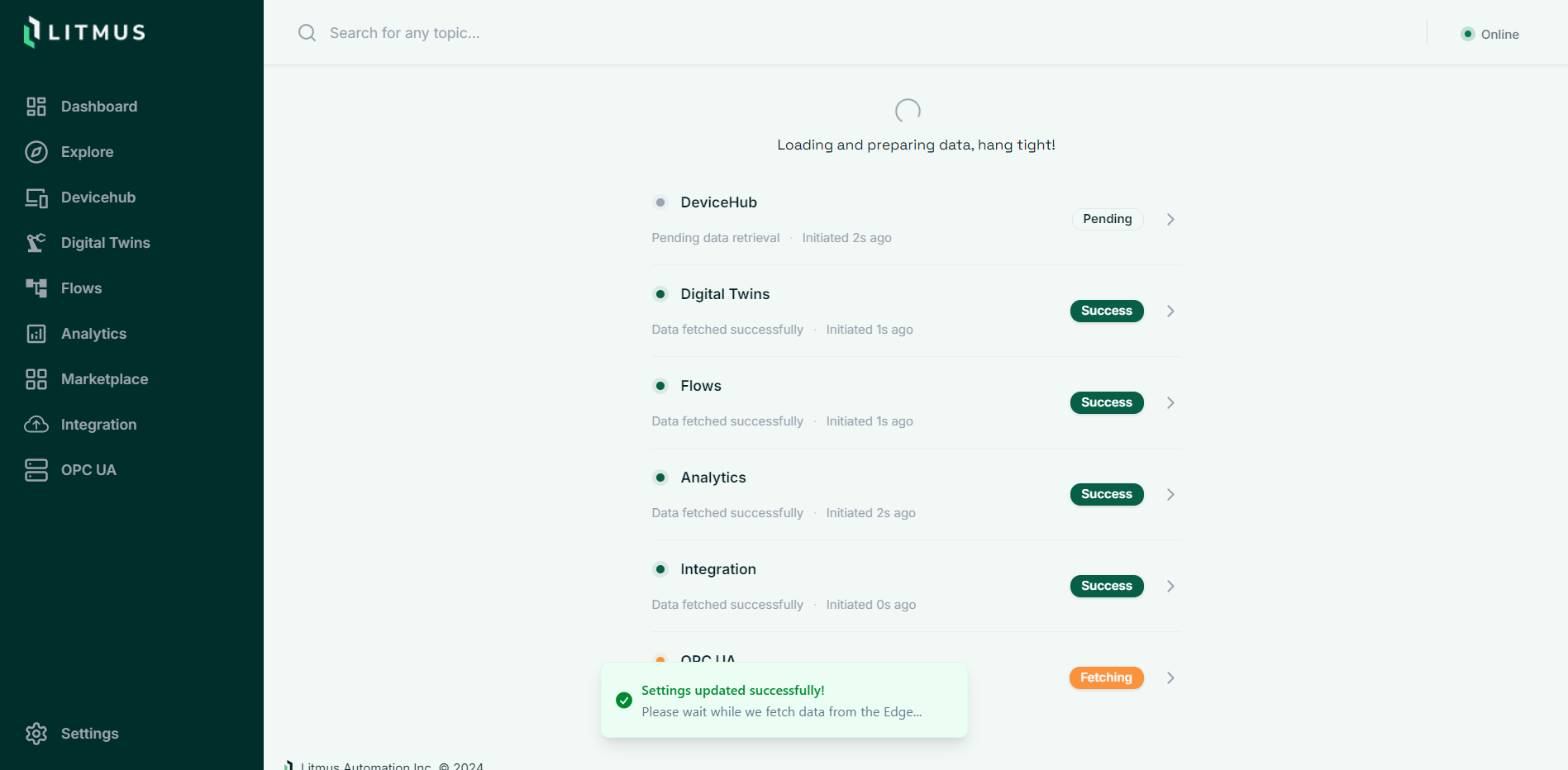
The Litmus Edge URL is the address the container uses to reach the API. The browser uses the application address from your installation.
Verify
- Open Explore and find a known topic.
- Open the topic and check Topic Context for the expected component.
- Select Live Stream.
- Select Start Streaming.
- Confirm that new values arrive while the source publishes messages.
- Select Stop Streaming.
For a programmatic status check, replace the address, port, and secret with your installation values:
curl --fail-with-body -X POST \
  -H 'X_LITMUS_KEY: YOUR_TOPIC_REGISTRY_SECRET' \
  'http://YOUR_TOPIC_REGISTRY_ADDRESS:YOUR_APPLICATION_PORT/api/status'
A complete configuration has success: true, data.validConfig: true, and data.fetchingStatus: "completed". Each component's status is "completed". The live-stream check separately confirms that messages arrive.
Remove
Removing the data volume permanently deletes Topic Registry's saved settings and cached values. It does not delete devices, tags, or flows from Litmus Edge.
- In Catalog Apps, select the Topic Registry application you installed.
- Remove the application.
- In Applications > Volumes, remove the volume created for that installation.
- In Applications > Images, remove its image if no other container uses it.
- Revoke an API token created only for this installation.
- Confirm that the application, its container, and its volume are gone. Confirm that the application address no longer serves Topic Registry.
For a Docker installation, use the removal steps in Run Topic Registry on Docker.
Install from an image archive
Use an image archive when you manage the container directly. For the default installation path, see Marketplace.
Before you start, complete the Marketplace prerequisites.
Download and import
- Sign in to Litmus Central.
- Open Topic Registry and select the latest version.
- Download the image labeled amd64 or arm64 for your Litmus Edge system.
- In Litmus Edge, open Applications > Images.
- Upload and import the archive.
- Note the image tag shown after import. Use that exact tag in the run command.
Run the container
- Open Applications > Containers and select Run.
- Replace YOUR_EDGE_API_TOKEN, YOUR_TOPIC_REGISTRY_SECRET, and YOUR_IMPORTED_IMAGE_TAG in the command below. Use credential values without spaces.
- Paste the command as one line. The Run field does not interpret shell quotes or line-continuation characters.
docker run -d --name topic-registry --restart unless-stopped -p 3000:3000 -v topic-registry-data:/app/db_files -e EDGE_CONNECTION_MODE=internal -e EDGE_API_TOKEN=YOUR_EDGE_API_TOKEN -e EDGE_VERIFY_TLS=false -e X_LITMUS_KEY=YOUR_TOPIC_REGISTRY_SECRET YOUR_IMPORTED_IMAGE_TAGThe named volume keeps the database when you replace the container. If port 3000 is occupied, change the first port in -p 3000:3000.
EDGE_VERIFY_TLS=false accepts the Litmus Edge self-signed certificate. Use true when its certificate is trusted by the container.
If gateway detection fails, set EDGE_DOCKER_GATEWAY_IP to the actual Docker gateway for the instance.
Configure and verify
Open http://YOUR_LITMUS_EDGE_ADDRESS:3000, using your chosen port. Follow Configure the connection and Verify in Install Topic Registry.
After restarting or replacing the container, open Settings and select Save Settings. Repeat the connection and live-data checks.
Remove
Removing the volume permanently deletes Topic Registry's saved data.
- In Applications > Containers, stop and remove topic-registry.
- In Applications > Volumes, remove topic-registry-data.
- In Applications > Images, remove the imported image when no other container uses it.
- Revoke an API token created only for this installation.
- Delete the downloaded archive if you no longer need it.
- Confirm that the container and volume are gone and the application address no longer serves Topic Registry.
Run on Docker
Run Topic Registry beside a Docker-based Litmus Edge instance, or on a Docker host that can reach another Litmus Edge instance. You get the same topic inventory, relationship views, and live monitoring in either location.
To run Topic Registry through Applications, use Marketplace.
Prerequisites
Use a trusted network and restrict access to operators who may view and change Litmus Edge connection settings. Topic Registry has no separate web sign-in; its API secret protects REST API requests, not access to the web interface.
- Docker on the host that runs Topic Registry.
- The latest image archive for that host's amd64 or arm64 architecture from Topic Registry in Central.
- A Litmus Edge access-account token with read permission for the topics you inspect.
- The NATS proxy enabled on Litmus Edge.
- Network access from the container to the Litmus Edge API port and NATS proxy port 4222.
- Browser access to the Topic Registry host port.
Choose the connection address
When both containers share a Docker network, use a hostname for the Litmus Edge container that resolves on that network. Add --network YOUR_NETWORK to the run command. Use the API port inside the Litmus Edge container in EDGE_URL.
When you connect through published host ports, use an address reachable from inside the Topic Registry container. localhost inside Topic Registry identifies Topic Registry's own container. Use the Litmus Edge host address instead.
This deployment uses external connection mode even when both containers run on the same computer. Use internal mode only for installation through Applications. See Configuration reference for both modes.
Load the image
Load the archive for your host architecture:
docker load -i YOUR_DOWNLOADED_IMAGE.tarReplace YOUR_DOWNLOADED_IMAGE.tar with the downloaded archive's filename. Note the image tag reported by docker load. Replace YOUR_IMPORTED_IMAGE_TAG in the following commands with that exact tag.
Run the container
Replace the bracketed values with the Litmus Edge URL, credentials, and a secret for Topic Registry:
docker run -d --name topic-registry --restart unless-stopped \
  -p 3000:3000 \
  -v topic-registry-data:/app/db_files \
  -e EDGE_CONNECTION_MODE=external \
  -e EDGE_URL='https://<Litmus Edge hostname>:443' \
  -e EDGE_API_TOKEN='<Litmus Edge API token>' \
  -e EDGE_NATS_TOKEN='<NATS access-account token>' \
  -e EDGE_VERIFY_TLS=false \
  -e X_LITMUS_KEY='<Topic Registry API secret>' \
  YOUR_IMPORTED_IMAGE_TAG
Use EDGE_VERIFY_TLS=true when the Litmus Edge certificate is trusted by the container. Set the actual API port in EDGE_URL; the NATS proxy remains on 4222.
Use Docker Compose
Use Compose when you want to keep the run settings in a file.
- Download the file labeled Compose from the latest version in Central. Use the downloaded filename wherever YOUR_DOWNLOADED_COMPOSE_FILE.yaml appears below.
- Load the architecture-specific image as described above.
- Choose a user-defined Docker network. To connect directly to a Docker-based Litmus Edge instance, use a network that instance already joins. Otherwise, create a network:
docker network create topic-registry-network- Create .env beside the Compose file with these values:
EDGE_URL=https://YOUR_EDGE_HOSTNAME:443
EDGE_API_TOKEN=YOUR_EDGE_API_TOKEN
EDGE_NATS_TOKEN=YOUR_NATS_TOKEN
EDGE_VERIFY_TLS=false
EDGE_DOCKER_NETWORK=YOUR_DOCKER_NETWORK
X_LITMUS_KEY=YOUR_TOPIC_REGISTRY_SECRET
TOPIC_REGISTRY_PORT=3000
Set EDGE_DOCKER_NETWORK to the chosen network name, such as topic-registry-network. Use a network with access to the address in EDGE_URL. For a shared network, use the Litmus Edge container hostname and its internal API port.
Use EDGE_VERIFY_TLS=true when the certificate is trusted by the image. TOPIC_REGISTRY_PORT changes the host port; the container still listens on 3000.
- Restrict access to the credentials file:
chmod 600 .env- Start the stack:
docker compose -p topic-registry -f YOUR_DOWNLOADED_COMPOSE_FILE.yaml up -dThe Compose file publishes the interface on 127.0.0.1 only. Open http://127.0.0.1:3000 on that computer, or use the port you selected. The named volume keeps the database when you replace the container.
Configure and verify
For docker run, open http://<Docker host address>:3000. For Compose, open http://127.0.0.1:3000 on the Docker host. Follow Configure the connection and Verify in Install Topic Registry. Keep the configured NATS token for this Docker connection.
After restarting or replacing the container, open Settings and select Save Settings. Repeat the connection and live-data checks.
Remove
For a Compose installation, run this command beside the Compose file and .env:
docker compose -p topic-registry -f YOUR_DOWNLOADED_COMPOSE_FILE.yaml down --volumesFor a docker run installation, remove the container and its named volume:
docker rm -f topic-registry
docker volume rm topic-registry-data
If you created topic-registry-network for this installation, remove it after stopping the stack:
docker network rm topic-registry-networkAfter either installation, remove the image when no other container uses it:
docker image rm YOUR_IMPORTED_IMAGE_TAGRemoving the volume permanently deletes Topic Registry settings and cached data. Revoke credentials created only for this installation. Delete the downloaded archive, Compose file, and .env when you no longer need them.
Confirm that the container, volume, and image no longer appear in Docker. The browser address must stop serving Topic Registry.