Dynamic Attributes Wizard
Dynamic Attributes displays the variable data attributes configured in the model the instance belongs to. You can map one-to-one relationships with data topics and attributes by updating the topic field for the instance.
To assist with the definition of the Dynamic Attributes and ensure that the JSON Object is correctly formatted, the DT Instance Management Tool provides a Dynamic Attribute Wizard.
Access the Dynamic Attribute Wizard
Notes:
To access the Dynamic Attribute Wizard it is required that:
- The entry in Column Dynamic Attributes is not empty.
- A Model Name is selected
- An Instance Name is defined
Select the respective cell in Column Dynamic Attributes for the Instance you want to map one-to-one relationships with data topics and Dynamic Attributes for.
If all conditions are met, the Dynamic Attribute Wizard button is shown in the Help section of the LitmusConfiguration ribbon.
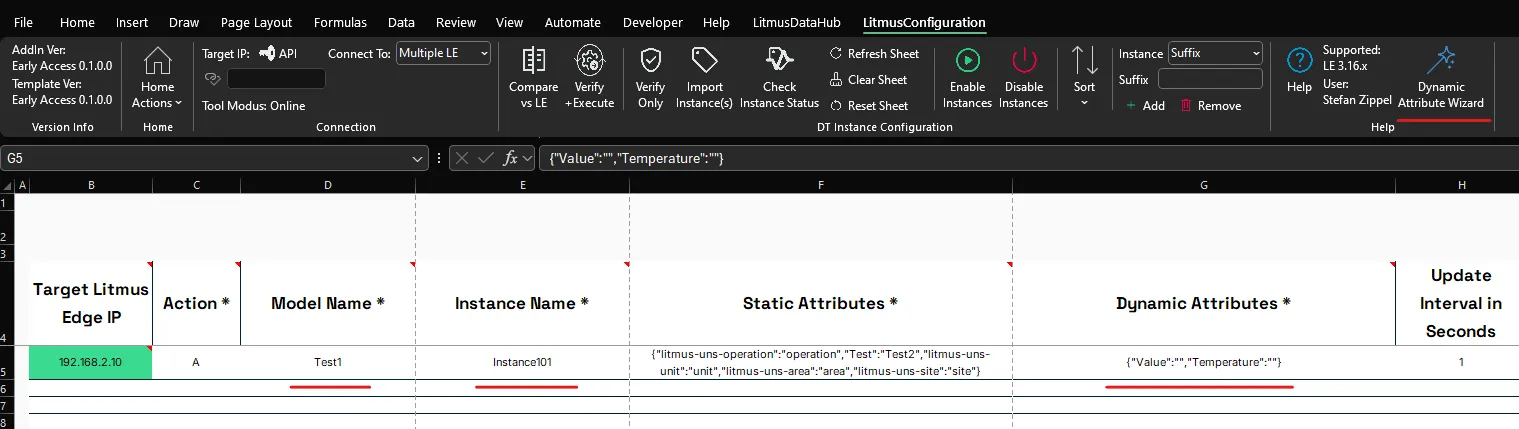
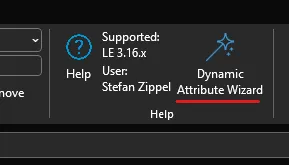
Open the Dynamic Attribute Wizard by pressing the Dynamic Attribute Wizard button.
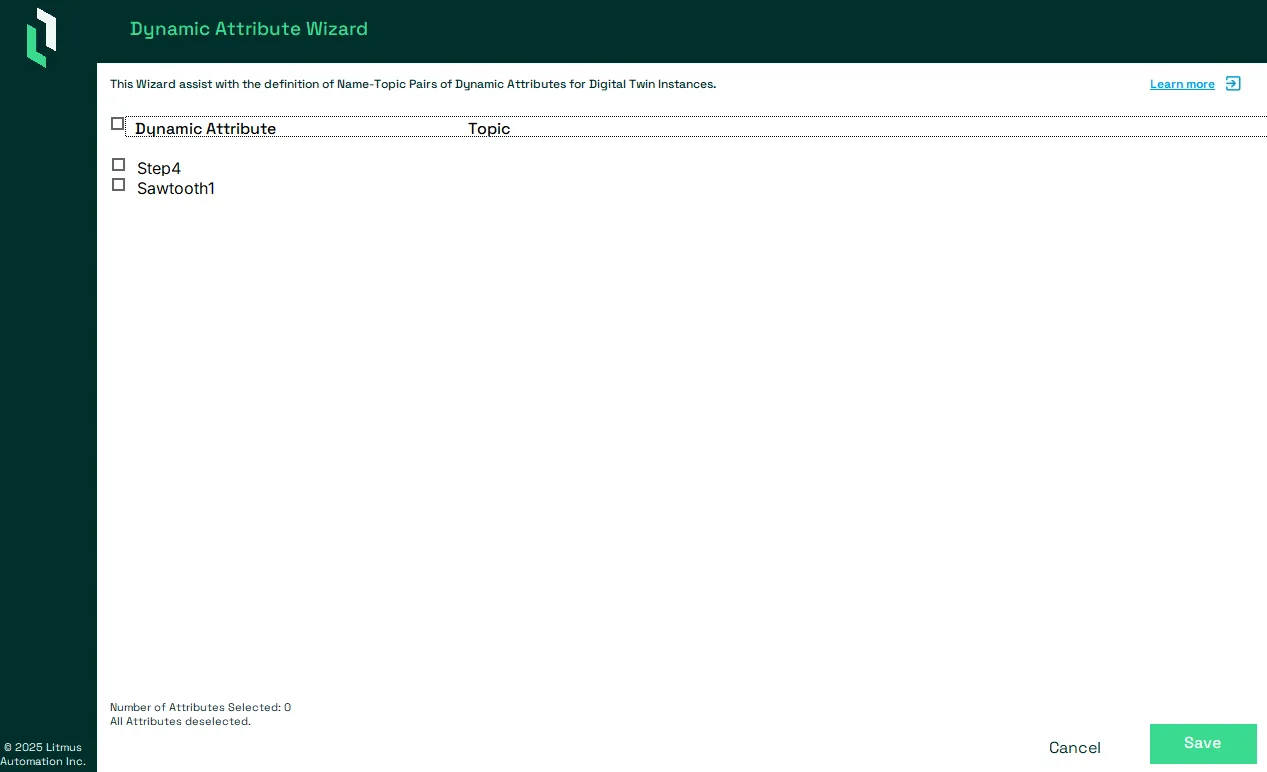
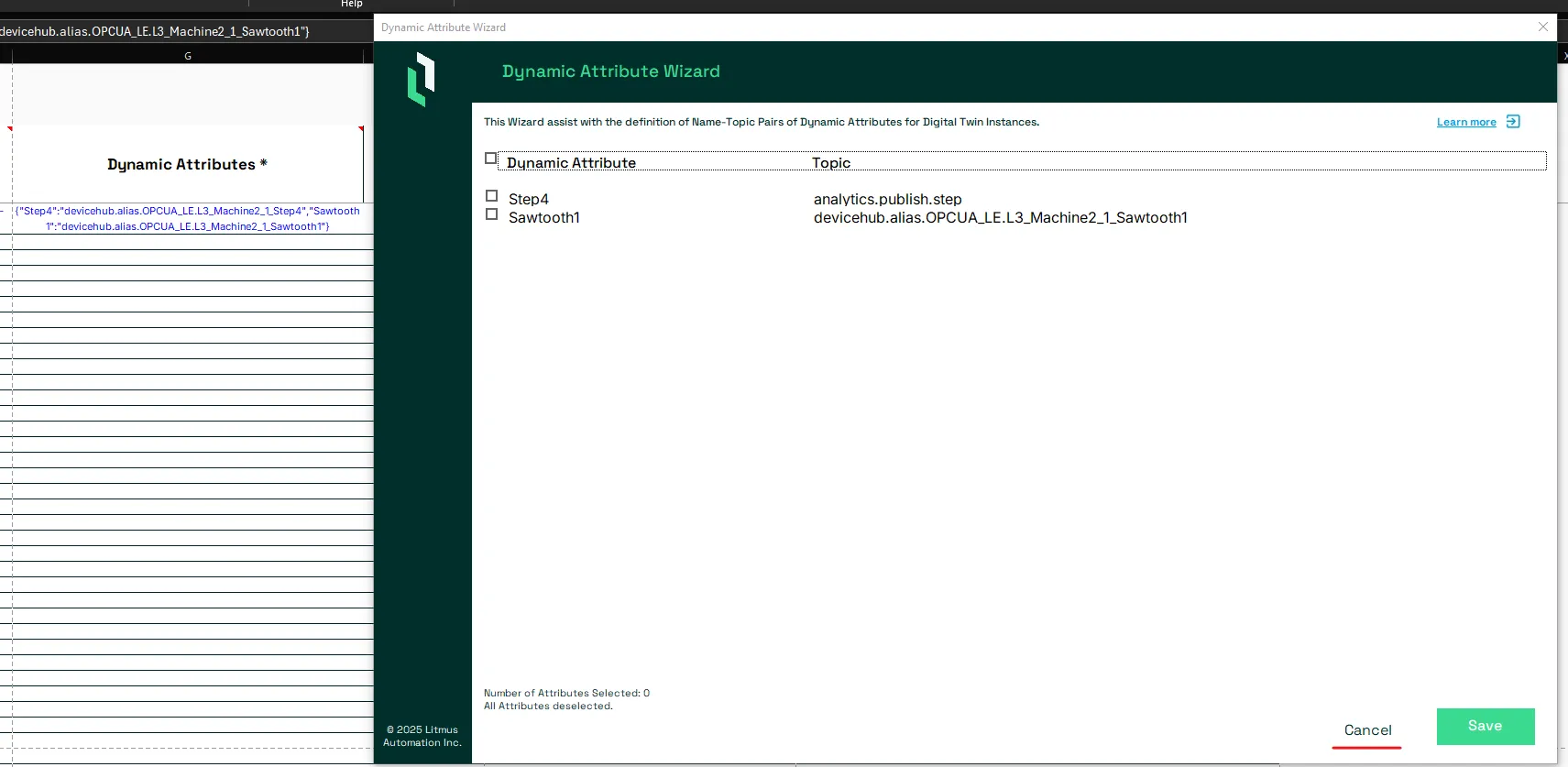
The Dynamic Attribute wizard will show.
Add individual Topics
To add a Topic to a Dynamic Attribute, Select the Key-Value pair to open its Edit screen.
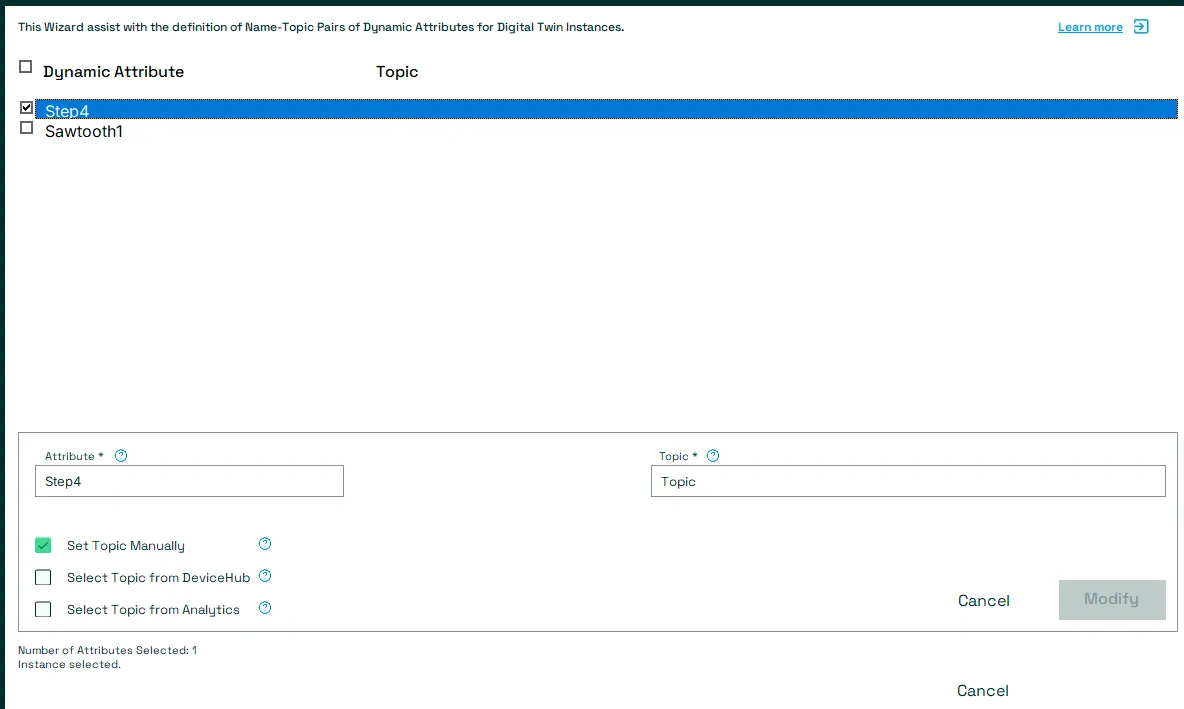
Manually adding a topic
To add a topic manually, check the Set Topic Manually chekcbox.
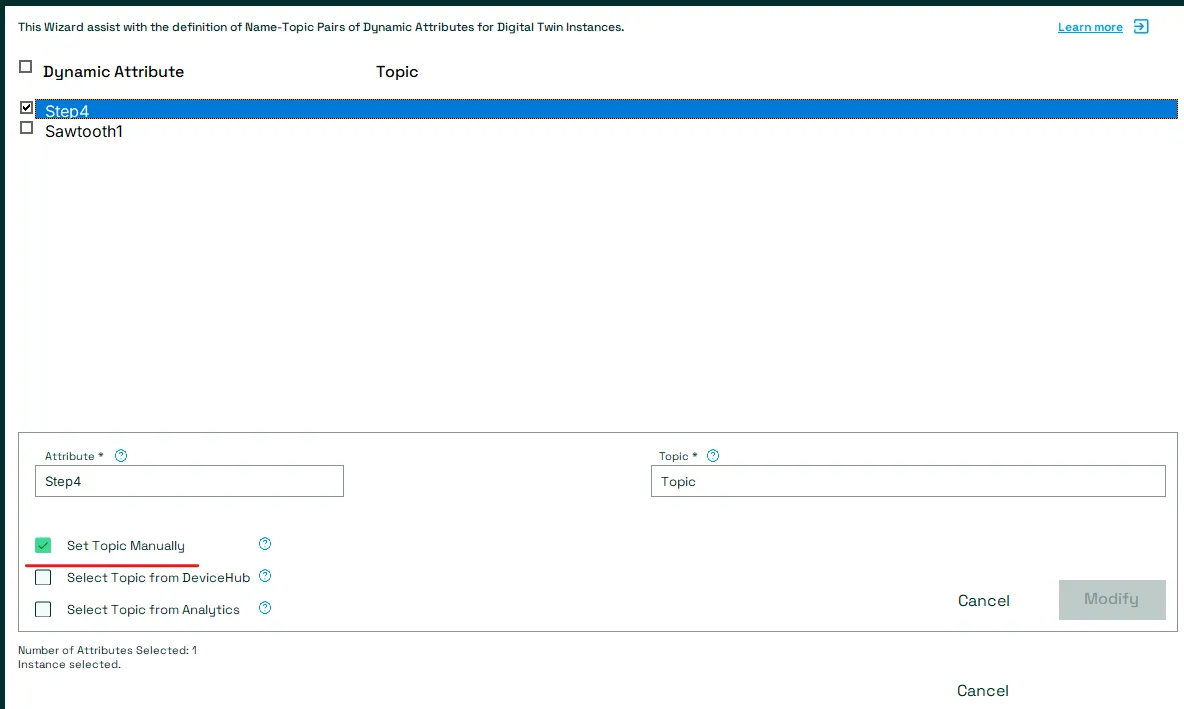
Enter the Topic into the Topic field. Press the Modify button.
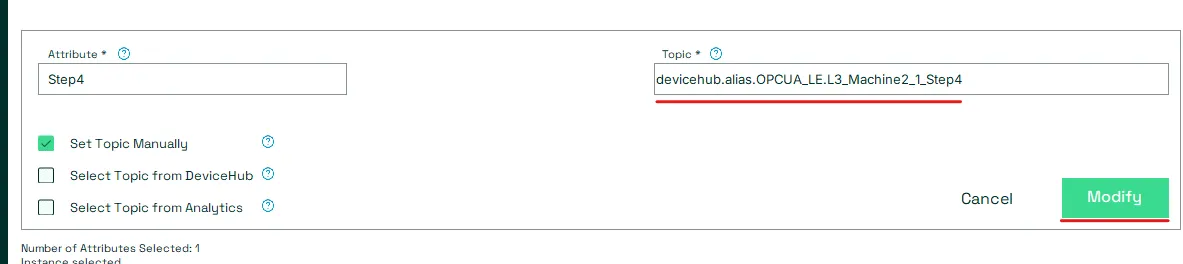
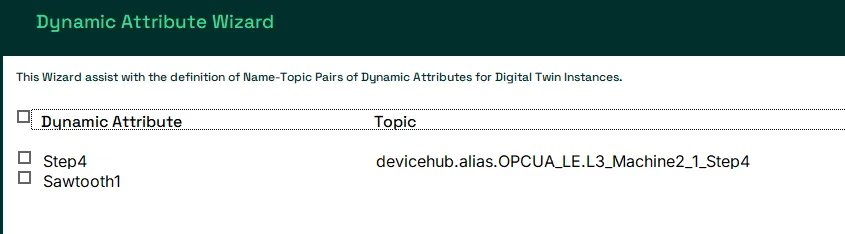
This will set the topics for all Dynamic Attributes
Select a Topic from DeviceHub
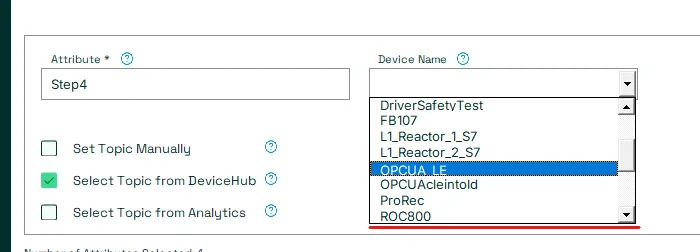
To add a topic by selecting it from DeviceHub, check the Set Topic from DeviceHub chekcbox.
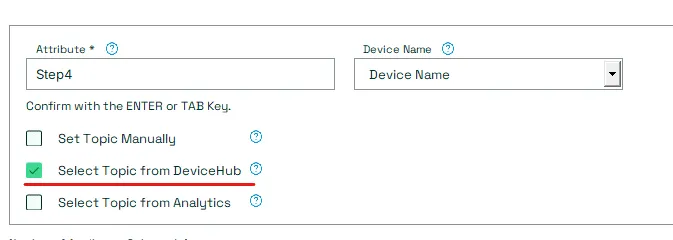
Select the Device from which to select the topic from for the Device Name dropdown.
Select the Topic from the Topic dropdown.
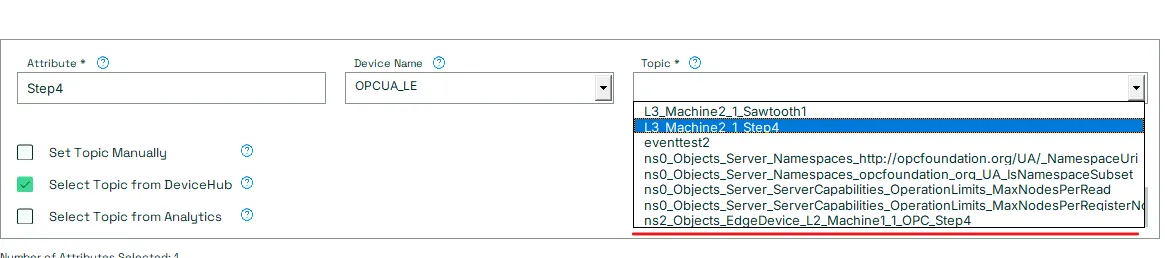
Press the Modify button.

This will set the topics for all Dynamic Attributes
Select a Topic from Analytics
To be able to select Topics from Analytics, Analytics needs to publish data using a Datahub Publish Processor.
To add a topic by selecting it from Analytics, check the Set Topic from Analytics chekcbox.
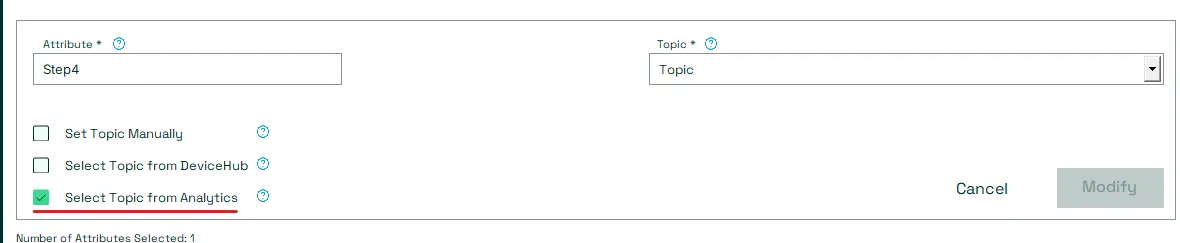
Select the Topic from the Topic dropdown.
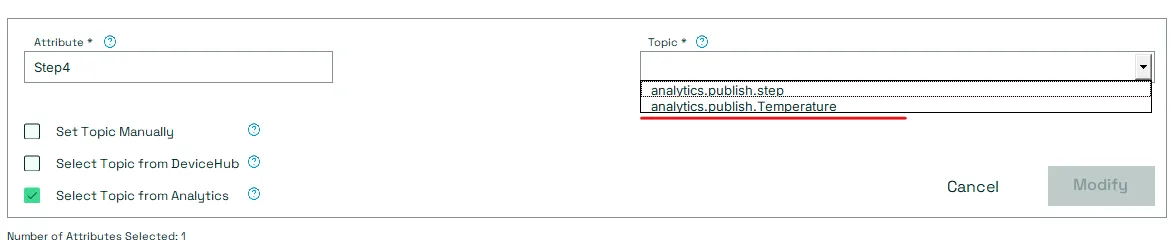
Press the Modify button.
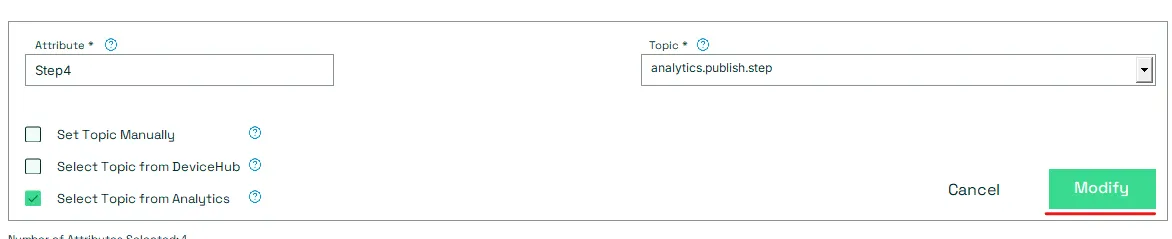
This will set the topics for all Dynamic Attributes
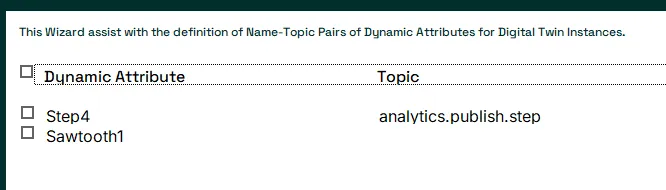
Add Topics in bulk
To add Topics in bulk, select multiple Dynamic attributes.
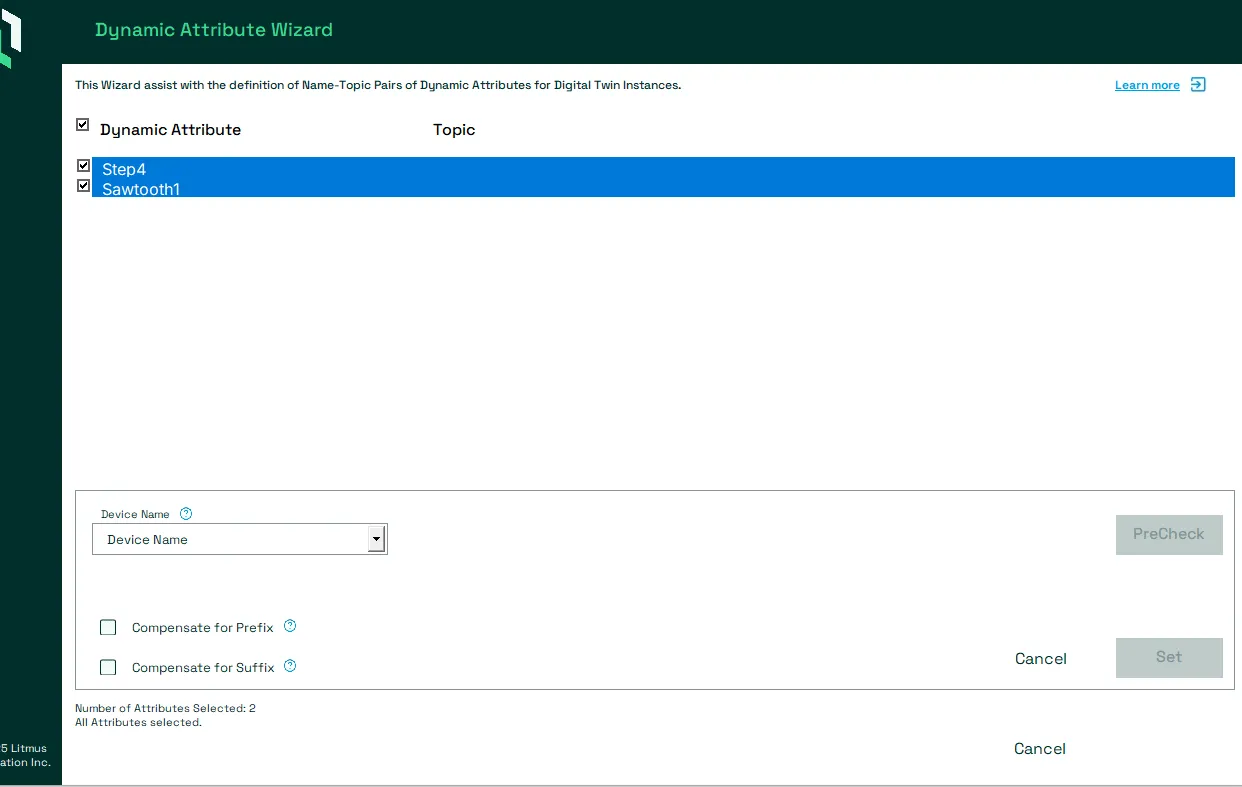
Select the Device from which to select the topics from for the Device Name dropdown.
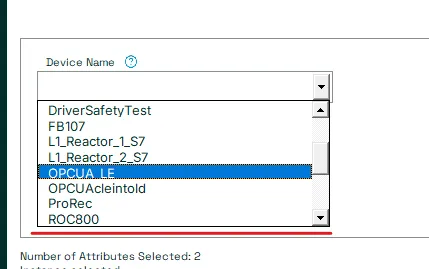
The WIzard will pull all availabele Tag Names from the Device and show them in a List.
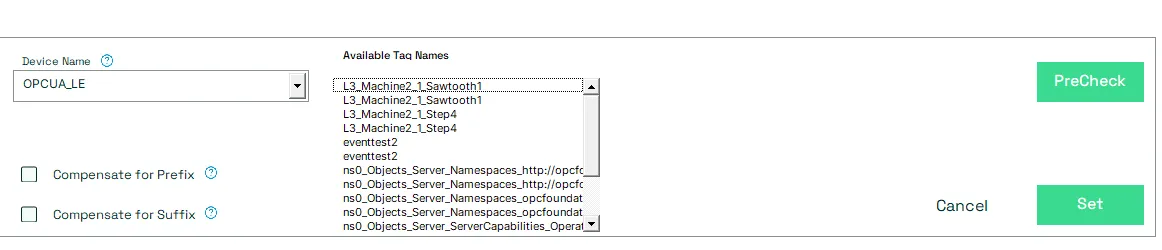
The Wizard will bilk add Topics based on a check to see if a Dynamic Attribute is the same as one of the Tags of the selected Device. In case Tag Names differ from how Dynamic Attributes are defined, users can use the Available Tag Names list to check if they need to compensate for a Prefix and/or a Suffix.
Example:
The two Dynamic Attributes are Step4 and Sawtooth1 and the Device has two Tags named L3_Machine2_1_Step4 and L3_Machine2_1_Sawtooth1.
So the user will need to Compensate with a Prefix of "L3_Machine2_1_" to match Tag Names and Dynamic Attributes.
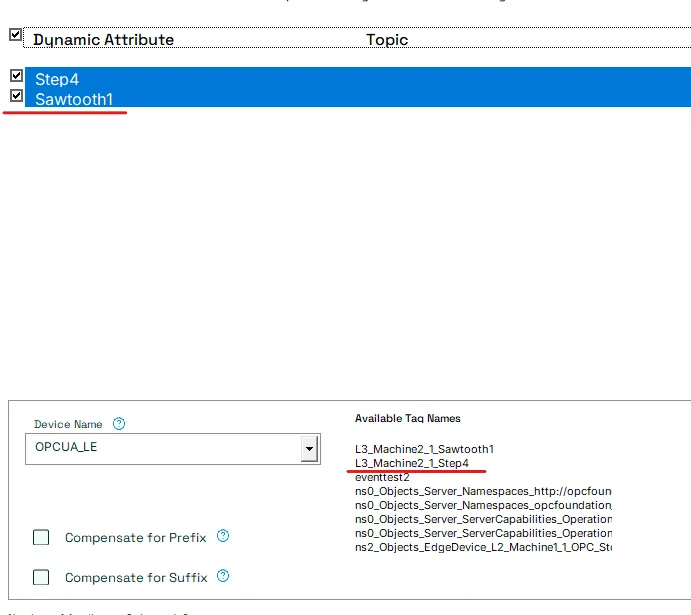
Compensate for a Prefix
To Compensate for a Prefix, check the Compensate for Prefix checkbox. Provide the Prefix in the Prefix field.

Compensate for a Suffix
To Compensate for a Suffix, check the Compensate for Suffix checkbox. Provide the Suffix in the Suffix field.

Compensate for a Prefix and a Suffix
To Compensate for both a Prefix and Suffix, check the Compensate for Prefix checkbox and Compensate for Suffix checkbox. Provide the Prefix in the Prefix field and the Suffix in the Suffix field.

Preform a Precheck
Users can perform a precheck without actually setting the Topics first, to identify which Dynamic Attributes will be able to get a Topic through the bulk action.
This can also be used to refine the the Prefix and/or Suffix settings.
To perform a Precheck, press the PreCheck button.
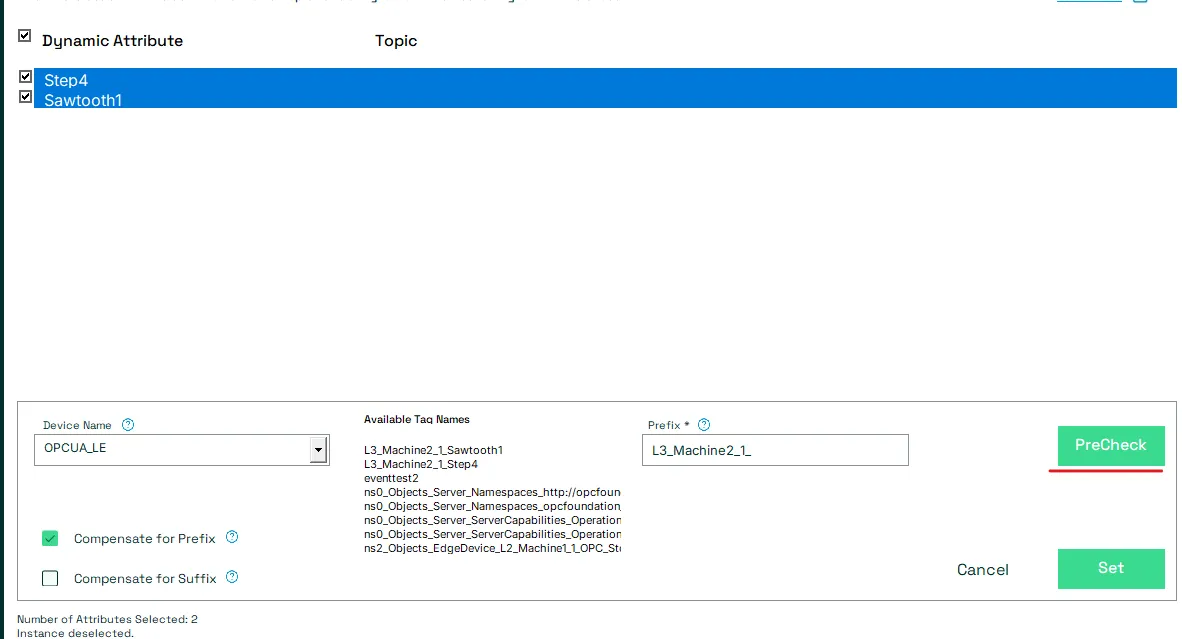
If the wizards does find a match between a Dynamic Attribute and a Tag, the Dynamic Attribute will stay selected.
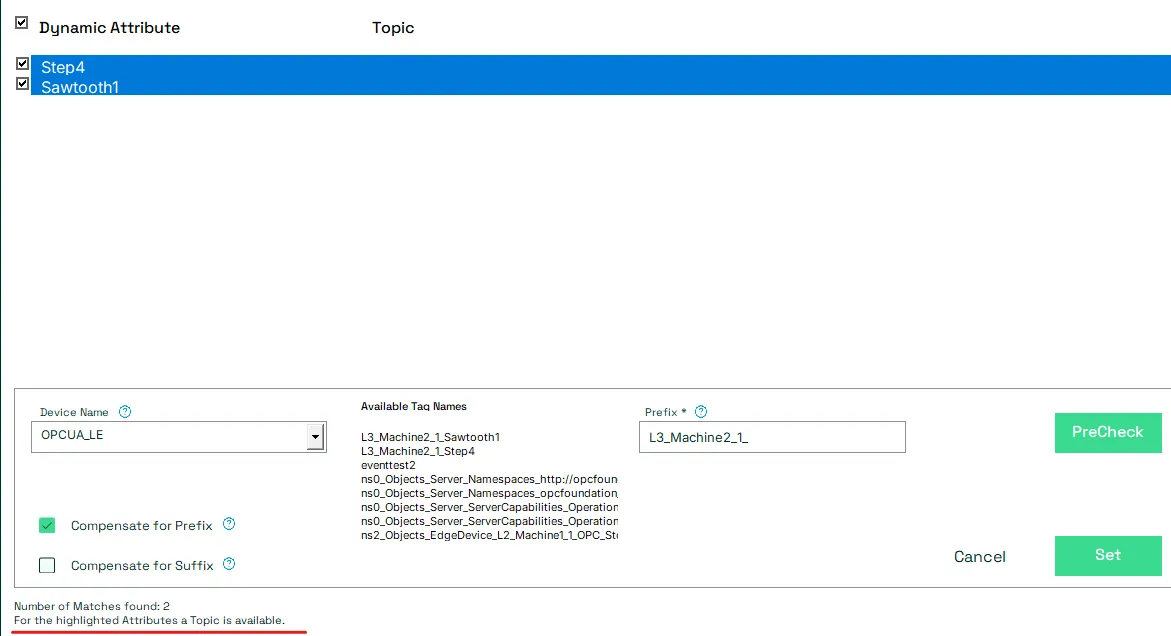
If the wizards does not find a match between a Dynamic Attribute and a Tag, the Dynamic Attribute will be unselected selected.
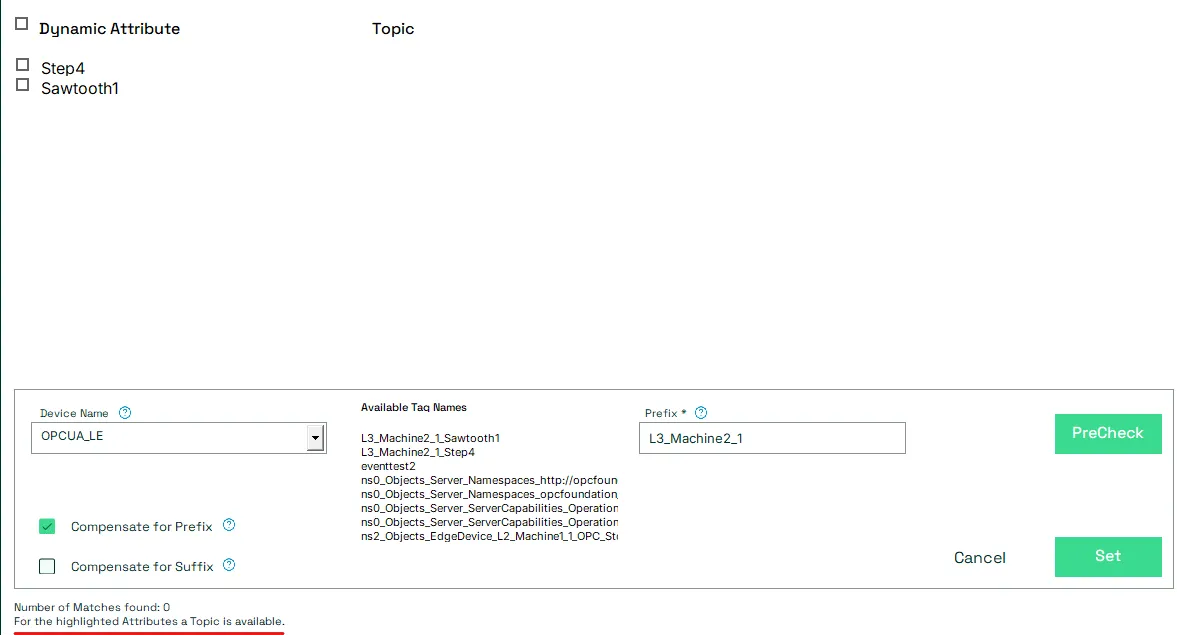
Set Topics in bulk
To set topics in bulk, press the Set button.
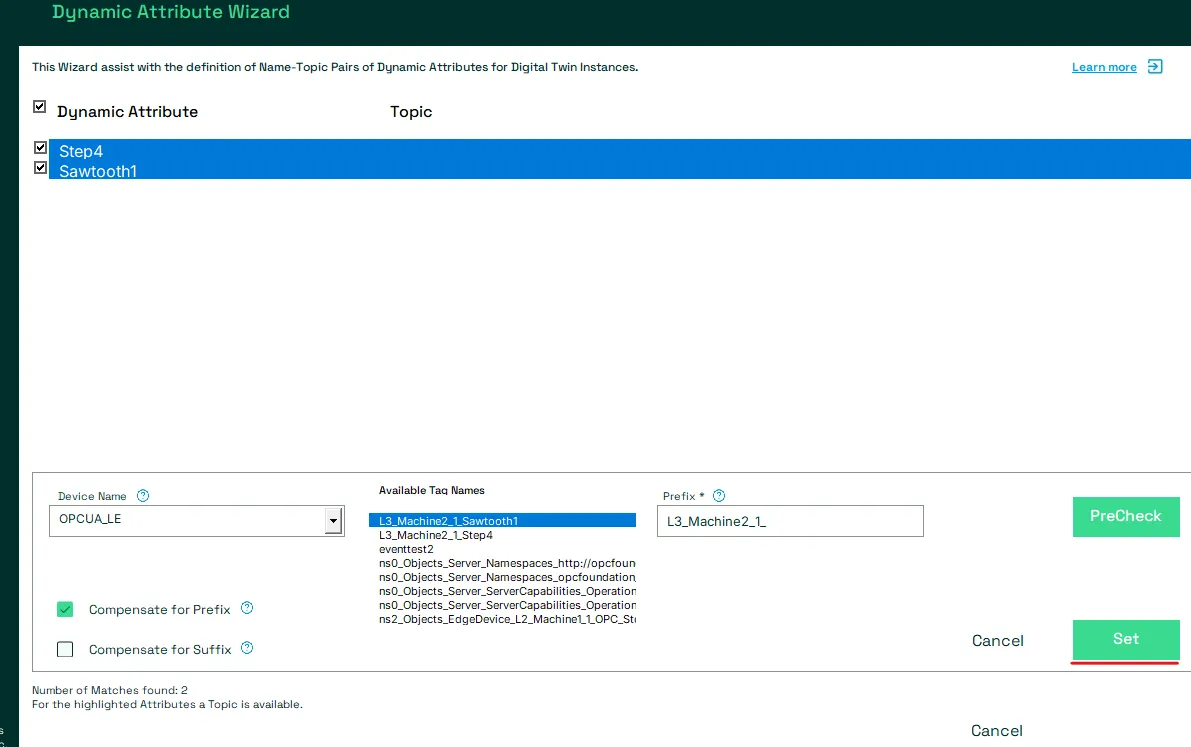
This will set the topics for all Dynamic Attributes which match a Tag for the Device using the Prefix and/or SUffix compensation.
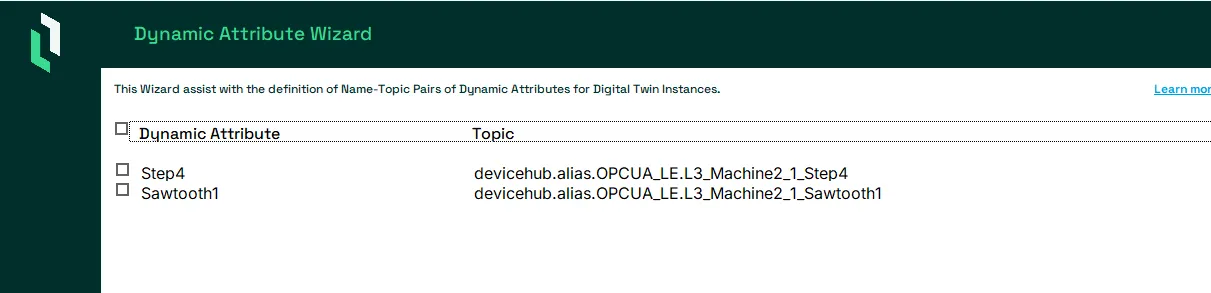
Save the Dynamic Attributes
To save all the defined Dynamic Attribute(s) as a new Dynamic Attribute JSON Object, press the Save button.
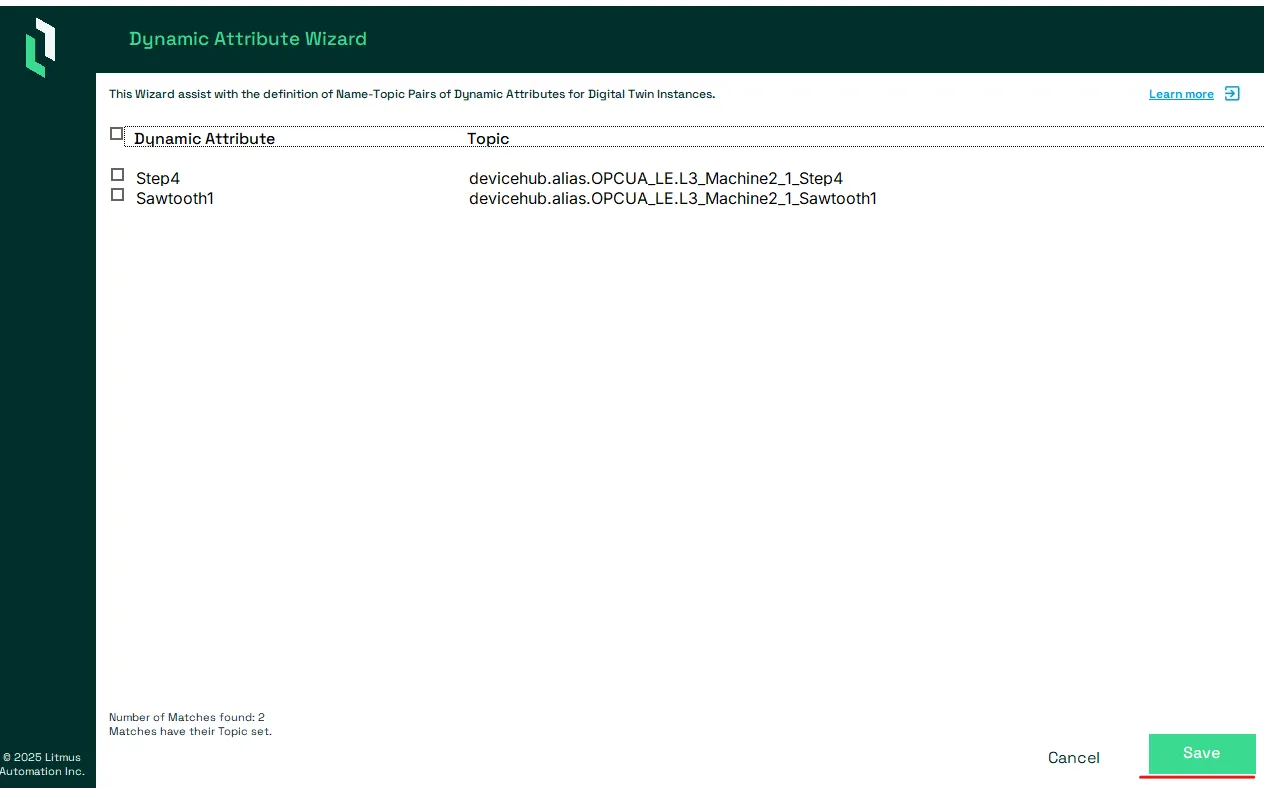
This will create the correctly formatted Dynamic Attribute JSON Object and store it in column Dynamic Attributes for the Instance.

Important: This will overwrite the current value in column Dynamic Attributes.
Cancel the Dynamic Attribute Wizard
If a user decides to not save the current Dynamic Attribute Wizard configuration, they can press the Cancel button.
Notes:
This will not overwrite the current value in column Dynamic Attributes.