File Browser
Overview
Provided capabilities
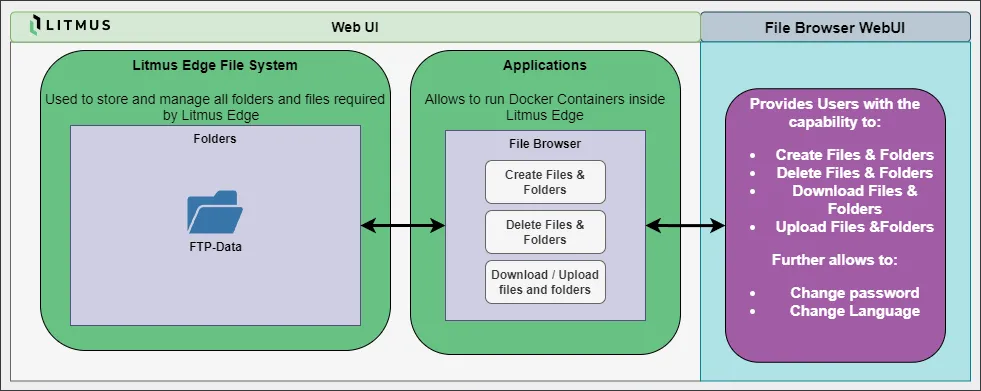
The File Browser solution allows litmus edge users to interact with the Litmus Edge core file system to provide additional management capabilities.
This does address some customer requests to have more options such as:
- be able to manage Litmus flows and its log files more directly
- be able to manage files in the FTP directory without the need to use an ftp client or enable the ftp server and make it more usable as a customer drive folder
- Be able to manage the space occupied by Litmus Edge update files
Currently the File Browser solution provides access to:
- FTP Data -> through the folder ftp-data
At this point, File Browser provides the user with the capability to:
- create files and folders
- delete files and folder
- download files
- upload files
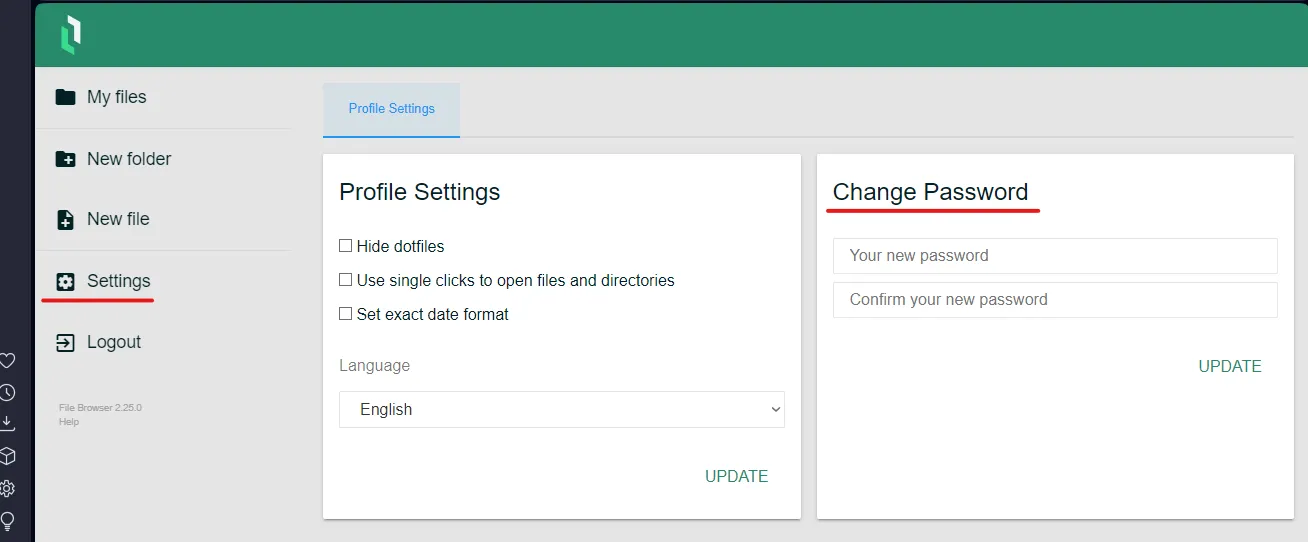
Further users can:
- change the password
- change the language
Requirements
A Litmus Edge Instance exists.
Running the application using the downloaded Tar File
- Download the, a tar.gz file from https://portal.litmus.io/accelerators/litmus-edge-file-browser
- Log in to your Litmus Edge, Navigate to Applications -> Images
- Click on Upload Image and upload the tar file there
- Navigate back to Applications -> Containers and enter the following command there:
After running the command, the container will be running.

The File Browser is now ready and can be accessed through its WebUI.
Logging into the File Browser
Open the web browser of your choice and enter into the address bar
<IP of your Litmus Edge>:41260
Example:
192.168.2.10:41260
The Login Page opens.
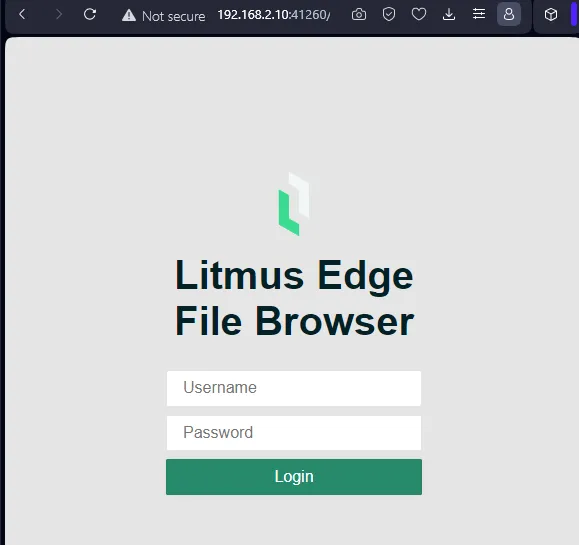
The initial Login is:
Username: litmusedge
Password: litmusedgefilebrowser
Note: The user can change the password after the initial login through the Settings.
The litmusedge user is able to:
- delete files
- create files
- Download files
The litmusedge user is not able to:
- Rename or Move directories and files
- Execute commands
- Share files
- Edit files