Prepare a new Tool File to manage Digital Twin Instance(s)
To manage Digital Twin Instance(s) with the Litmus Excel Add-ins with a new Tool file, you must prepare the Tool file first.
Before You Begin
- You know the IPv4 address of your Litmus Edge device.
Step 1: Navigate to Home Actions
Open a new Excel file with Litmus Excel Add-ins enabled. See Step 4: Verify Litmus Excel Add-in Activation in Excel to learn more.
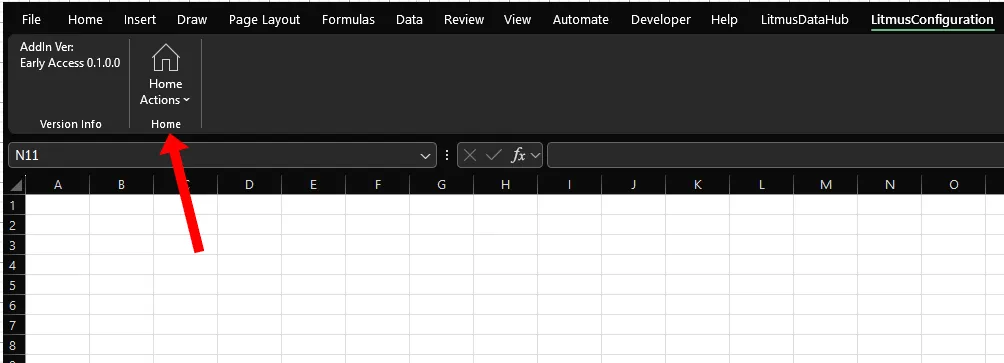
Expand Home Actions.
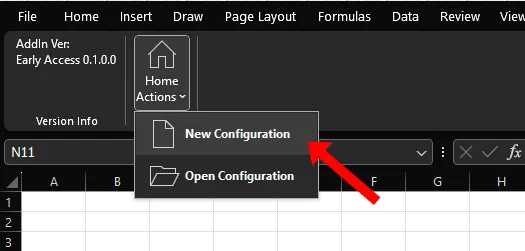
Click on New Configuration.
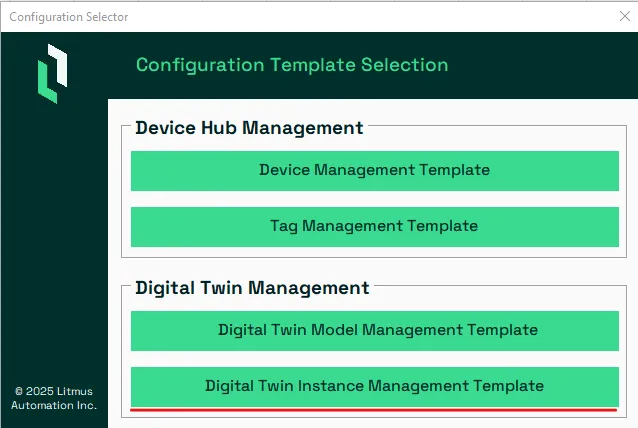
Click on Digital Twin Instance Management Template.
A new file will be created, based on the DT Instance Management Template, with a default name of "Litmus_Configuration_DTInstanceManagement_<User Name>_<Date>_<Time>.xlsm". Example: Litmus_Configuration_DTInstanceManagement_Jane Doe_08122025_132020.xlsm It is stored by default in your Documents Folder.
Step 2: Add IP and API Key for one Litmus Edge
The DT Instance Management Tool will inform the user if no Litmus Edge Device is defined. Acknowledge the message through a click on the OK button.
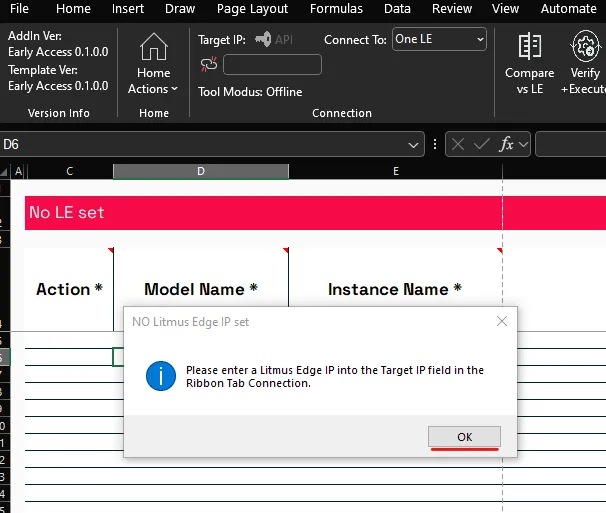
Enter the following details for the Connection:
- Connect To: One LE.
- Target IP: The IPv4 address of your Litmus Edge.
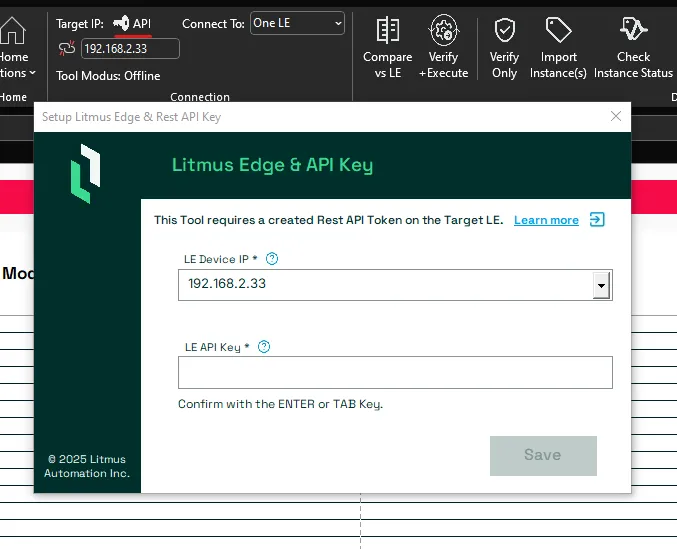
- The tool will prompt the User for the API key
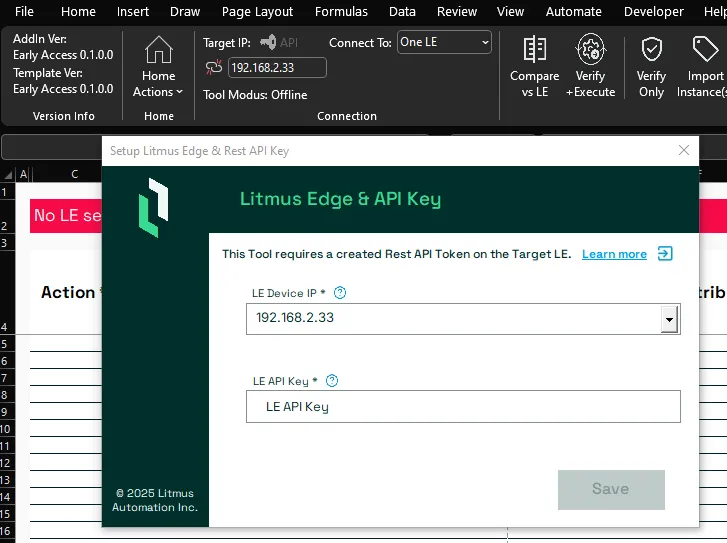
Provide the API Key from Litmus Edge. Press the ENTER key. And Click on the green Save button
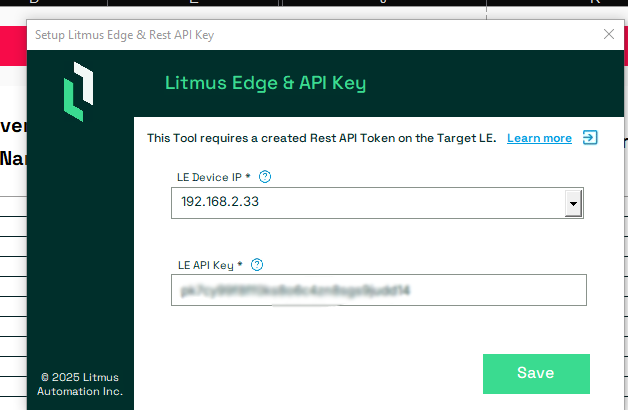
The tool will now verify if it can connect to the defined Litmus Edge.
Troubleshooting
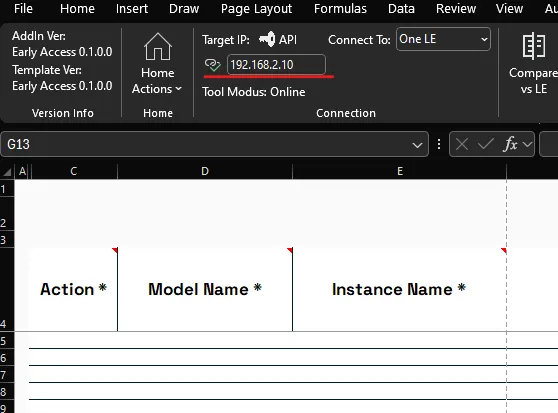
The system will attempt to establish a connection with the Litmus Edge. If successful, you will see the red banner disappear and the Icon next tot the IP address change.
If the connection fails: Example: No API Key provided
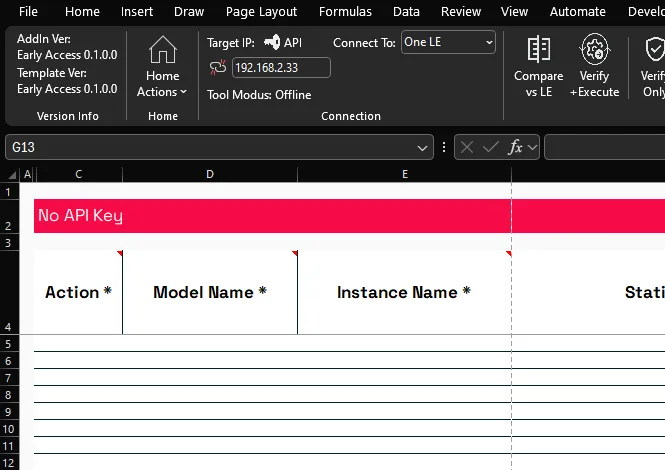
You want to:
- Verify the IPv4 address
- Confirm the API Key
- Confirm if all Services are in a running (green) state.
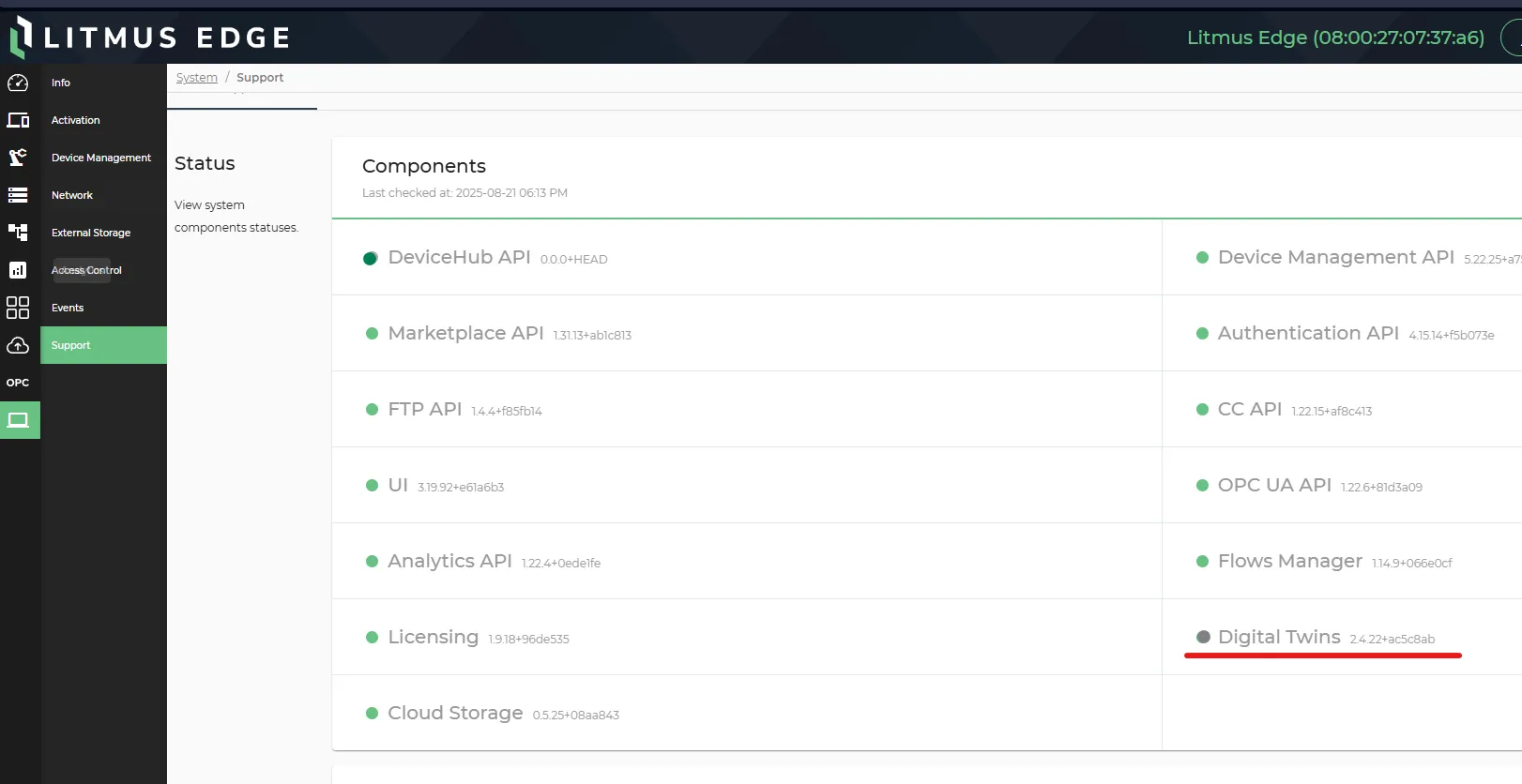
- Confirm if the Stats Service is not running correctly.
