Modify Tag(s) in DeviceHub for One Litmus Edge
To modify Tag(s) with Litmus Excel Add-ins, you should be familiar with how Tags work in DeviceHub on Litmus Edge.
Before You Begin
- You have installed the Litmus Excel Add-ins extension. See Install Litmus Excel Add-ins for details.
- You have prepared a Tool file.
- Tag(s) have been added to DeviceHub.
Initial Preparation
Open a new Tag Management Tool File in Excel.
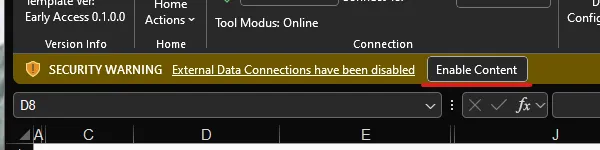
If prompted, Enable Content to allow the code to run.
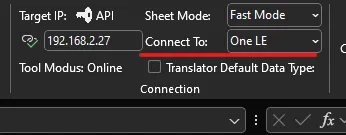
Make sure the the tool is set to One LE for the Connected To option.
Modify Tag(s)
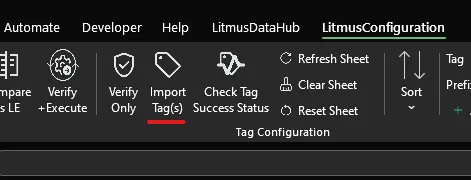
Import Tag(s)
Import the Tag Settings for tag(s) defined on Litmus Edge using the Import Tag(s) Wizard.
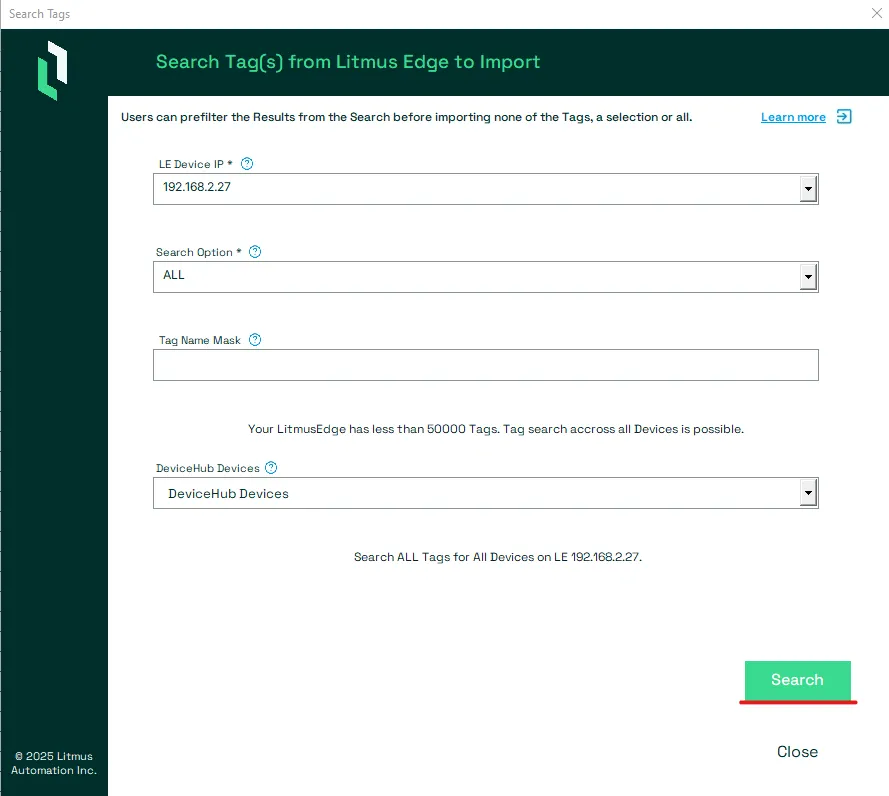
Users can set a filter to reduce the number of Tag(s) shown as selection to the user.
- Search Option: Select what type of filter is to be used
- Tag Name Mask: Set the filter to be applied. Will be ignored if Search Option is set to ALL
- DeviceHub Devices: Select if you want to tags only from a specific device.
Important: If more than 50000 tags are defined on the selected Litmus Edge, a user can only search for tags for one single DeviceHub device.
- The wizard will show what filter will be applied.
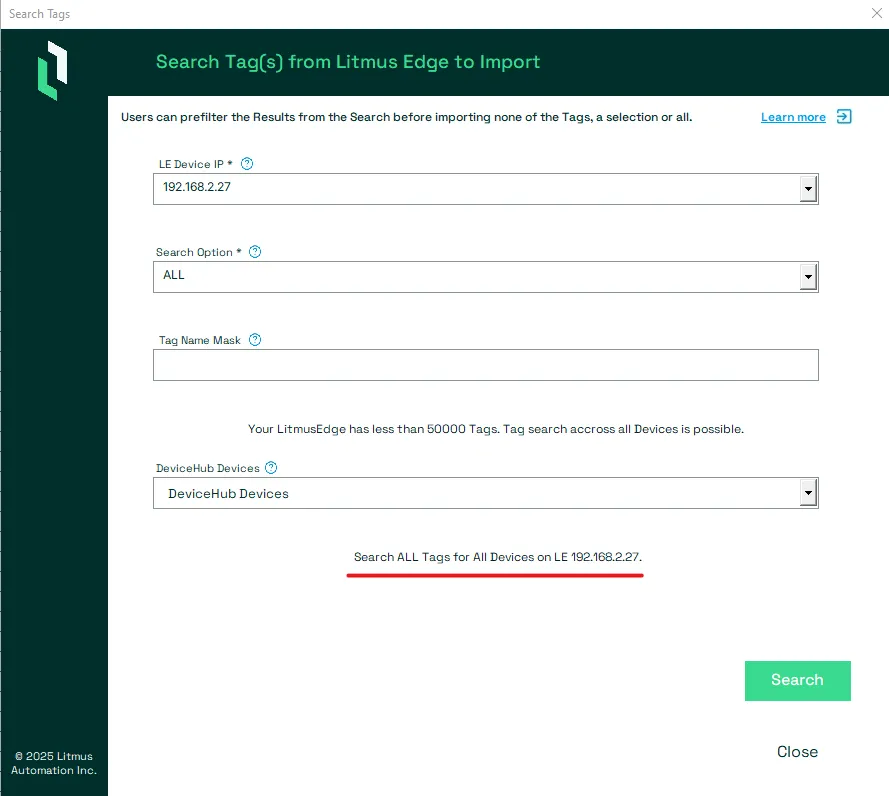
- Press the Search button to pull the filtered List of Tag(s) from Litmus Edge.
- The user will be shown the filtered List of Tag(s) matching their filter.
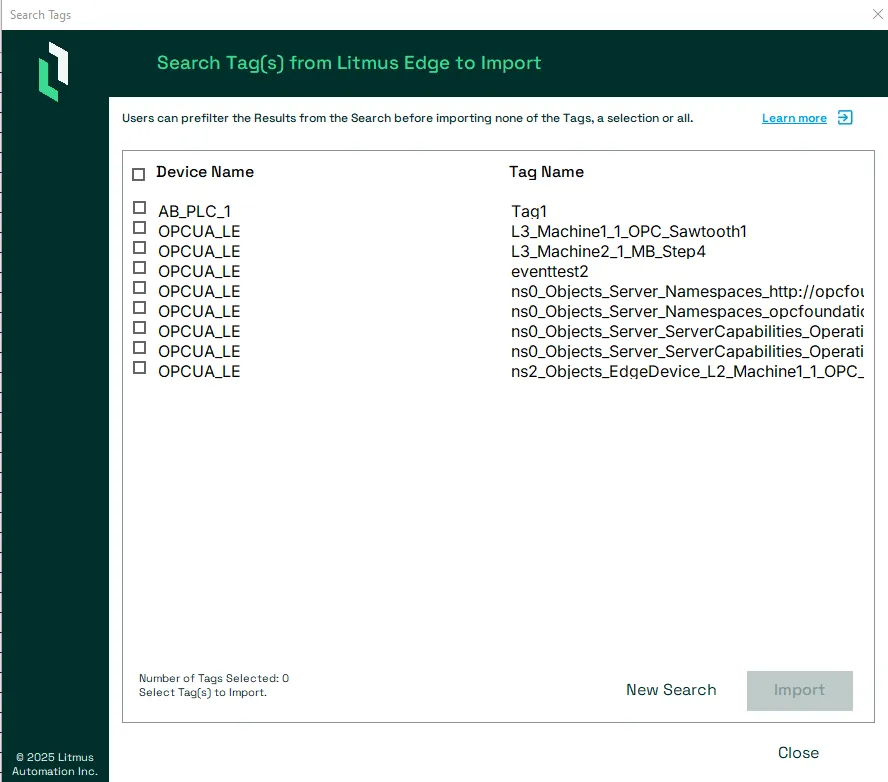
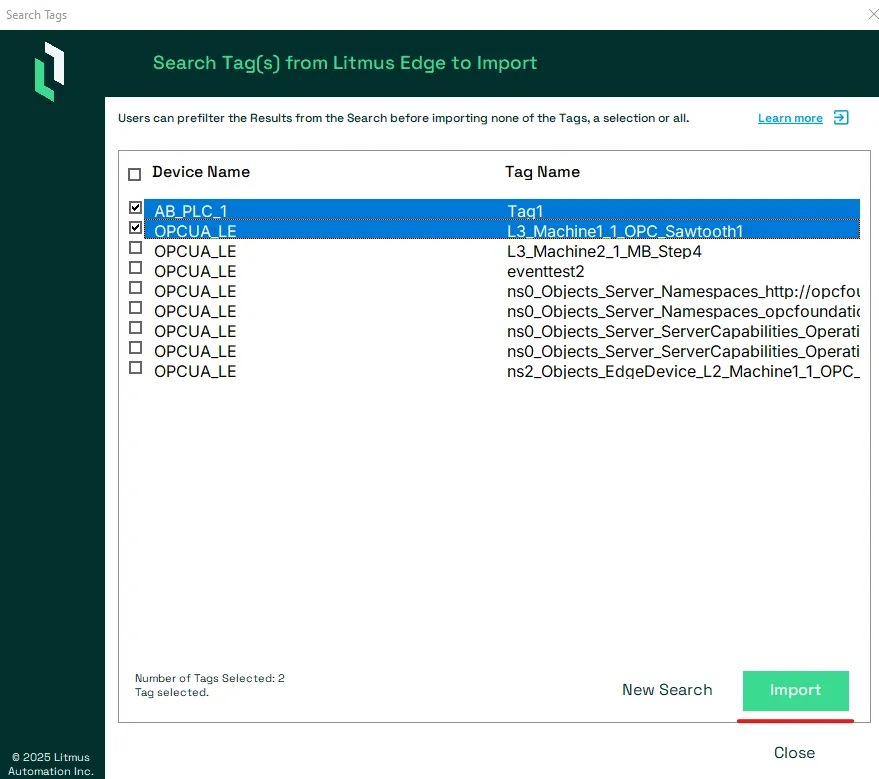
- Select the Tag(s) to import and press the Import button.
Notes:
Users can choose between:
- Press New Search to set another filter and search again if the list doesn't show the tag(s) the user wanted to import
- Select All Tag(s) using the Checkbox in the Header Row.
- Select a Group of Tag(s) by selecting their respective Check Box
- Select one Tag by selecting the respective Check Box
- Select No Tag and close the Wizard pressing the Close button instead.
- The selected tag(s) with their settings are imported into the sheet. Once finished, the user can either.
- perform another search using the New Search button
- finsih the import using the Close button
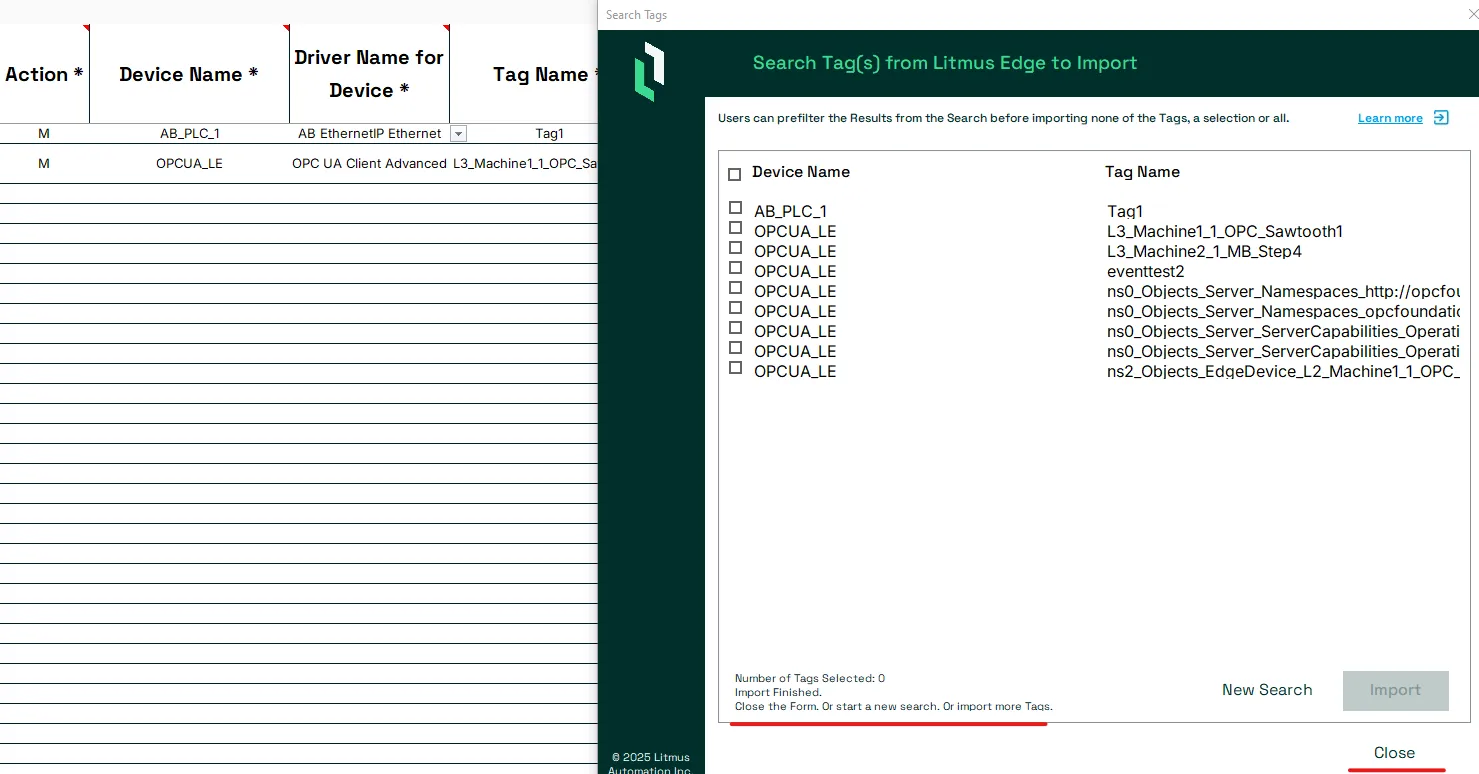
- The Action for each imported tag is set to M for modify.
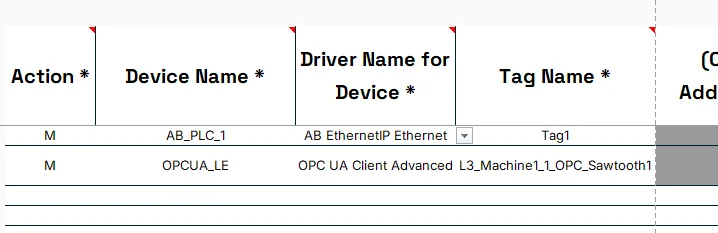
Mandatory Tag Settings
Users can modify these mandatory settings for a tag(s)
Tag Name: The Name of an existing Tag can be changed.
Important: This will change the topic for the Tag and will cause other services like Analytics, Integrations or Flows not be able to read the data
Tag Definition Properties are a mandatory set of Tag Settings, which are required for the request the data from a device.
Based on the driver, the Tag Definition Properties can be added using either the Tag Address Translator.
Most tags require a set of three values to define the Tag definition.
- Register Type: The type of the register used when the tag was setup on the device. This is driver specific.
- Tag Value Data Type: The value type of the tag. This is driver specific.
- Register Address / Path: The numeric register address of a tag on the device or the path string of the tag. This is driver specific.

The Tool will automatically modify potential Driver Specific settings with a default configuration for the Driver similar to how the UI on Litmus Edge prepopulates the Tag Wizard.

Notes:
For some drivers, tags can require different tag definition properties, which can lead to certain columns being grayed out as they do not apply.

To read data for these tags, users provide the respective settings through the Driver Specifics column.
Tag Address Translator
For some Drivers, the tool features a Tag Address Translator. Which can be used to provide the address in their typical format and translates it into the Tag Definition Properties used by Litmus.
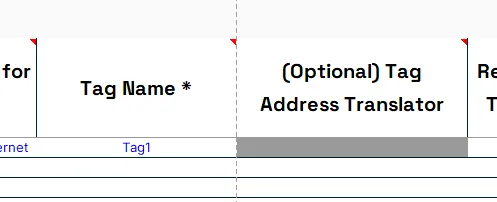
To be able to use the Tag Address Translator, the column (Optional) Tag Address Translator has to be not grayed out.
Tag Address Translator Not Available:
Tag Address Translator Available:
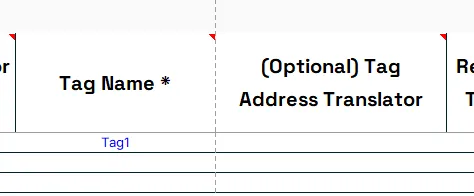
Type in the tag address in their typical driver specific format.
Example: Siemens S7 1500
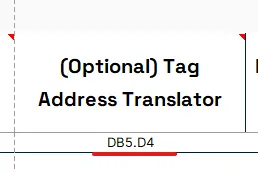
The Tag Address Translator will parse the provided address and set the respecitve three Tag Definition Properties and potential Driver Specifics.
Example: Siemens S7 1500

Notes:
It is possible that an address could be defined with one of multiple Tag Data Value Types.
Example: A Siemens Tag with and address like DBx.Dy. could be of Tag Data Value Type:
- dword -> default
- dint
- real
In these cases the Tag Address Translator will by default
request from the user to select the Tag Data Value Type.
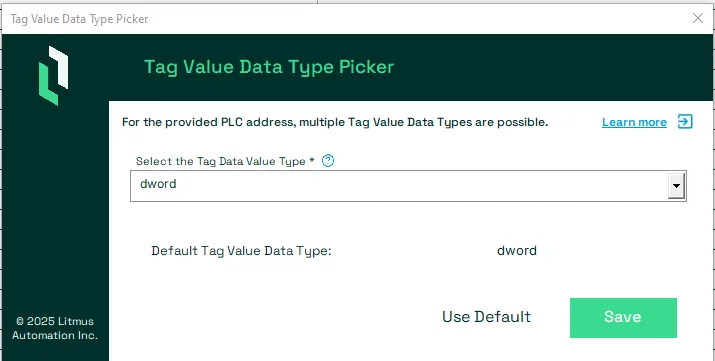
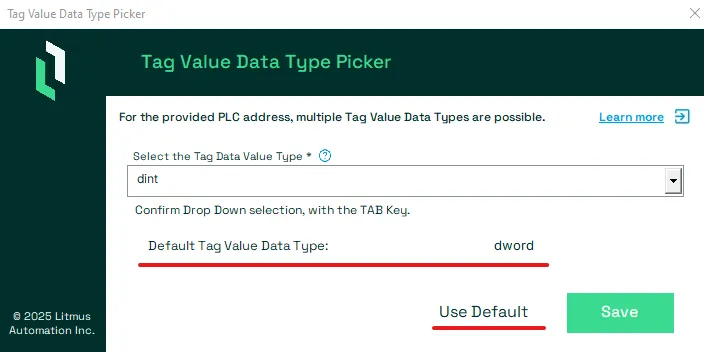
The Form shows the default Tag Data Type. Which you can accept without the need of selecting it using the Use Default button.
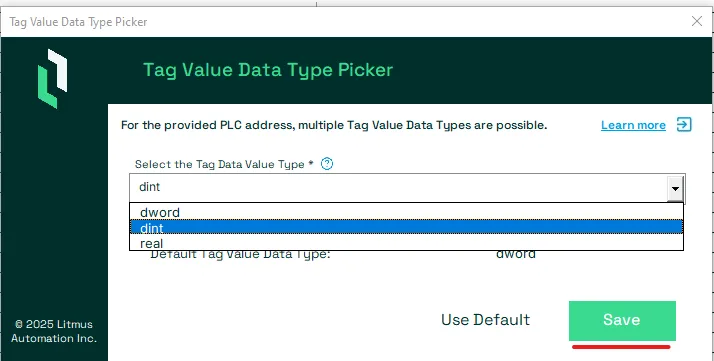
Otherwise select the Tag Value Data Type you need from the drop down and press the Save button.
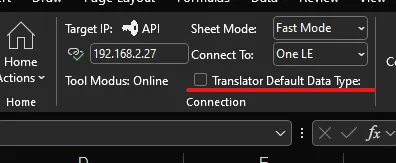
The user can also force the Tag Address Translator to always use the Default Tag Data Value Type.
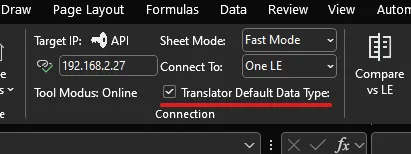
for devices with no RegisterID.

Not Mandatory Tag Settings
Based on your Sheet Mode setting,
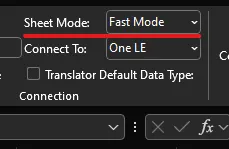
Modify any of the
or
as needed.
Not Mandatory Tag Settings in Fast Mode
Each Device has a number of not mandatory Settings which can be used to meeat specific needs.
- Polling Interval in Seconds: The time between the Litmus Edge requesting data from the device. For millisecond values, provide the value as decimal.
- Driver Specifics: Many drivers require very unique Tag definition Properties specific to their make and model. This column combines all of these as a single JSON Object with a default configuration. It is recommended to use the Driver Specific Wizard when setting your specific values for these Driver Specific settings.
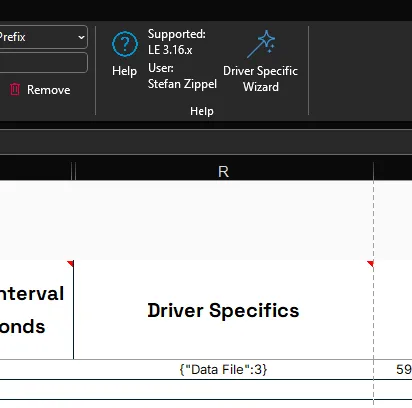
Not Mandatory Tag Settings in Extended Mode
Each Tag has a number of not mandatory Settings which can be used to meet specific needs.
- Tag Description: A short description of the tag.
- Polling Interval in Seconds: The time between the Litmus Edge requesting data from the device. For millisecond values, provide the value as decimal.
- Count: The number of consecutive registers including the one defined for this tag. If the value is larger 1, the returned data will be an array.
- Publish on COV only: Only publish a new value to the message broker if the value changes.
- Tag Formula: Enter a formula for the tag to process the generated data. See Tag Formula Variables to learn more.
- Meta Data: Provide a JSON Object which holds all the Meta Data you want to add to the Tag. See Organize Device and Tag Data by Using Metadata to learn more. It is recommended to use the Meta Data Wizard.
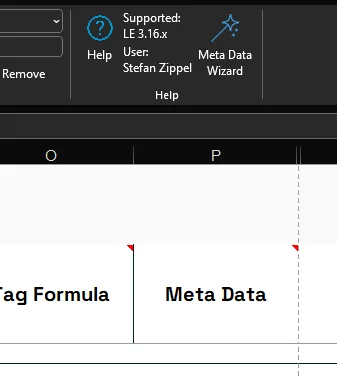
- Driver Specifics: Many drivers require very unique Tag definition Properties specific to their make and model. This column combines all of these as a single JSON Object with a default configuration. It is recommended to use the Driver Specific Wizard when setting your specific values for these Driver Specific settings.
Notes:
You can repeat modifying mandatory and not mandatory tag settings
for every tag you need to modify before Executing Actions.
Executing Actions
When all mandatory and sheet mode dependend not mandatory settings for all tag(s) are set they are ready to be modified.
It is Recommended but not mandatory to verify the configuration first without executing the Action by pressing the Verify Only button.
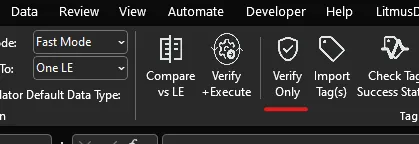
This will check that all required Tag Settings are provided and logically correct. And provide any finding to the user. Example: Below the user did not set a Register Address / Path.
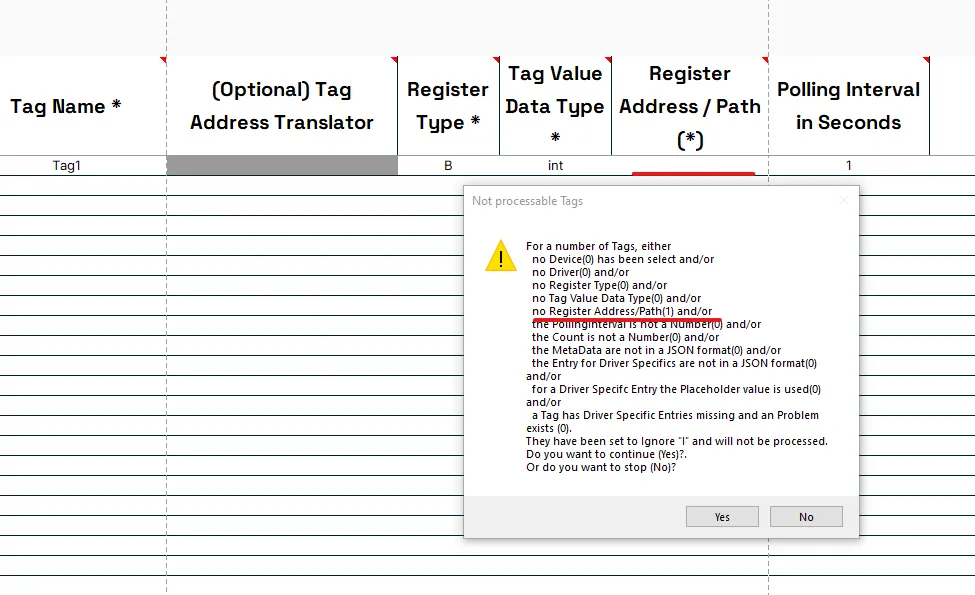
Important: The tool can not verify if all provided tag settings are factually correct. For example it can not verify that the register address provided for the tag is the correct register address on the PLC.
The Tag(s) can be modified on Litmus Edge by pressing the Verify + Execute button.
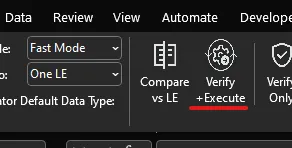
This will check that all required Tag Settings are provided and logically correct. And provide any finding to the user. If no issues have been identified, the tool will verify that the user wants to execute ALL the actions from the Action Column:
- A: Add Tag(s)
- M: Modify Tag(s)
- D: Delete Tag(s)
- I: Ignore Tag(s) -> do nothing
To perform all actions, press the Yes button.
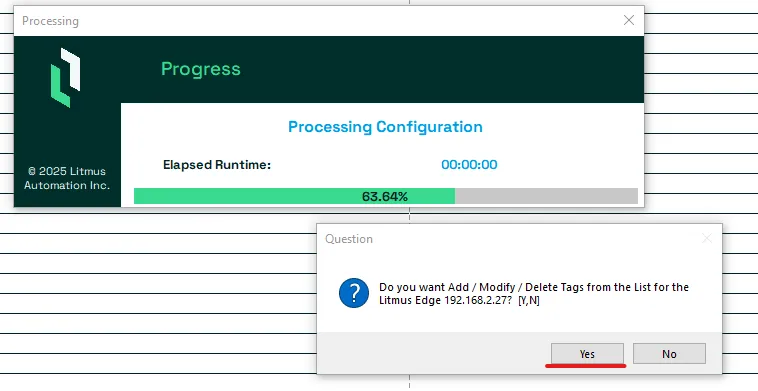
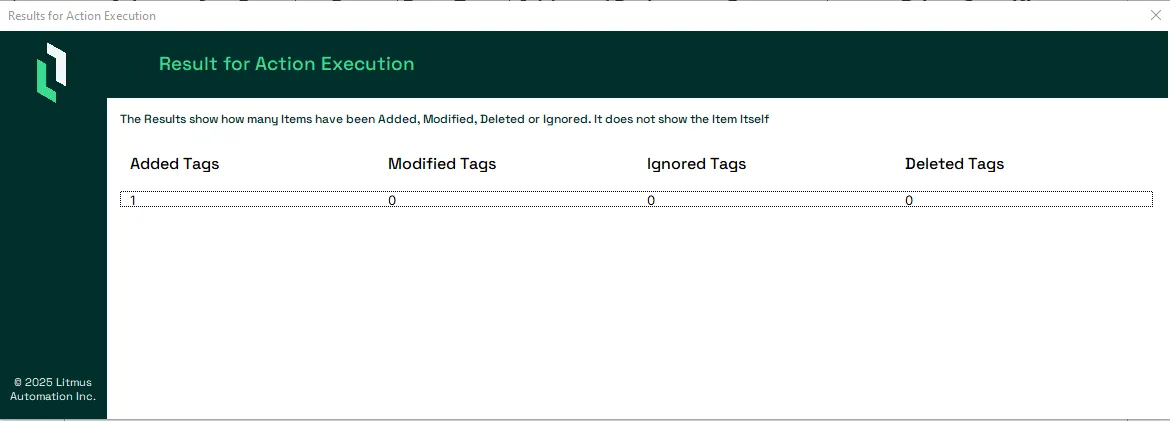
The Tool will perform ALL Actions. When finished, a result Summary is shown. Close the Result Summary by pressing the X close button.
The tool will ask if the user wants to re-compare the Tag(s) against Litmus Edge. To re-compare, press the Yes button. To not re-compare, press the No button.
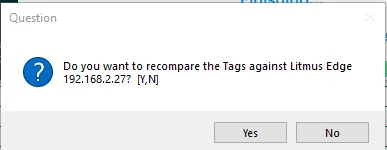
If the User selected to press the Yes button from aboves messagebox, the tool will pull all the tag settings from Litmus Edge again including the RegisterID and also change the Action to M for each Tag with a RegisterID or A for devices with no RegisterID.
Troubleshooting
The Tool will perform several checks throughout the proces of defining the tag settings. If they do not pass successfully, the user will be notified. The checks include:
- Tag Name uniqueness on a Device level.
- The tool checks if a Tag Name already exist for a specific device in the Tool.
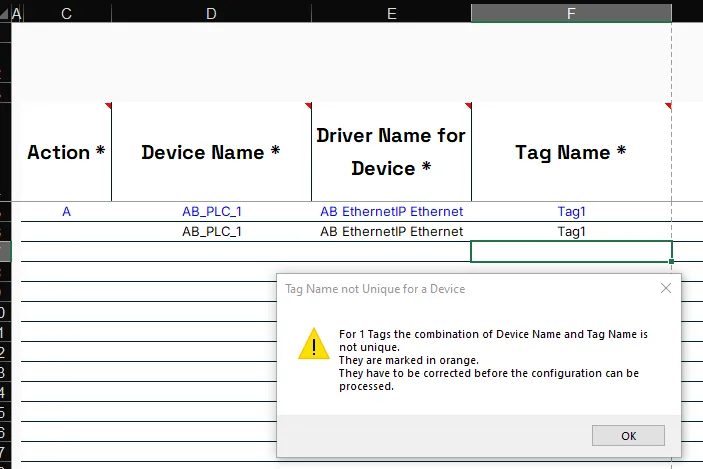
- Allowed and not allowed Ascii Characters for Tag Names and Descriptions
- The user is shown a message box as notification.
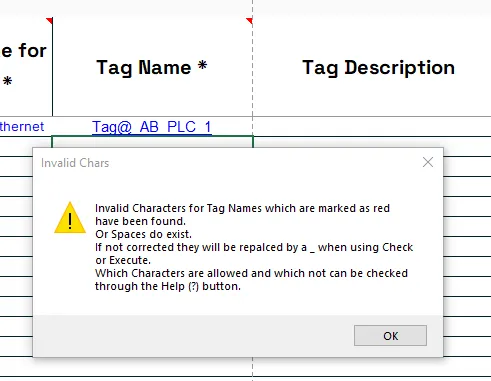
- The character(s) are highlighted in red and also shown in a note.
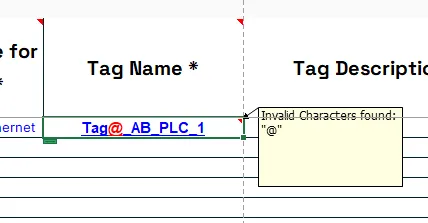
- See Allowed and not allowed Ascii Characters for Names and Descriptions for a full list for both Names and Descriptions.
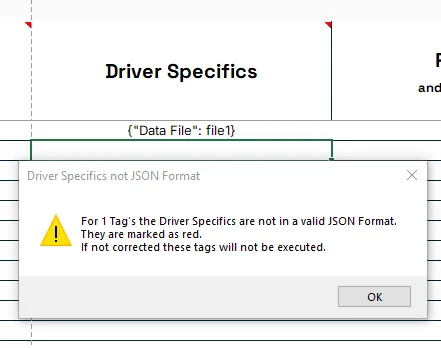
- Correct JSON formating for Meta Data, and Driver Specifics.
- Example for an invalid JSON formatting of the Driver Specifics
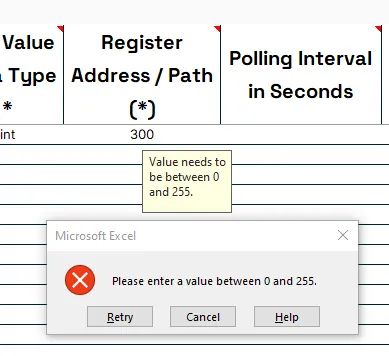
- Valid entry for Register Address / Path, if value has to be a number, to be a number and withhin allowed range
- Example for an invalid entry for the Register Address / Path
- Is the column Driver Specifics empty. If they are, and the driver requires driver specifics the default JSON Object will be automaticly added.
- For some drivers the tool also verifies if there exist mandatory JSON Key-Value pairs in column Driver Specifics with a value being:
- empty
- null
- empty array "[]"
- empty JSON Object "{}"
- For drivers which use queries to read data from databases the tool also verifies the query defined in the column Driver Specifics is setup to perform SQL Injection.